Adaptive Data Rate (ADR)
Overview
Adaptive Data Rate (ADR) lets TEKTELIC KONA Core Network Server tune each LoRaWAN® device's data rate and transmit power to its radio link. A device close to a gateway then sends faster and with less power, so it uses less airtime and less battery. ADR is enabled by default, and we recommend keeping it enabled for devices that don't move.
How it works
What ADR changes
A LoRa® device can send at several data rates. A low data rate reaches farther, but each uplink stays on the air longer. A high data rate sends the same payload in a fraction of the time, but needs a stronger signal. The available data rates depend on the frequency plan.
Without ADR, a device usually stays at a low, safe data rate and at full power. That wastes airtime and battery when the device is close to a gateway. With ADR, the network server measures the link and asks the device to change three values:
| Value | Effect of the change |
|---|---|
| Data rate | A higher data rate shortens the time on air of each uplink. |
| Transmit power | Lower power saves battery and causes less interference with other devices. |
| Number of transmissions (NbTrans) | How many times the device sends each uplink. More repetitions make an uplink more likely to arrive, at the cost of more airtime. |
Shorter uplinks also leave more room on the channel for other devices, so a dense network carries more traffic.
How ADR works in LoRaWAN
The LoRaWAN specification defines ADR as a loop between the device and the network server:
- The device sets the ADR flag in its uplinks. The flag tells the network that the device accepts ADR commands.
- The network server records the signal quality of the device's recent uplinks, as reported by the gateways that received them.
- The network server compares that signal quality with what the current data rate needs. The difference is the link margin.
- If the margin allows it, the network server sends the device a LinkADRReq MAC command in a downlink. The command holds the new data rate, transmit power and NbTrans.
- The device applies the new values and confirms them with a LinkADRAns MAC command.
In LoRaWAN, the device also protects itself. If it receives no downlink for a long time, it asks the network to respond. If the network still doesn't respond, the device lowers its data rate step by step until it reaches the network again. This keeps a device from being stuck at a data rate the network can't hear.
ADR works on the uplink. It doesn't change the data rates of the receive windows that the device uses for downlinks. Those are set by RX1 data-rate offset and RX2 data-rate, see Network Settings.
How KONA Core decides
ADR is on when Enable ADR is selected, on the device or in its application's settings. The UI hint describes the setting: ADR lets the network server ask the device to change its data rate or transmit power. It does so when a better data rate or a lower transmit power is possible.
KONA Core takes the installation margin, the Installation margin (dB) field, into account when it calculates the ideal data rate and transmit power. The installation margin is a safety reserve on top of what the data rate needs:
- A higher margin keeps the device at a lower data rate. Uplinks are more robust, but use more airtime.
- A lower margin moves the device to a higher data rate. Uplinks are shorter, but more of them may be lost.
The configured default of Installation margin (dB) is 0. The field hint recommends 5 dB as a reserve. We recommend keeping the configured defaults unless the device or deployment needs different settings.
A device's Device details tab shows a Margin value. The protocol's DevStatusAns margin describes reception at the device, in dB. It is separate from the installation margin you configure for ADR. See Device status values.
ADR settings
You find the ADR settings on the Advanced network settings tab, in the ADR section. The tab exists for an application and for each device:
- Application: the settings apply to every device of the application that uses them.
- Device: on the device's Device details tab, Use application settings decides which settings apply. When it is selected, the device uses the application's settings. When it is cleared, the device uses its own settings. In the Add Device dialog, it is cleared by default.
We recommend setting ADR once on the application and selecting Use application settings on its devices. The UI hint also advises clearing it only when the device needs device-specific settings.
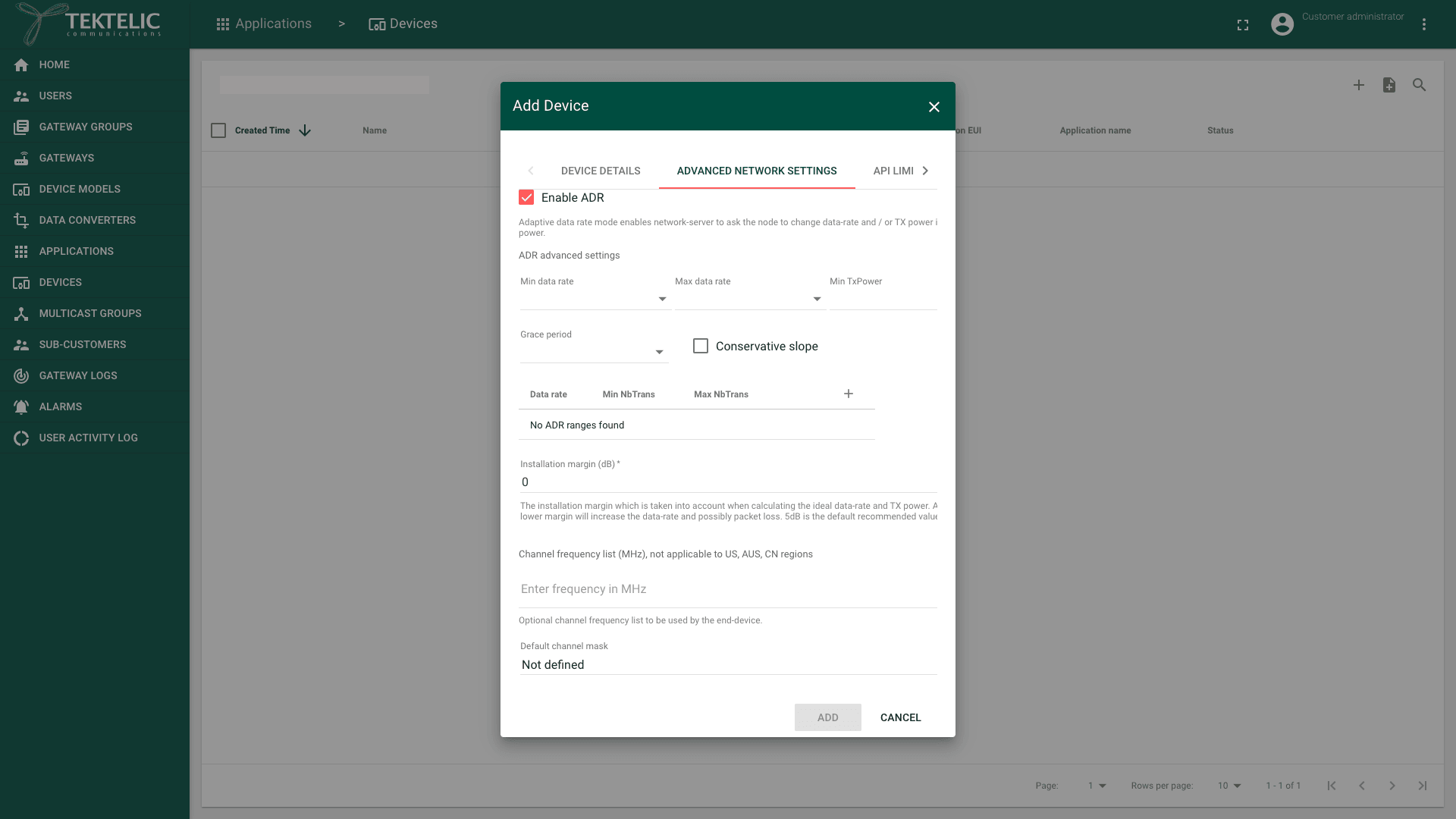
| Setting | What it does | Values in the UI | Default |
|---|---|---|---|
| Enable ADR | Turns ADR on or off. | Selected or cleared | Selected |
| Min data rate | The lowest data rate ADR can set. | Empty, DR0 to DR16 | Empty: the lowest uplink data rate permitted by the device's frequency plan. |
| Max data rate | The highest data rate ADR can set. | Empty, DR0 to DR16 | Empty: the highest uplink data rate permitted by the device's frequency plan. |
| Min TxPower | The lowest transmit-power index ADR can set. | Empty, 0 (Max Power), 1 to 10 | Empty: the lowest index permitted by the device's frequency plan. |
| Max TxPower | The highest transmit-power index ADR can set. | Empty, 0 (Max Power), 1 to 10 | Empty: the highest index permitted by the device's frequency plan. |
| Grace period | The number of uplinks KONA Core collects before sending the first LinkADRReq downlink. | Empty, 1 to 20 | Empty |
| Conservative slope | Requires more average SNR before ADR raises the data rate. | Selected or cleared | Cleared |
| Data rate, Min NbTrans, Max NbTrans | A table of ranges: for each data rate, the lowest and highest number of transmissions ADR can set. | One row per data rate; Min NbTrans and Max NbTrans from 1 to 3 | No ranges (No ADR ranges found): KONA Core uses its built-in ADR defaults. |
| Installation margin (dB) | The safety reserve described above. Required. | 0 or more | 0. See How KONA Core decides. |
In LoRaWAN, TxPower is an index, not a value in dBm. Index 0 is the maximum power of the frequency plan, and each higher index lowers the power. The UI labels index 0 0 (Max Power).
When a data rate has no NbTrans range, KONA Core uses its built-in ADR defaults for that data rate. The same applies when the entire table is empty.
The defaults are the values the live NS shows for an application and for a new device. Keep the limits empty unless you have a reason to restrict ADR. For example, set Max data rate to keep a device at more robust data rates.
Valid data rates and TxPower indices depend on the device's frequency plan. KONA Core ignores ADR limits outside the values permitted by that plan.
For the other settings on the same tab, such as the receive windows and channels, see Network Settings. To read or change the settings from your own system, use Get network settings and Save network settings.
When to disable ADR
ADR assumes that the link of the device stays about the same between uplinks. Disable ADR, or limit it, when that isn't true:
- Moving devices, such as asset trackers on vehicles. A tracker can move from near a gateway to the edge of coverage between two uplinks. With ADR, it may still send at the high data rate set near the gateway. Its uplinks are then lost until it lowers the data rate itself.
- Devices whose link changes often, for example because doors open and close or vehicles pass by.
- Devices that send very rarely. ADR needs several uplinks to measure the link, so it adapts slowly.
For these devices, clear Enable ADR on the device, or on an application that holds only such devices. Then set the data rate on the device itself, as its user guide describes. If you prefer to keep ADR, raise the Installation margin (dB) or set a Max data rate, so ADR keeps a larger reserve.
For devices that don't move, such as most sensors, keep ADR enabled. We recommend testing ADR changes on one test device before you apply them to an application.