Network Settings
Overview
Network settings decide how TEKTELIC KONA Core Network Server talks to your LoRaWAN® devices: receive windows, ADR, channels, Class B and dwell time. You set them once per application, and a device can override them when it needs its own values. We recommend keeping the values KONA Core shows, unless the device's documentation asks for others.
How it works
Where you set network settings
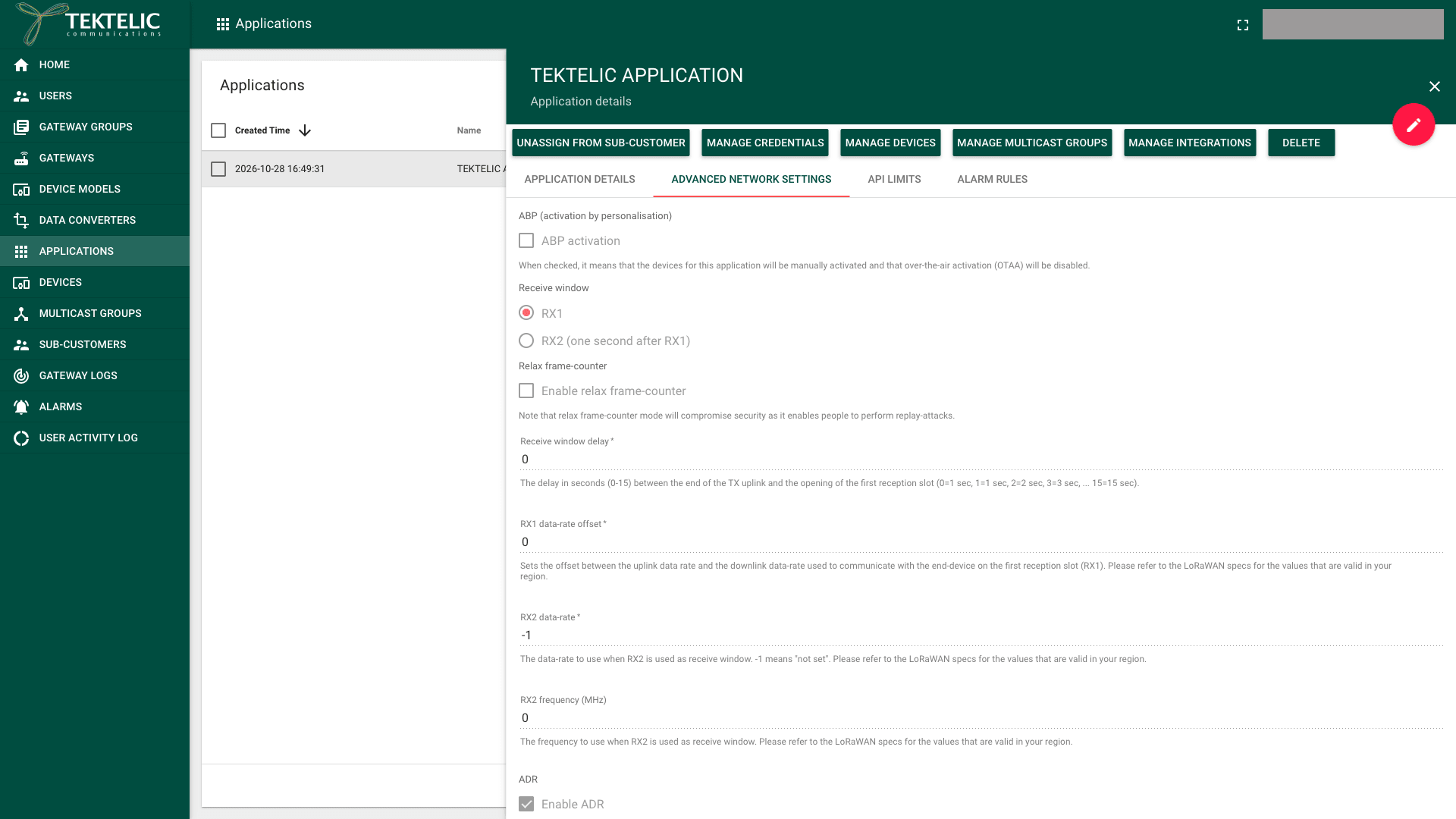
KONA Core keeps network settings on three entities. Each one has an Advanced network settings tab in its details panel.
| Entity | Where | What it controls |
|---|---|---|
| Application | Applications > your application > Advanced network settings | The settings of every device in the application that uses the application settings. This tab also has ABP activation. |
| Device | Devices > your device > Advanced network settings | The settings of this device only, when Use application settings is cleared on the Device details tab. |
| Multicast group | Multicast Groups > your group > Advanced network settings | The receive window of the group's downlinks: RXC data-rate and RXC frequency (MHz). See Multicast Groups. |
When Use application settings is selected, the device uses the settings of its application. In the Add Device dialog, it is cleared by default. We recommend selecting it, and clearing it only for a device that needs its own settings.
A device model holds no network settings. It sets only the Device class, with the Manufacturer, Name, Type and Description. See Manage Device Models.
To change the settings, open the tab and select Edit mode (the pencil icon). Then change the values and select Apply. For the steps, see Manage Applications. A Sub-Customer administrator can create, edit and delete applications and devices, and change the network settings of an application assigned to it.
To read or change the settings from your own system, use Get network settings and Save network settings.
The settings and their values
The tables list every setting on the Advanced network settings tab, in the order of the UI. Value seen shows the default value of a new application on the EU hosted service. A new device in the Add Device dialog shows the same values, except an empty RX2 frequency (MHz) and a selected TxParamSetupReq configuration.
Many valid values depend on the frequency plan. The UI asks you to check the LoRaWAN specifications for your region, the Regional Parameters. See Regions & Frequency Plans.
Receive windows
In LoRaWAN, after each uplink, a Class A device opens two short receive windows for a downlink: RX1 and RX2.
| Setting | What it does | Range | Value seen |
|---|---|---|---|
| Receive window | The window KONA Core uses for downlinks: RX1 or RX2 (one second after RX1). | RX1, RX2 (one second after RX1) | RX1 |
| Receive window delay | The delay between the end of the uplink and the opening of RX1, in seconds. 0 and 1 both mean 1 second. | 0 to 15 | 0 (1 second) |
| RX1 data-rate offset | The offset between the uplink data rate and the downlink data rate in RX1. | 0 or more, valid values depend on the frequency plan | 0 |
| RX2 data-rate | The data rate in RX2. -1 means "not set". | -1 or more, valid values depend on the frequency plan | -1 |
| RX2 frequency (MHz) | The frequency in RX2. | 0 to 1670 MHz | 0 |
When RX2 data-rate is -1 and RX2 frequency (MHz) is 0, KONA Core uses the RX2 defaults of the device’s frequency plan. The LoRaWAN Regional Parameters define these regional defaults.
For how downlinks use these windows, see Uplink & Downlink Data Flow.
Frame counter and downlink queue
| Setting | What it does | Value seen |
|---|---|---|
| Enable relax frame-counter | Accepts an uplink with a lower frame counter after a device restart, provided its MIC is valid. The UI warns that this mode lets people perform replay attacks. | Cleared |
| Clear downlink queue upon join | Removes all pending downlinks when the device joins again. | Cleared |
For frame counters, see Device Session & Frame Counters. For ABP activation, see Device Activation & Classes.
ADR
The ADR section holds Enable ADR, the ADR limits, the NbTrans ranges and Installation margin (dB). By default, Enable ADR is selected, the limits are empty and Installation margin (dB) is 0. Keep the configured defaults unless the device or deployment needs different settings.
For every ADR setting, its values and when to disable ADR, see Adaptive Data Rate (ADR).
Channels
| Setting | What it does | Range | Value seen |
|---|---|---|---|
| Channel frequency list (MHz) | An optional list of channel frequencies for the device. The UI marks it as not applicable to US, AUS and CN regions. | A list of frequencies | 867.1, 867.3, 867.5, 867.7, 867.9 |
| Default channel mask | The channel mask: the channels the device may use. | Not defined, 64-channel, 8-channel, Custom channel mask | Not defined |
| NewChannelReq MAC command settings | A channel to add to the device with a MAC command: Index, Frequency in MHz, Min data rate, Max data rate. | Index 0 to 15, frequency 0 to 1670 MHz, DR0 to DR16 | 0, 0, DR0, DR0 |
Enter the Channel frequency list (MHz) manually when your devices need a specific channel list. Match it to the channels your gateways listen on.
Class B settings
These settings are on the tab of an application and of a device. In LoRaWAN, a Class B device times its ping slots by the beacon that gateways send.
| Setting | Range | Value seen |
|---|---|---|
| Beacon frequency in MHz | 0 to 1670 MHz | 0 |
| Ping slot data rate | DR0 to DR16 | DR0 |
| Ping slot frequency in MHz | 0 to 1670 MHz | 0 |
Dwell time and EIRP
The UI hint says TxParamSetupReq configuration is supported only in the AS923 and AU915 regions. When you select it, you set:
| Setting | Values | Value seen |
|---|---|---|
| Downlink dwell time | Restricted, Allowed | Not set |
| Uplink dwell time | Restricted, Allowed | Not set |
| Maximum EIRP | The maximum EIRP, in dBm: 8, 10, 12, 13, 14, 16, 18, 20, 21, 24, 26, 27, 29, 30, 33 or 36. | Not set |
The Maximum EIRP values follow the TxParamSetupReq encoding in section 5.9 of the LoRaWAN L2 specification. Choose a value allowed by your frequency plan and local regulations.
When a dwell time is Restricted, DR0 and DR1 aren't available.
You are responsible for compliance with local radio regulations, including duty cycle and dwell time.
Recommended values and risks
The device and KONA Core must agree on every radio setting. A device learns some of them at join, and others are fixed in its firmware. A wrong value can break the link without an error message: the device misses its downlinks.
| Setting | We recommend | Risk of changing it |
|---|---|---|
| Receive window, Receive window delay | Keep RX1 and the value seen. Change them only if the device's documentation asks for it. | A device that listens at a different time misses every downlink, including the join answer. |
| RX1 data-rate offset, RX2 data-rate, RX2 frequency (MHz) | Keep the values seen, unless the device's documentation or your frequency plan asks for others. | A value that isn't valid in your frequency plan stops downlinks in that window. |
| Enable relax frame-counter | Keep it cleared. Enable it only for a device that resets its frame counter and can't be fixed. | Anyone who records an uplink can send it again, and KONA Core accepts it. |
| Clear downlink queue upon join | Enable it if old commands must not reach a device after it rejoins. | Pending downlinks are lost at each join. |
| Enable ADR | Keep it selected for devices that don't move. | Without ADR, a static device may use more airtime and battery than it needs. See Adaptive Data Rate (ADR). |
| Channel frequency list (MHz), Default channel mask | Match the channels your gateways listen on. | A device that sends on channels your gateways don't listen on loses those uplinks. |
| TxParamSetupReq configuration | Use it only in AS923 and AU915, as your local regulations require. | DR0 and DR1 become unavailable when a dwell time is Restricted. |
Test a change on one device first. Clear Use application settings on a test device, change its settings and watch its uplinks and downlinks. When it works, apply the change to the application.