Accounts & Trial Access
Overview
Get access to TEKTELIC KONA Core Network Server, sign in for the first time and reach the main page. At the end, you are ready to build your first LoRaWAN® network.
KONA Core has two account types, each with its own sign-in and password reset flow:
| Account type | Who creates it | Sign-in flow | Use it for |
|---|---|---|---|
| Regular account | An administrator at your level or the level above | Regular sign-in | Production networks. Recommended. |
| Trial account | You, with your email address | Trial Login | Evaluating KONA Core |
A trial account can't use the regular flow, and a regular account can't use Trial Login. We recommend a regular account for production networks. For how accounts fit into organizations, see Tenancy Model.
Before you start
-
An email address you can access. KONA Core sends activation and password reset messages to it.
-
For a regular account: the administrator who creates your user. See Get a regular account.
-
For a trial account: no other prerequisites.
-
The KONA Core address for your region:
Region Address Europe (EU) lorawan-ns-eu.tektelic.com North America (NA) lorawan-ns-na.tektelic.com
Steps
Get a regular account
You don't create a regular account yourself. An administrator at your level or the level above creates your user and assigns a role:
| Your account level | Who can create it |
|---|---|
| Provider | A System administrator, or a Provider administrator of your Provider. On the hosted service, TEKTELIC manages the System level. On premises, your organization can use it. |
| Customer | A Provider administrator of your Provider, or a Customer administrator of your Customer |
| Sub-Customer | A Customer administrator of your Customer, or a Sub-Customer administrator of your Sub-Customer |
-
Contact the administrator for your level from the table above. Ask for a user with the role you need. For roles, see Users, Roles & Permissions.
-
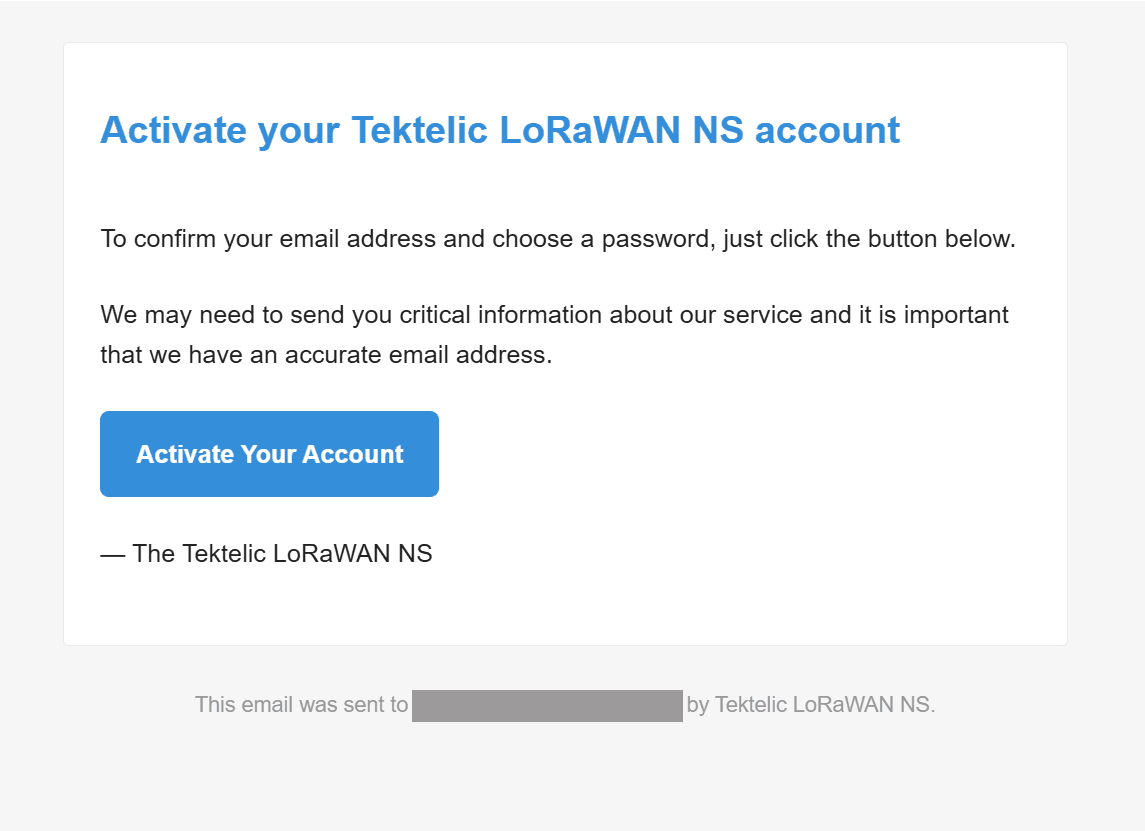
Open the email with the subject Your account activation on Tektelic LoRaWAN NS. The sender is no-reply@tektelic-ns-eu.com for EU or no-reply@tektelic-ns-na.com for NA.
-
Select Activate Your Account in the email. The Create Password page opens.
-
Enter your new password in Password.
-
Enter the same password in Password again.

-
Select CREATE PASSWORD.
Administrators add users as described in Manage Users.
Start a trial
-
Open the KONA Core sign-in page.
-
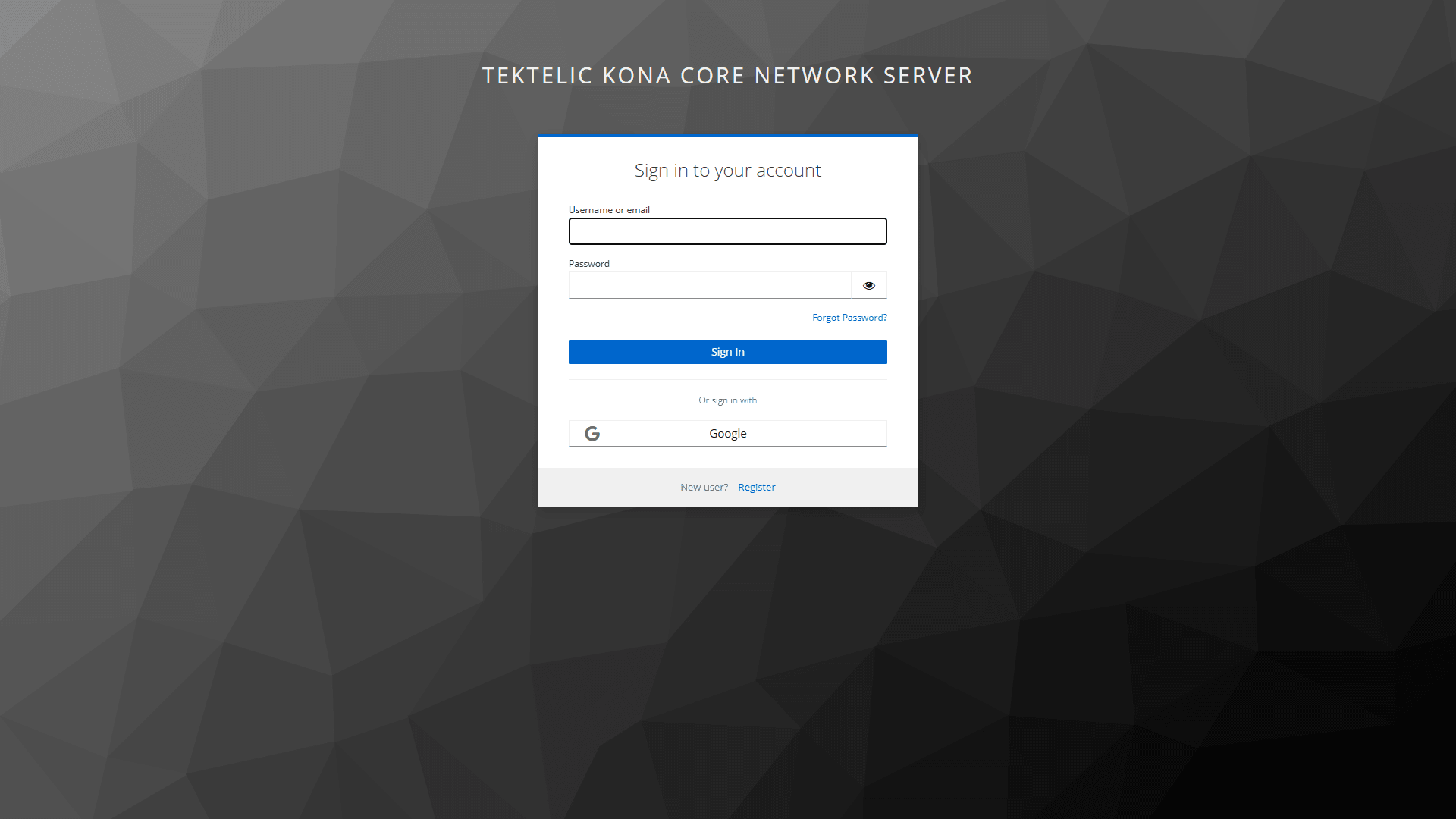
Select Trial Login.

-
On the Sign in to your account page, next to New user?, select Register.
-
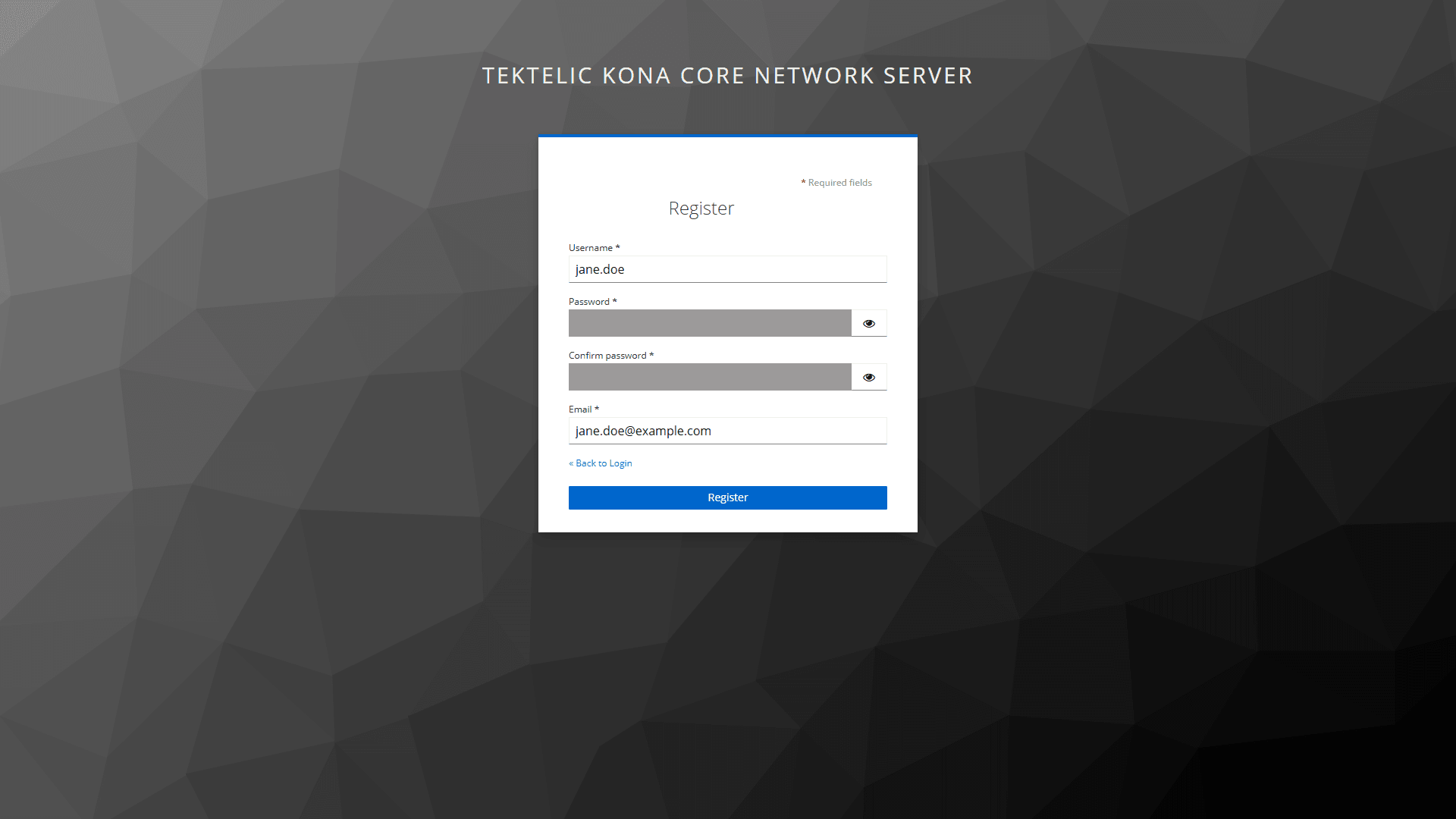
On the Register page, enter a user name in Username.
-
Enter a password in Password. Trial passwords have no minimum length or character-composition requirements. We recommend a long, unique password.
-
Enter the same password in Confirm password.
-
Enter your email address in Email. All four fields are required.
-
Select Register.
-
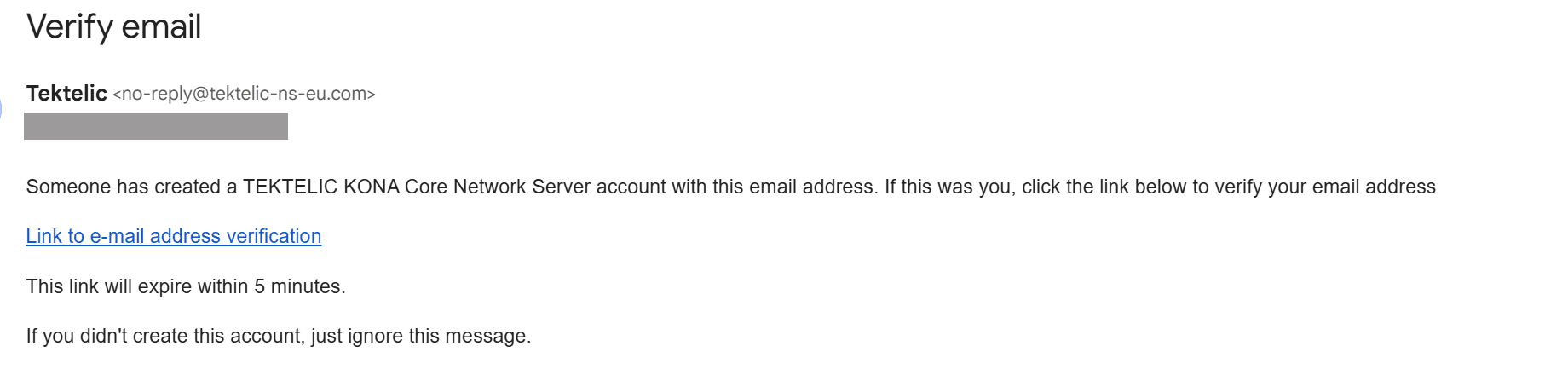
Open the email from Tektelic with the subject Verify email.
-
Select Link to e-mail address verification in the email. Your email address is confirmed, and KONA Core opens with your trial account already signed in.
To go back to the sign-in page without registering, select « Back to Login.
Trials are available in both hosted regions, EU and NA. A trial account has the Customer administrator role and can add gateways. The Trial plan allows 10 gateways, 10 applications, 10 devices, 10 integrations and 1 Sub-Customer. For details, see Subscription Plans & Limits.
Trial duration and regular accounts
Trial accounts have no fixed end date. If a trial account is disabled, its user can't sign in. The account's data is usually retained.
To move a trial account to a regular account, contact a TEKTELIC Sales representative. The gateways and devices move with the account.
Sign in for the first time
Use the flow for your account type.
Regular account:
-
Open the KONA Core sign-in page.
-
Enter your email address in Username (email).
-
Enter your password in Password.
-
Select Login. The Home page opens.

The regular sign-in page has no single sign-on (SSO) option. To discuss SSO with your organization's identity provider, contact TEKTELIC Support.
Trial account:
-
Open the KONA Core sign-in page.
-
Select Trial Login.
-
Enter your user name or email address in Username or email.
-
Enter your password in Password.
-
Select Sign In.
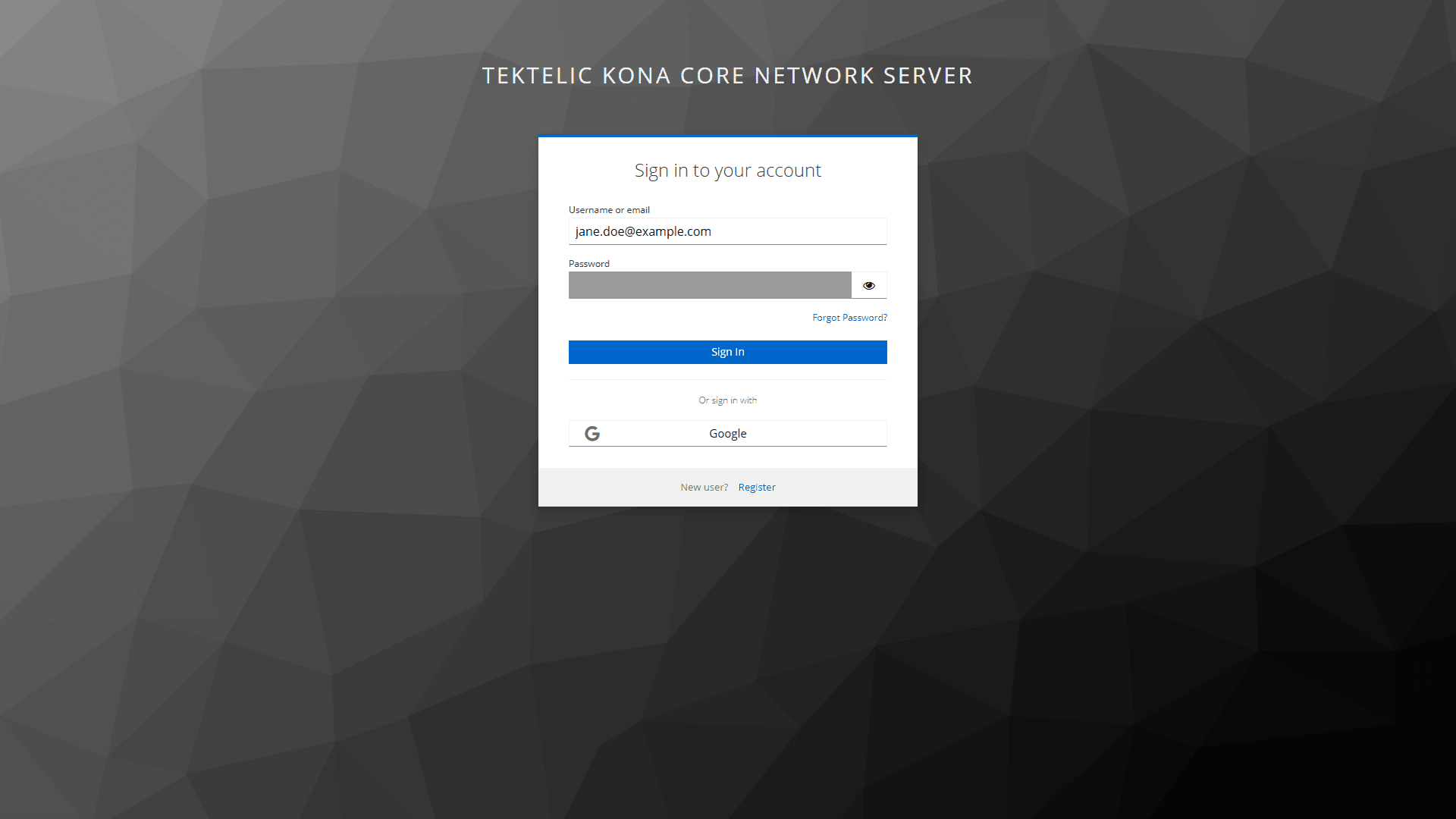
To sign in with a Google account instead, select Google under Or sign in with.
KONA Core adds a 10-second timeout after each regular sign-in attempt to protect accounts from brute-force attacks. This timeout doesn't apply to Trial Login or Google sign-in. If a second regular sign-in attempt seems slow, wait for it to finish instead of retrying.
Reset your password
Use the reset flow for your account type.
Regular account:
-
Open the KONA Core sign-in page.
-
Select Forgot Password?.
-
On the Request Password Reset page, enter your email address in Email.
-
Select Request Password Reset. KONA Core sends a reset email to that address. To go back without a reset, select Cancel.

-
Open the link in the email. The Password reset page opens.
-
Enter your new password in New password.
-
Enter the same password in New password again.

-
Select RESET PASSWORD.
Trial account:
-
Open the KONA Core sign-in page.
-
Select Trial Login.
-
On the Sign in to your account page, select Forgot Password?.
-
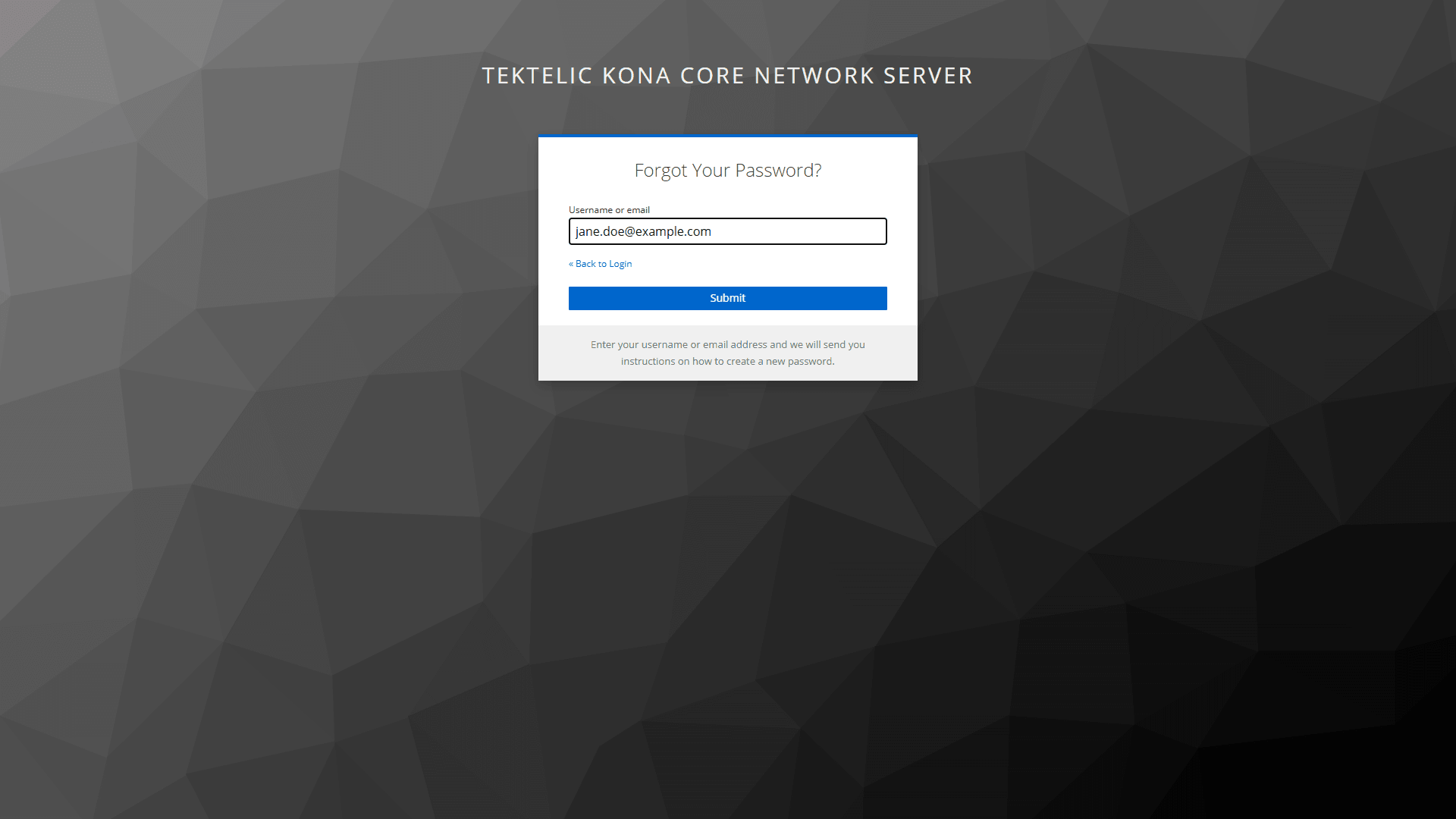
On the Forgot Your Password? page, enter the user name or email address of your trial account in Username or email.
-
Select Submit. KONA Core emails you instructions to create a new password.
-
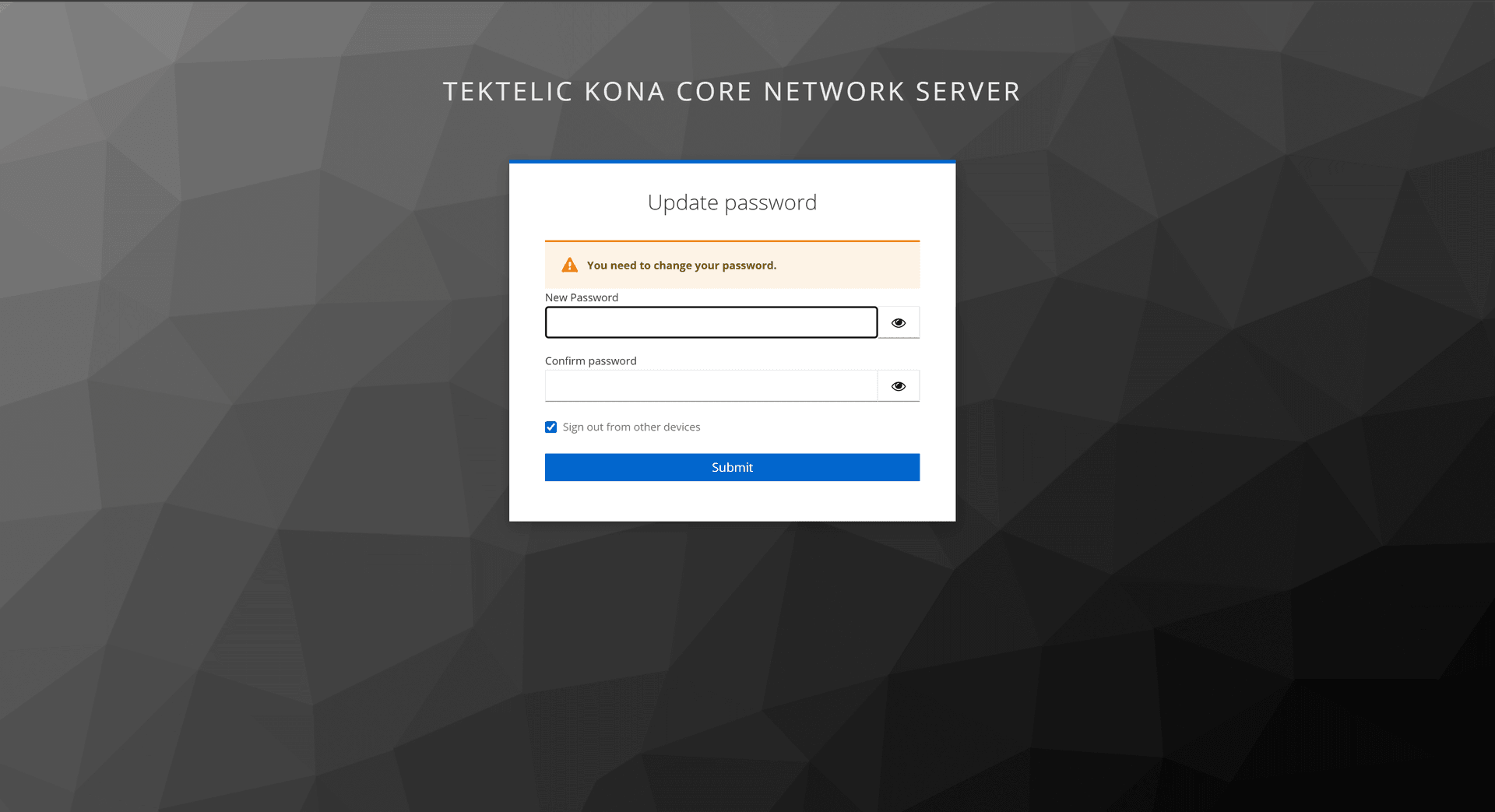
Follow the instructions in the email to open the Update password page.
-
Enter your new password in New Password.
-
Enter the same password in Confirm password.
-
Leave Sign out from other devices selected.
-
Select Submit.
Check the result
After you sign in, KONA Core opens the Home page. Your role is shown at the top right. The menu and tiles show only the pages your role can open.
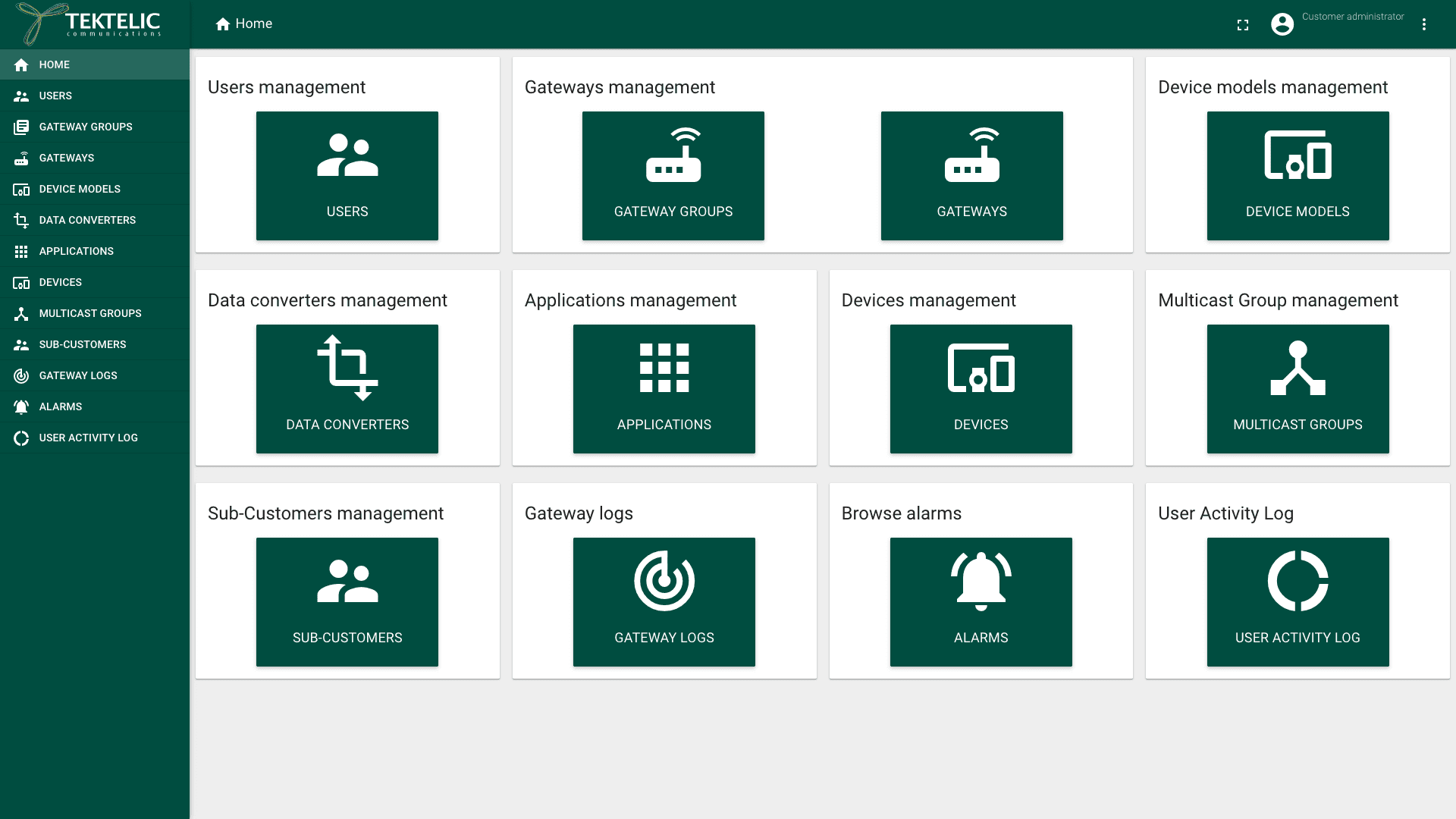
A Customer administrator sees Users, Gateway groups, Gateways, Device models, Data converters, Applications, Devices, Multicast Groups, Sub-Customers, Gateway logs, Alarms and User Activity Log.
A Provider administrator manages Customers, subscription plans and gateways. For the complete menu by role, see Users, Roles & Permissions.
A Sub-Customer administrator's device-management pages are Device models, Data converters, Applications and Devices. It has no gateway pages. It can add applications, devices, device models, data converters and integrations.
If a menu item you expect is missing, check the pages available to your role. Ask your administrator to review your access.
Next, build your first network with the Setup Guide.
Troubleshooting
| Symptom | Likely cause | What to do |
|---|---|---|
| Your email and password are rejected, but you know they are right. | You used the wrong flow for your account type. | Trial account: select Trial Login first. Regular account: use the regular sign-in form. |
| The activation or reset email doesn't arrive. | The message is delayed or in your spam folder. | Check your spam folder. Then request the reset email again, or ask your administrator to resend the activation email. |
| Register doesn't accept your password. | Confirm password doesn't match Password. | Enter the same password in both fields. |
Still stuck? A Sub-Customer contacts their Customer administrator, a Customer contacts their Provider, and a Provider contacts TEKTELIC Support. A trial account user contacts TEKTELIC Support or a TEKTELIC Sales representative. Send:
- the email address of the account
- the account type: regular or trial
- the time of the attempt in UTC
- the exact error message and a screenshot
Related
- Subscription Plans & Limits: the limits a plan sets for gateways, devices, applications and integrations.
- Setup Guide: Build Your First Network: your next step after the first sign-in.
- Users, Roles & Permissions: what each role can see and do.
- Tenancy Model: the System, Provider, Customer and Sub-Customer levels.
- Manage Users: how administrators add users.
- User Activity Log: where user actions are recorded.
- To do the same from your own system, use Activate user or Request reset password by email in the API Reference.