Integrations Overview
Overview
An integration delivers the data of your LoRaWAN® devices from TEKTELIC KONA Core Network Server to your own system, and takes downlinks from it. Choose the type by how your system receives data: as HTTP requests, from your own MQTT broker, or from the KONA Core MQTT broker. This article compares the types and recommends one for each case.
How it works
What an integration is
An integration belongs to one application. It takes every uplink of the application's devices that passes its filters, decodes it, and sends the result to your system. In the other direction, it accepts data from your system, encodes it into bytes and puts it in the device's downlink queue.
You manage integrations on the application: open Applications, then Manage integrations on your application. The Integrations page lists each integration with its type and its Data converter. To add one, select Add Integration.
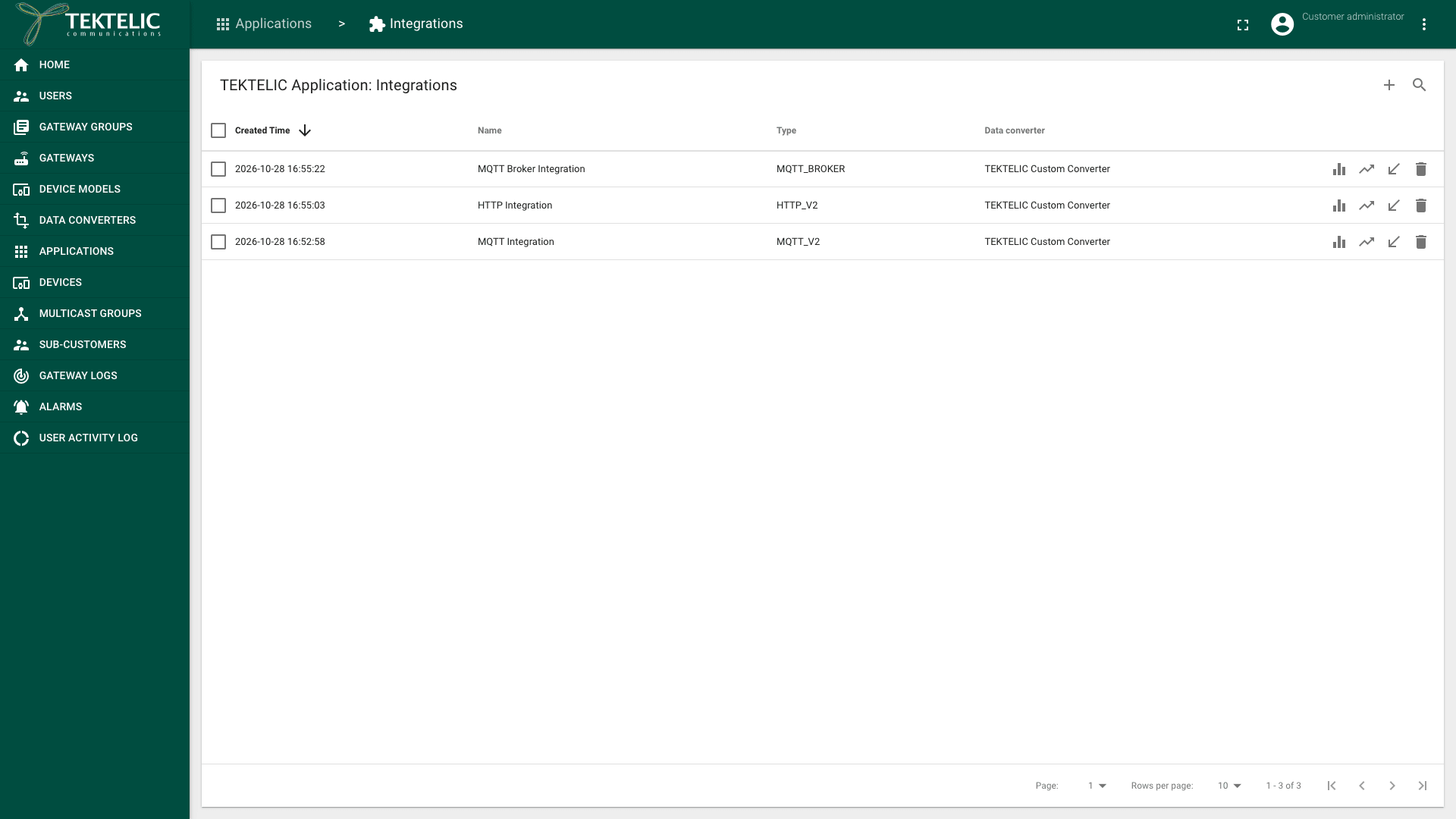
Each integration has these settings in common:
| Setting | What it does |
|---|---|
| Name | Your name for the integration. |
| Type | How the data leaves KONA Core. See The integration types. |
| Data converter | The data converter that decodes uplinks and encodes downlinks for this integration. |
| Allow messages with ports | Limits the integration to uplinks on the ports (FPort) you enter. Allow all ports is selected on a new integration. |
| Send empty payload | Decides whether uplinks without data are delivered. |
| Retry scheme | The delays between attempts after a failed delivery, from 5 min to 48 h. A new integration starts with 5 min, 30 min and 1 h. The form shows it for HTTP_V2, MQTT_V2 and the V1 HTTP. |
One application can have several integrations, for example one for your production system and one for testing. Each integration gets its own copy of every uplink that passes its filters.
The application option Send app payload encrypted decides whether integrations get the device payload decrypted. Its hint says that, when it's selected, the payload pushed to your system is encrypted with the AppSKey. We recommend leaving it cleared unless your system holds the AppSKey and decrypts the payload itself: a data converter can't decode encrypted bytes. For the keys, see Security & Keys.
The integration types
The Type list has three V2 types, two legacy V1 types (HTTP and MQTT), and types for specific IoT platforms. This section covers the V2 types.
| HTTP_V2 | MQTT_V2 | MQTT_BROKER | |
|---|---|---|---|
| Who connects | KONA Core sends HTTP requests to your server. | KONA Core connects to your MQTT broker. | Your system connects to the MQTT broker of KONA Core. |
| What you host | An HTTP or HTTPS endpoint that KONA Core can reach. | An MQTT broker that KONA Core can reach. | Nothing. Your MQTT client connects out. |
| Uplinks | A request to Application address (IP or name without http or https prefix), Port and Base path. | Published to your Push Topic. | Published to the Uplink Topic (subscribe). |
| Downlinks | Your system sends a request to the integration's HTTP URL path on KONA Core. | Your system publishes to the Pull Topic. | Your system publishes to the Downlink Topic (publish). |
| Security | Enable HTTPS, and Authentication method: No authentication or Basic authentication. Custom Request headers. | Enable TLS, Username/Token, Password, CA certificate, Client certificate and Client private key. | Credentials and topics are created when you save the integration. The form shows an MQTT Port and an MQTTS Port (TLS). |
| Guide | HTTP Integration | MQTT Integration | MQTT Broker Integration |
confirm which MQTT_V2 sign-in combinations KONA Core supports: password, client certificate or both.
Which type to choose
- Use MQTT_BROKER when you have no preference. You host nothing and open no inbound port. KONA Core creates the credentials and topics for you. It suits a system behind a firewall, and a first test of your devices.
- Use HTTP_V2 when your system is a web service that already accepts HTTPS requests. Each uplink arrives as a request, so you need no MQTT client. Select Enable HTTPS and Basic authentication, so the data is encrypted and your endpoint accepts only KONA Core.
- Use MQTT_V2 when you already run an MQTT broker that your applications subscribe to. KONA Core joins your broker as one more client. Select Enable TLS.
All three deliver the same decoded data. For the message body, see Message Formats.
V1 and V2
V2 is the current generation of integrations. The legacy types HTTP and MQTT are V1. We recommend V2 for every new integration. All V2 types have the integration statistics Show retry statistics, Show UL delivery statistics and Show DL statistics. Of the V1 types, only HTTP has them. V2 converters also return errors and warnings with the decoded data.
| V1: HTTP, MQTT | V2: HTTP_V2, MQTT_V2, MQTT_BROKER | |
|---|---|---|
| Data converter | Custom, or a predefined type such as Tektelic Home Sensor | Custom v2 only |
| Decoder function | Decoder(bytes, port) | decodeUplink(input) |
| Encoder function | Encoder(data) | encodeDownlink(input) |
| Integration statistics | HTTP only | All three types |
| Retry scheme | HTTP only | HTTP_V2 and MQTT_V2 confirm the retry behavior of MQTT_BROKER, which has no Retry scheme field. |
| Downlink path on KONA Core (HTTP) | /api/v1/integration/http/<routing key> | /api/v2/integration/http/<routing key> |
A V1 integration can use only V1 converters, and a V2 integration only V2 converters. So moving to V2 also means a V2 converter: you rewrite the decoder and the encoder for the new function signatures. To move an existing setup, see Migrate from V1 to V2. For existing V1 setups, see HTTP V1 Integration and MQTT V1 Integration.
Where the data converter sits
The data converter is part of the integration, between the network server and your system:
- The network server checks the uplink and passes it to the device's application.
- Each integration of the application checks its port and empty-payload filters.
- The integration's data converter runs its decoder on the payload bytes. The decoder returns the decoded
data, with anyerrorsandwarnings. - The integration sends the result to your system.
For a downlink, your system sends data to the integration. The converter's encoder turns the data into the port and bytes, and KONA Core puts them in the device's downlink queue.
You select the Data converter when you add an integration. Two integrations of one application can use different converters, so one uplink can reach two systems in two formats. You manage converters on the Data converters page. A Sub-Customer user doesn't see this page.
The decoder and the encoder each have an execution timeout of 100 ms. If a function exceeds it 5 times within 600 seconds, KONA Core bans it for 30 minutes and skips it while it's banned. See Language and runtime limits. The ready-made converters for TEKTELIC devices work only with V1 integrations: see TEKTELIC Device Converters Library. For the converter types and how to write your own, see Payload Converters Overview.
For the full path of a message through KONA Core, see Uplink & Downlink Data Flow.
Related
- Message Formats
- Payload Converters Overview
- HTTP Integration
- MQTT Integration
- MQTT Broker Integration
- Integration Monitoring
- Migrate from V1 to V2
- Architecture Overview
- Uplink & Downlink Data Flow
- Glossary
- API Reference: to list the integrations of an application, use Get application integrations.