Payload Converters Overview
Overview
A LoRaWAN® device sends its data as a few bytes, and your system usually needs readable values. In TEKTELIC KONA Core Network Server, a data converter does this translation in both directions. The UI calls it a data converter, and these docs also call it a payload converter.
This article explains what a converter does, where KONA Core runs it, its limits and how to test it. To write the code, see Write a Decoder and Write an Encoder.
How it works
Decoder and encoder
A data converter has two parts:
- Decoder: turns the bytes of an uplink into data, for example a temperature and a battery level. Your system receives this data instead of the raw bytes.
- Encoder: turns data from your system into the bytes and the FPort of a downlink. KONA Core then puts the downlink in the device's downlink queue.
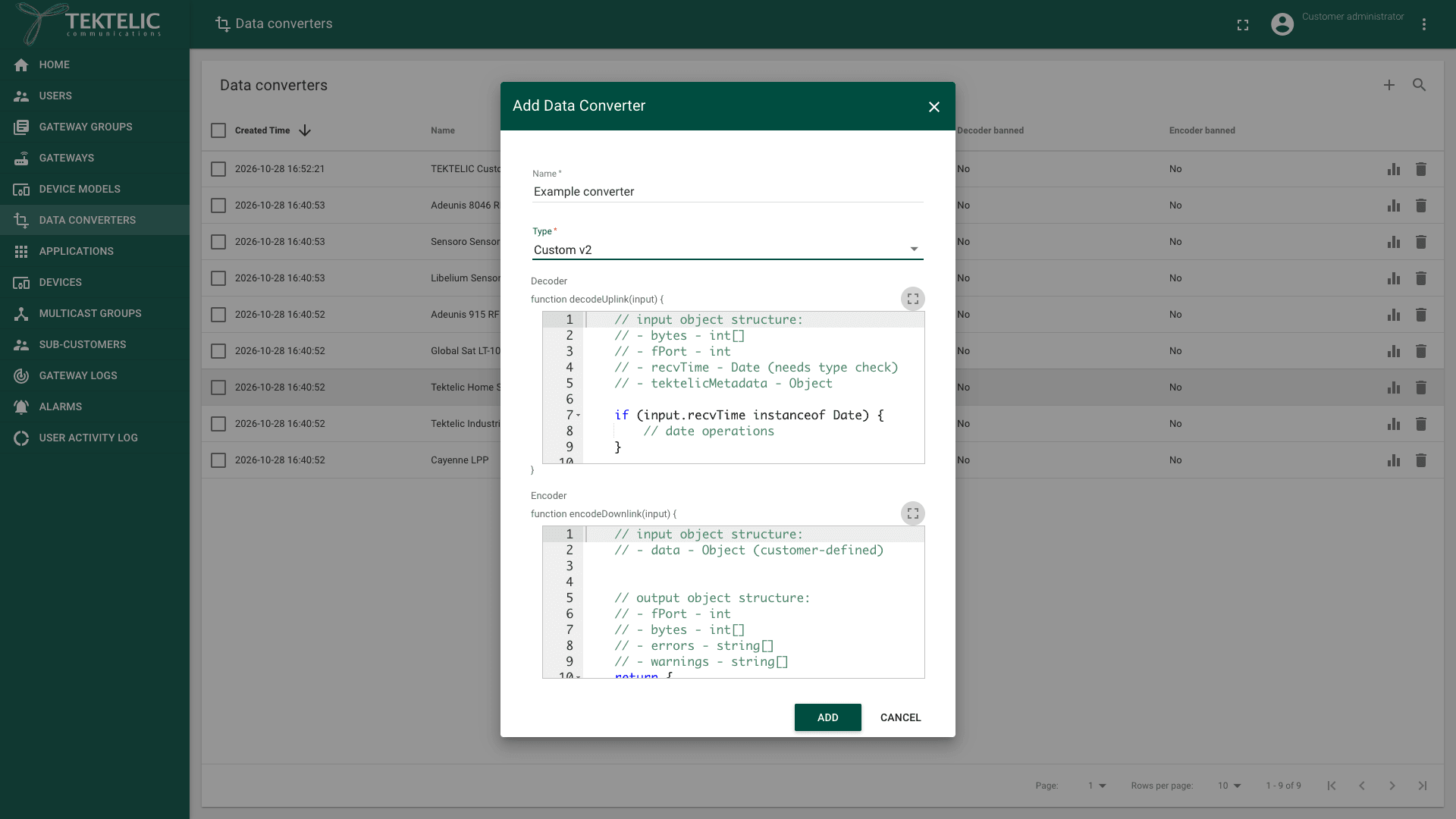
In a Custom v2 converter, both parts are JavaScript functions. The default code in the editor describes their input and output:
| Function | Input (input) | Output |
|---|---|---|
decodeUplink(input) | bytes (int[]), fPort (int), recvTime (Date, needs a type check), tektelicMetadata (Object) | data (Object), errors (string[]), warnings (string[]), tektelicMetadata (Object) |
encodeDownlink(input) | data (Object, customer-defined) | fPort (int), bytes (int[]), errors (string[]), warnings (string[]) |
For V2 uplinks, KONA Core merges the decoded data and tektelicMetadata into the delivered body. The errors and warnings arrays aren't included. For the metadata fields, see Message Formats. confirm how a non-empty errors array affects processing.
An uplink without a decoder still reaches KONA Core: the device's Real-time packets tab shows its raw Payload. The decoder runs only when an integration forwards the uplink. To forward the bytes without decoding them, see Pass-Through Converter.
Converter types
When you add a converter, its Type decides whether you write code. The Type list has three kinds:
| Type | Code | Functions | Use it with |
|---|---|---|---|
| Custom v2 | You write the decoder and the encoder. | decodeUplink(input) and encodeDownlink(input) | HTTP_V2, MQTT_V2, MQTT_BROKER |
| Custom | You write the decoder and the encoder. | Decoder(bytes, port) and Encoder(data) | The legacy V1 types HTTP and MQTT, and the types for specific IoT platforms |
| Predefined types: Tektelic Home Sensor, Tektelic Industrial Sensor, Cayenne LPP and types for some third-party devices | Built into KONA Core. The form has no decoder or encoder field. | None | The legacy V1 types and the types for specific IoT platforms |
We recommend Custom v2 with a V2 integration for every new setup. Use Custom or a predefined type only for an existing V1 integration. To move it to V2, see Migrate from V1 to V2. For the TEKTELIC types, see TEKTELIC Device Converters Library.
Where a converter is attached
A converter belongs to your organization, not to a device or a device model. You manage all converters of your organization on one page, and you select one converter in each integration:
- Data converters in the side menu lists your converters with Created Time, Name, Type, Decoder banned and Encoder banned. You add a converter here with the + icon, which opens the Add Data Converter dialog.
- Each integration of an application has a required Data converter field. You select it when you add the integration on the application's Manage integrations page.
- An integration runs its converter on every uplink that passes its filters (Allow messages with ports, Allow all ports, Send empty payload). It also runs the encoder on every downlink your system sends through it.
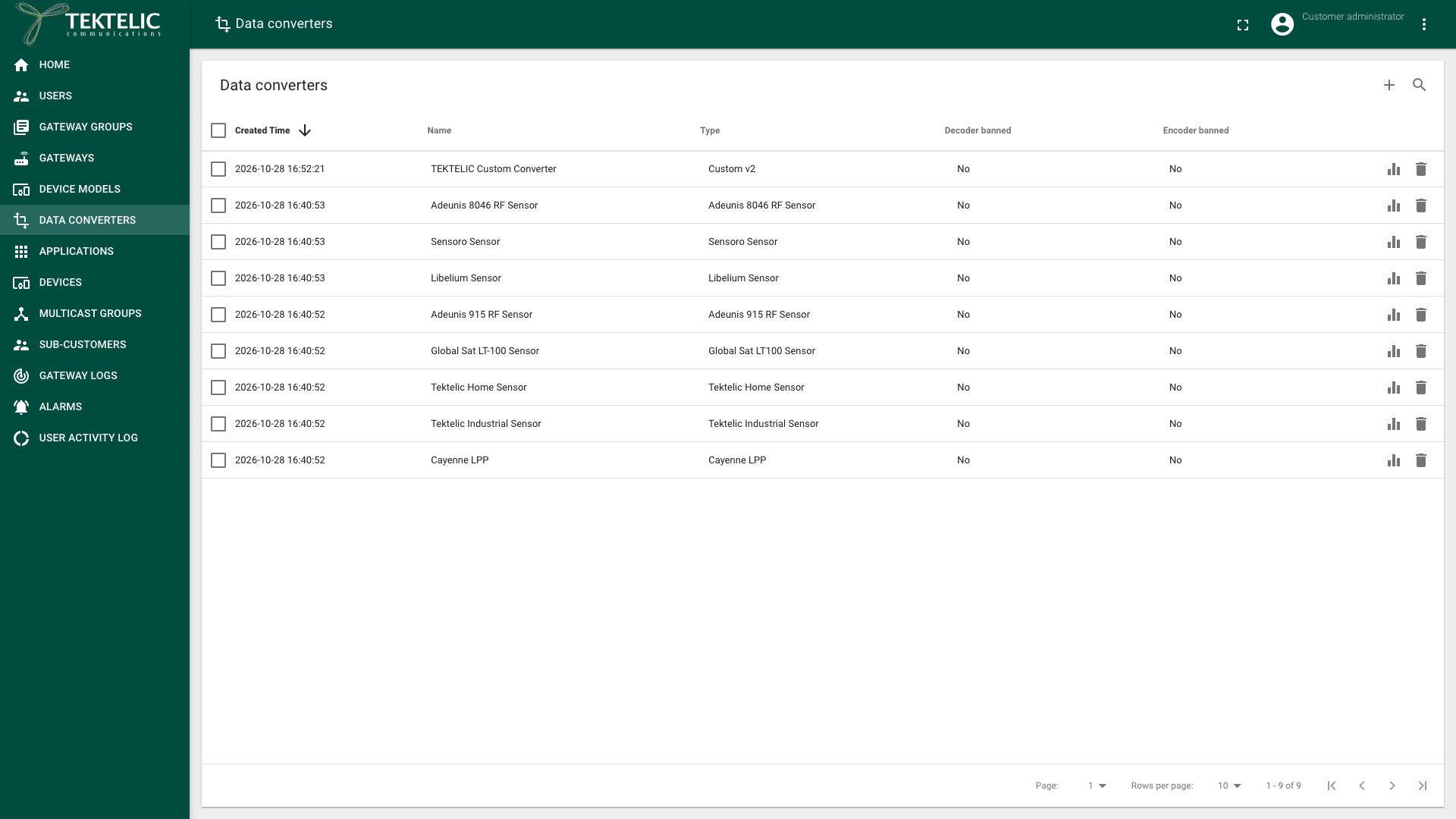
Each integration has exactly one converter. One converter can serve several integrations, also across applications. Two integrations of the same application can use different converters, so one uplink can reach two systems in two formats.
KONA Core blocks deleting a converter while an integration still references it. Change those integrations to another converter before deleting it.
The Data converter field lists only the converters that fit the integration type. HTTP_V2, MQTT_V2 and MQTT_BROKER list only Custom v2 converters. The V1 types and the types for specific IoT platforms list the other types. If the converter you expect is missing from the list, check its Type.
A device model has no converter: decoding depends on the integration, not on the device. For which roles can open the page, see Users, Roles & Permissions:
- Customer administrator and Sub-Customer administrator add, change and delete converters.
- Customer user opens converters read-only.
- Sub-Customer user doesn't see Data converters.
Language and runtime limits
You write converters in JavaScript, in an editor on the converter form. The editor shows the function header, for example function decodeUplink(input) {, and the closing brace. You write only the function body.
The LoRaWAN Payload Codec API defines errors for failures and warnings for issues that don't prevent conversion. These definitions don't specify KONA Core's retry or event handling.
We recommend starting from the default JavaScript template and keeping converter code self-contained. Test it with representative payloads before using it in production.
The converter details state the time limit:
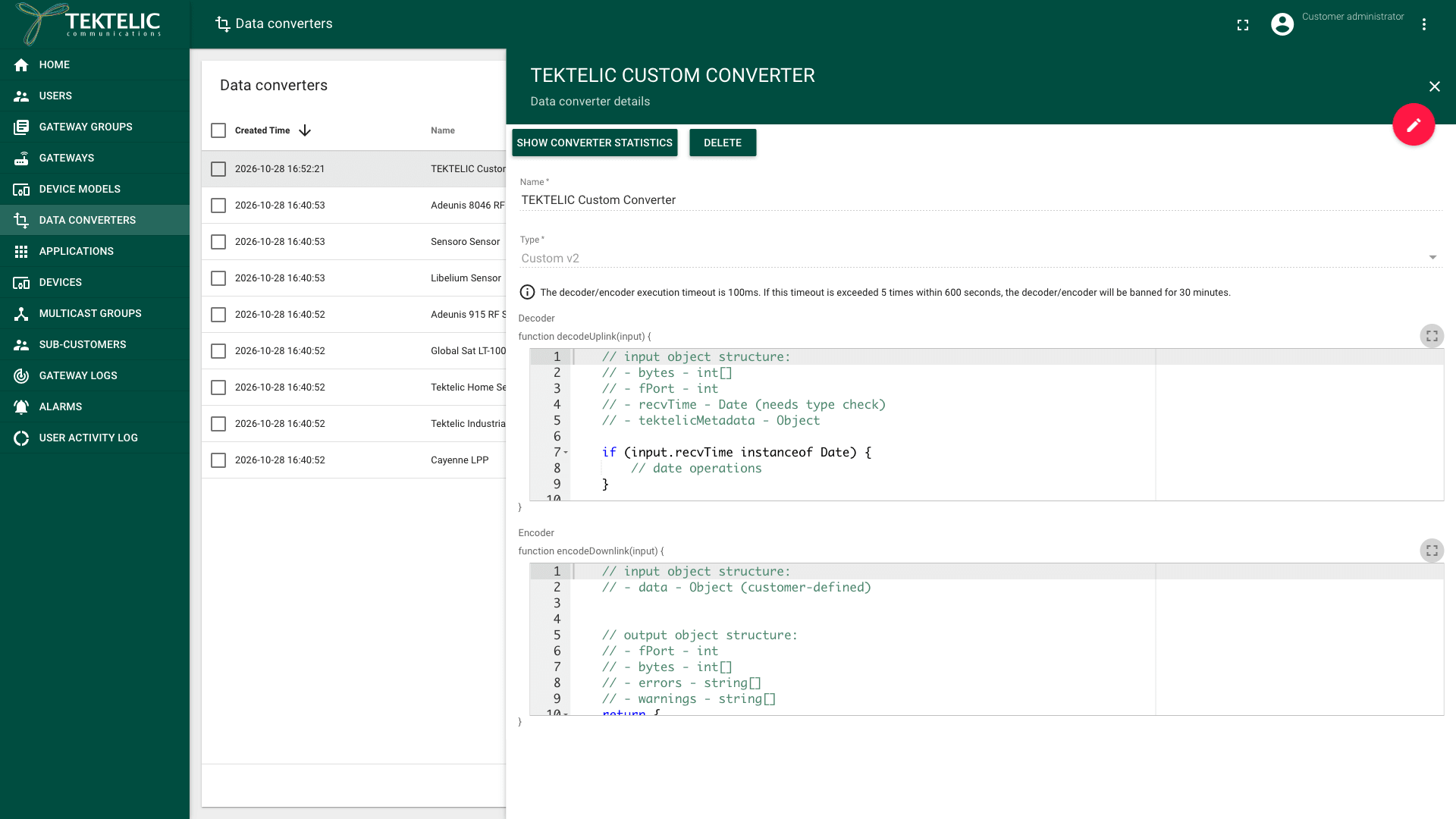
While a decoder or an encoder is banned:
- The details show Decoder banned or Encoder banned with the message or .
- The Decoder banned or Encoder banned column on Data converters shows Yes.
- KONA Core skips the code and counts each skipped run. confirm what the integration delivers for an uplink while its decoder is banned.
- KONA Core raises the event
DECODER_BANNEDorENCODER_BANNED. To get notified, add an alarm rule with the trigger Decoder is banned or Encoder is banned. See Application Alarm Rules.
The UI text names only the timeout as a reason for the ban, while the ban message names errors during execution. the timeout note says a ban follows 5 timeouts within 600 seconds, the ban message says the code is banned "due to errors during execution"; confirm whether other errors also count toward a ban.
A decoder that fails raises INTEGRATION_UL_DECODING_FAILURE. An encoder that fails raises INTEGRATION_DL_ENCODING_FAILURE. For all events, see Alarms & Events Reference.
How to test a converter
The converter form has no test run: KONA Core runs your code only on real uplinks and downlinks. confirm whether KONA Core checks the code when you save a converter, and which message it shows for invalid code. The UI bundle has the messages "Function must return value!" and "Function must return value of 'object' type!", but no source shows when they appear.
Test a converter in three stages:
- Before you save it. Run the function on your computer, for example in Node.js. Pass an
inputobject shaped like the table above, with bytes taken from a real uplink in the device's Real-time packets tab. Check that the function returns within the 100 ms limit. - On a test setup. Attach the converter to an integration in a test application with one test device. Your production integrations keep their working converter until the new code works.
- On real traffic. Check these places in KONA Core:
| Where | What it shows |
|---|---|
| Your system | The data that the decoder returned, inside the integration's message. See Message Formats. |
| Data converters > Show converter statistics | Per Decoder and Encoder: Invoked, Invocation skipped due the converter is banned, Invocation failed (total) and Invocation failed due of execution timeout, by Day and Month. See Usage Statistics & Reports. |
| Decoder banned and Encoder banned columns | Yes while the code is banned. |
| Events and alarms | INTEGRATION_UL_DECODING_FAILURE, INTEGRATION_DL_ENCODING_FAILURE, INVALID_DL_PAYLOAD. See Integration Monitoring. |
| The device's Downlink queue tab | The Data and the Port that the encoder produced, until the device receives the downlink. |
To manage converters from your own system, use Save converter and the Converter operations.
Related
- Write a Decoder
- Write an Encoder
- Pass-Through Converter
- TEKTELIC Device Converters Library
- Integrations Overview
- Message Formats
- Integration Monitoring
- Migrate from V1 to V2
- Uplink & Downlink Data Flow
- Alarms & Events Reference
- Usage Statistics & Reports
- Glossary
- API Reference: Converter and Converter statistics.