TEKTELIC Device Converters Library
Overview
TEKTELIC KONA Core Network Server has ready-made data converters for TEKTELIC devices. You select one as a converter Type, and KONA Core decodes the device's payload without code from you. These predefined types work only with the legacy V1 integration types, so check your integration type before you pick one.
For what a converter does and where it runs, see Payload Converters Overview.
How it works
What the library contains
The Type list of the Add Data Converter dialog holds the predefined types next to Custom and Custom v2. Two of them are for TEKTELIC devices:
- Tektelic Home Sensor
- Tektelic Industrial Sensor
The list also has Cayenne LPP, a common payload format, and types for some third-party devices.
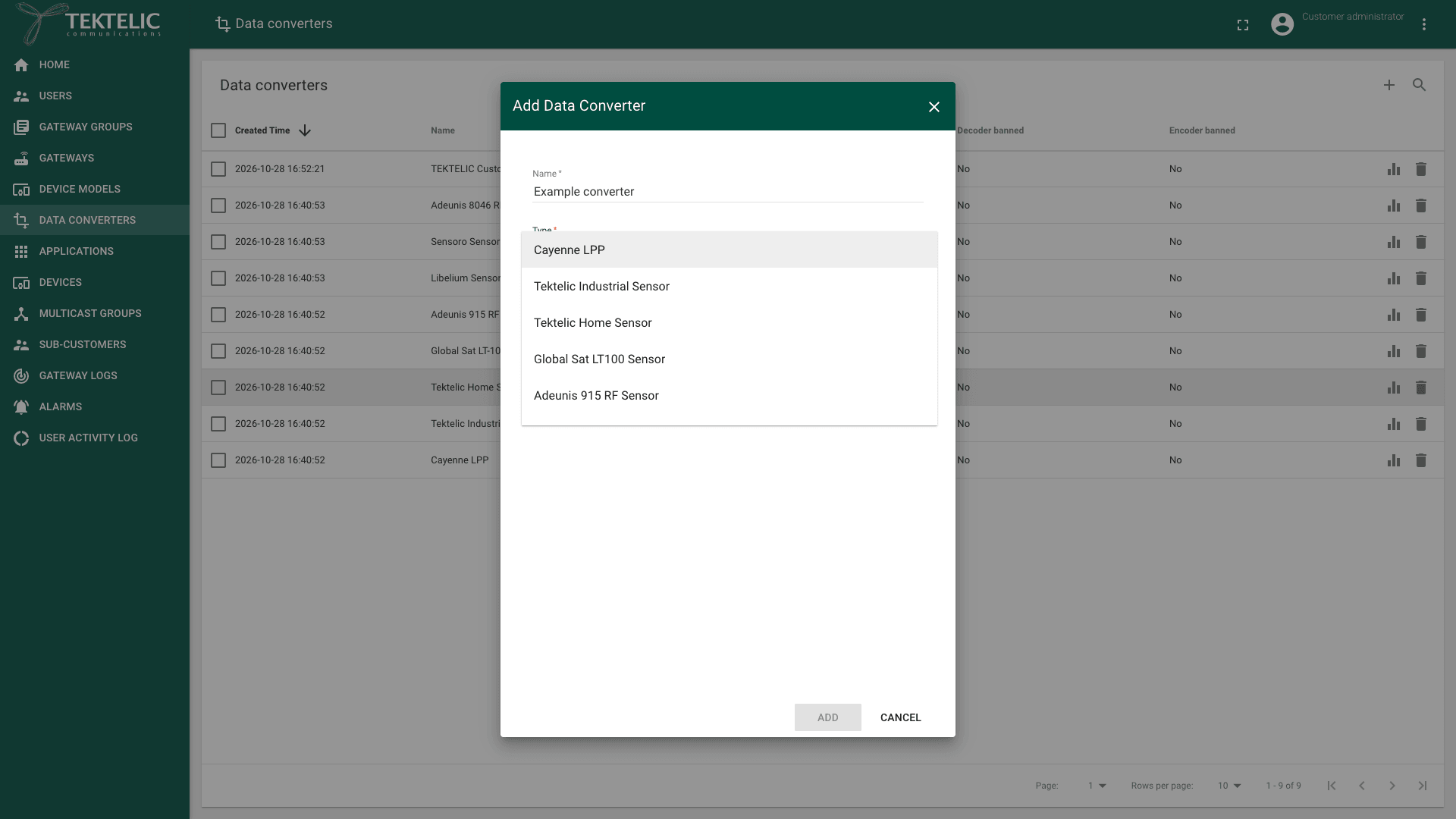
A predefined type is built into KONA Core. Its form has only Name and Type, with no Decoder or Encoder code. You can't see or change how it decodes.
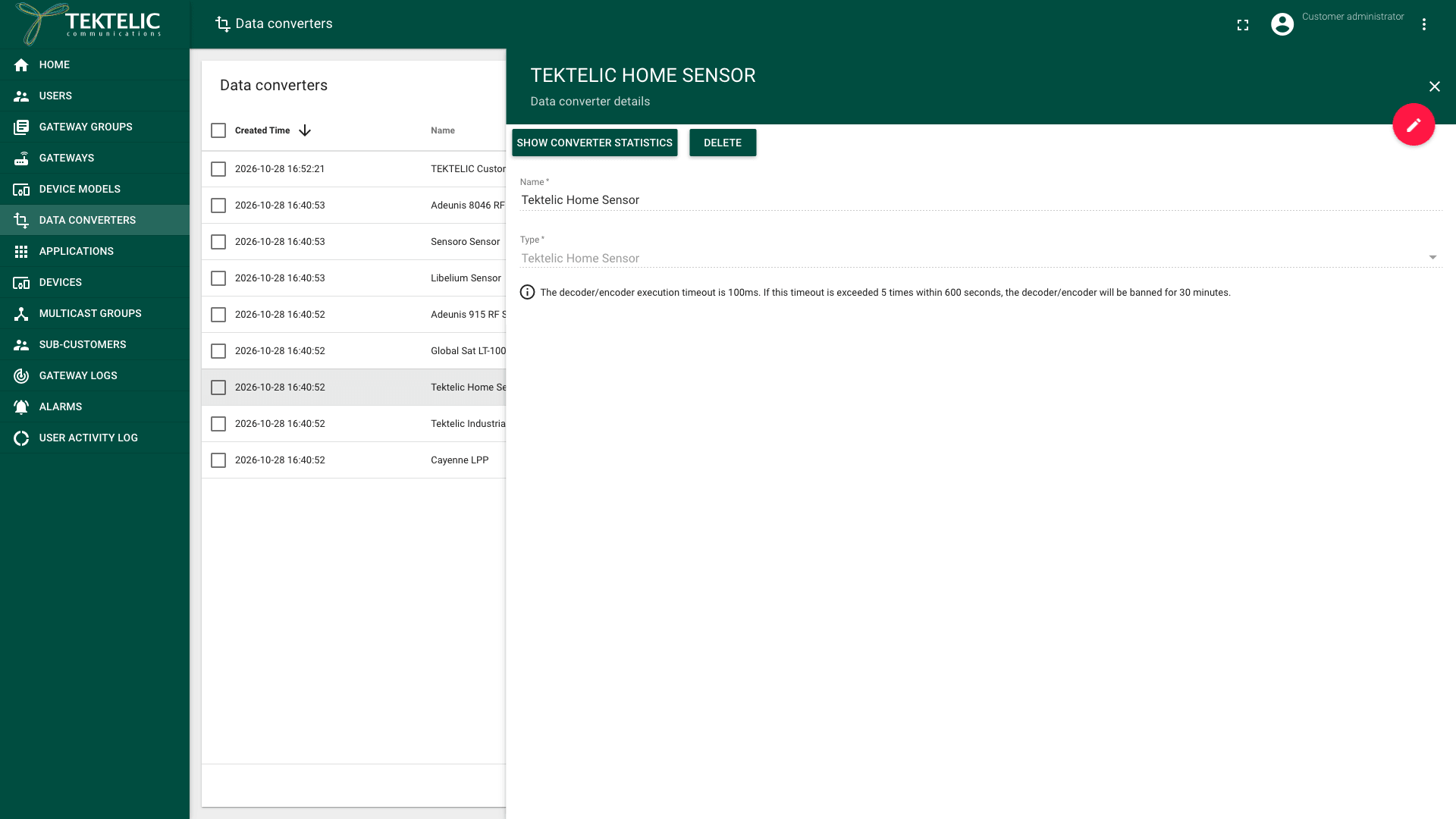
KONA Core automatically adds the predefined converters when it creates a Customer or Sub-Customer. They appear on Data converters with the type as their name. These are V1 converters; add TEKTELIC V2 converter code manually as described below.
Which devices it covers
The type names point to two TEKTELIC device families: home sensors and industrial sensors. confirm which TEKTELIC device models and firmware versions each type decodes. confirm the fields that each type returns for an uplink, and whether the types also encode downlinks.
For V2 integrations, use the code published in TEKTELIC data converters. KONA Core has no built-in TEKTELIC V2 converters. Add one manually:
- In the repository, open the
Tektelic v2folder. - Choose the file for your device and payload format version.
- In KONA Core, select Data converters.
- Select + to open Add Data Converter.
- Enter a Name.
- Select Custom v2 in Type.
- Paste the converter code into Decoder.
- Select Add.
Which integrations can use it
The predefined types are V1 converters. Which converters an integration offers depends on its Type:
| Integration type | Converters in its Data converter list |
|---|---|
| HTTP_V2, MQTT_V2, MQTT_BROKER | Custom v2 only |
| The legacy HTTP and MQTT, and the types for specific IoT platforms | Custom and the predefined types, including Tektelic Home Sensor and Tektelic Industrial Sensor |
So a V2 integration can't use a TEKTELIC predefined type. For the integration types, see Integrations Overview.
How to pick the right converter
Start from the integration you use or plan:
| Your setup | Converter | Why |
|---|---|---|
| New integration, HTTP_V2, MQTT_V2 or MQTT_BROKER (Recommended) | Custom v2, with a decoder for your device's payload format | The only type a V2 integration accepts. See Write a Decoder. |
| Existing V1 integration (HTTP or MQTT), or a type for a specific IoT platform, with a TEKTELIC home or industrial sensor | Tektelic Home Sensor or Tektelic Industrial Sensor, by the device family | No code to write or maintain. |
| Your system already decodes TEKTELIC payloads | Custom v2 with a pass-through decoder | KONA Core forwards the bytes as they are. See Pass-Through Converter. |
We recommend V2 integrations for new setups. If you plan to move a V1 integration to V2, plan its converter too: a V2 integration needs a Custom v2 converter. See Migrate from V1 to V2.
For a Custom v2 decoder, take the payload format from the device's technical documentation. Test the converter on one device before you attach it to a production integration: see Payload Converters Overview.
To add a converter of a predefined type, select Data converters, then +. Enter a Name, select the Type and select Add. You need the role Customer administrator or Sub-Customer administrator.
How updates reach your setup
The two kinds of converters change in different ways:
- Predefined types: the decoding code is part of KONA Core, not of your converter. You have nothing to update, and you can't pin an older version. confirm how TEKTELIC updates the built-in decoders, for example with KONA Core releases, and where the changes are announced.
- Custom v2 converters: the code is stored in your converter. Your converter doesn't change when TEKTELIC changes a device's payload format or a published decoder. To update it, open the converter on Data converters and select the pencil icon (Toggle edit mode). Replace the code and select the check mark icon (Apply changes).
A changed decoder applies to every integration that uses the converter. confirm whether a saved change applies to the next uplink at once. When a device gets a firmware update that changes its payload format, check its decoded data after the update.
To list your converters from your own system, use Get customer converters.