Manage Customers & Sub-Customers
Overview
Create the organizations that use your part of TEKTELIC KONA Core Network Server, and give each one its own administrator. A Provider creates Customers and gives each a subscription plan. A Customer creates Sub-Customers and shares applications with them.
Each Customer and Sub-Customer is a tenant. For how the levels relate, see Tenancy Model.
Before you start
- Role:
- For Customers: Provider administrator. A Provider user opens Customers read-only.
- For Sub-Customers: Customer administrator. A Customer user opens Sub-Customers read-only.
- See Users, Roles & Permissions.
- Subscription plan for a Customer: at least one Customer Subscription Plan exists. See Manage Subscriptions.
- Room in your plan: the Provider Subscription Plan caps the number of Customers. The Customer Subscription Plan caps the number of Sub-Customers. See Subscription Plans & Limits.
- Administrator's email: the email address of the person who will manage the new organization.
Steps
The Customer steps (1 to 3) are for a Provider administrator. The Sub-Customer steps (4 to 6) are for a Customer administrator.
Step 1. Create a Customer (Provider only)
- In the side menu, select Customers. The Customers page lists your Customers with their Subscription Plan, #of Sub-Customers, #of GWs and #of Devices.
- Select Add Customer (the + icon). The Add Customer dialog opens.
- Enter the Title. The title is required. Use the organization's name, so that you find it in lists and logs.
- Select the Subscription Plan. The plan is required: every Customer has one. See step 2.
- Optional: enter a Description and the contact details: Country, City, State, Postal code, Address, Address 2, Phone and Email.
- Select Add. The Customer appears in the list.
Add Customer dialog with the Title and Subscription Plan fields. The page is for Provider roles; the test account is a Customer administrator.
If the Provider plan is full, KONA Core rejects the new Customer with .
Step 2. Assign a subscription plan to a Customer (Provider only)
You select the plan when you create the Customer. To change it later:
- In the side menu, select Customers.
- Select the Customer's row. The Customer details panel opens.
- Select Edit mode (the pencil icon).
- Select another Subscription Plan.
- Select Apply to save.
Customer details panel with the Subscription Plan field in edit mode. The page is for Provider roles; the test account is a Customer administrator.
In view mode, the Since field next to the plan shows a date. confirm that Since changes to the current date when you assign another plan. For how to create plans, change limits, and what happens when the new plan has lower limits than the current usage, see Manage Subscriptions.
Step 3. Give a Customer an administrator (Provider only)
- In the side menu, select Customers.
- In the Customer's row, select the Manage users icon. The Customer's users page opens.
- Select Add User (the + icon).
- Enter the Email.
- In Role, select Customer administrator.
- Select the Activation method, then Add.
You can also add the user on the Users page. There, select the Customer in the field that appears for Customer roles. For all fields and the activation, see Manage Users.
To give the Customer gateways, assign gateway groups to it. In the Customer's row, the Manage gateways icon opens the Customer's gateway groups. For the steps, see Manage Gateway Groups.
Step 4. Create a Sub-Customer (Customer only)
-
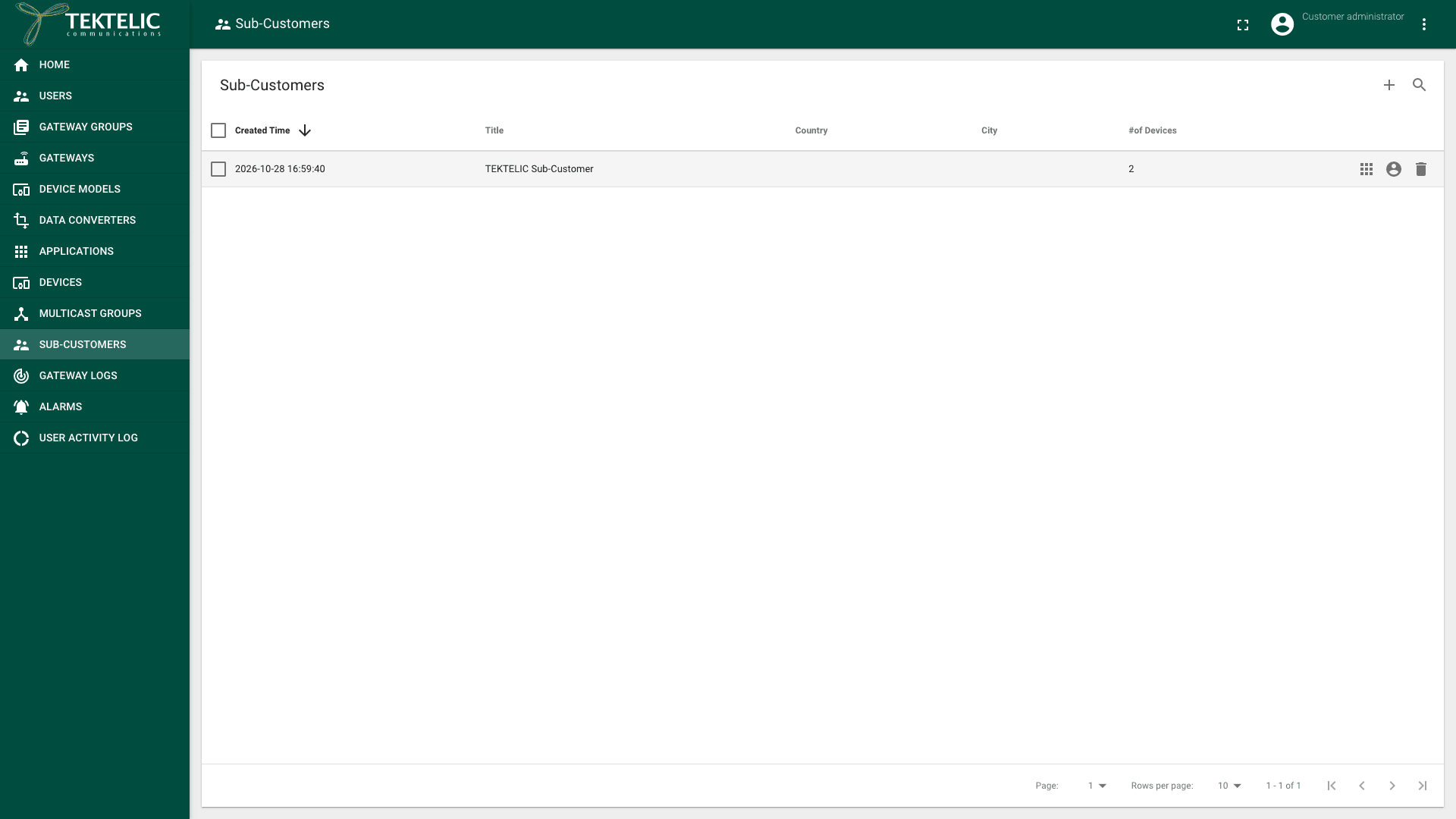
In the side menu, select Sub-Customers. The Sub-Customers page lists your Sub-Customers with their #of Devices.
-
Select Add Sub-Customer (the + icon). The Add Sub-Customer dialog opens.
-
Enter the Title. The title is required.
-
Optional: enter a Description and the contact details: Country, City, State, Postal code, Address, Address 2, Phone and Email.
-
Select Add. The Sub-Customer appears in the list.
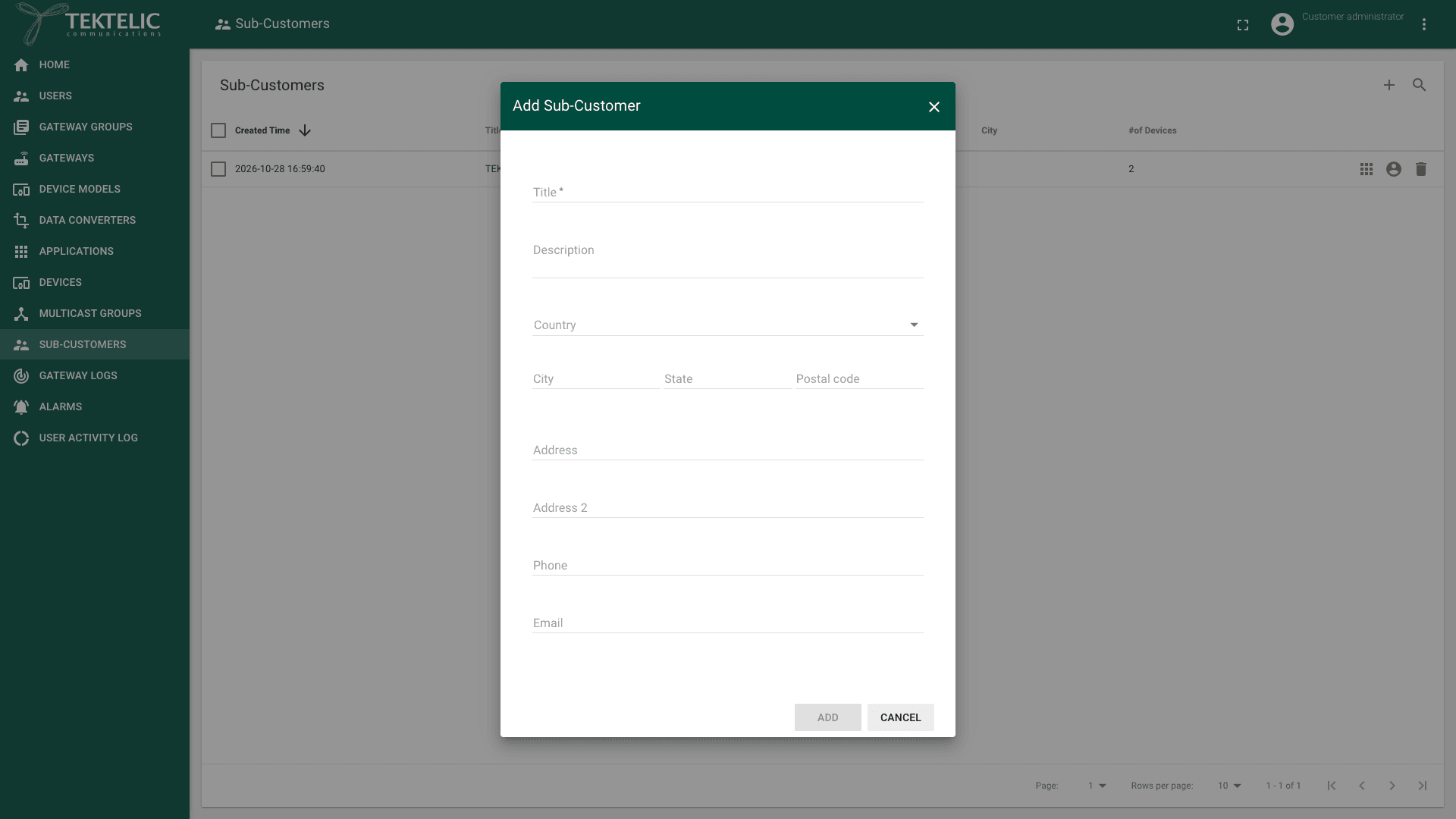
A Sub-Customer has no subscription plan of its own. Your Customer Subscription Plan caps the number of Sub-Customers. If the plan is full, KONA Core rejects the new Sub-Customer with . Resources created by a Sub-Customer count against its Customer Subscription Plan.
Step 5. Give a Sub-Customer an administrator (Customer only)
-
In the side menu, select Sub-Customers.
-
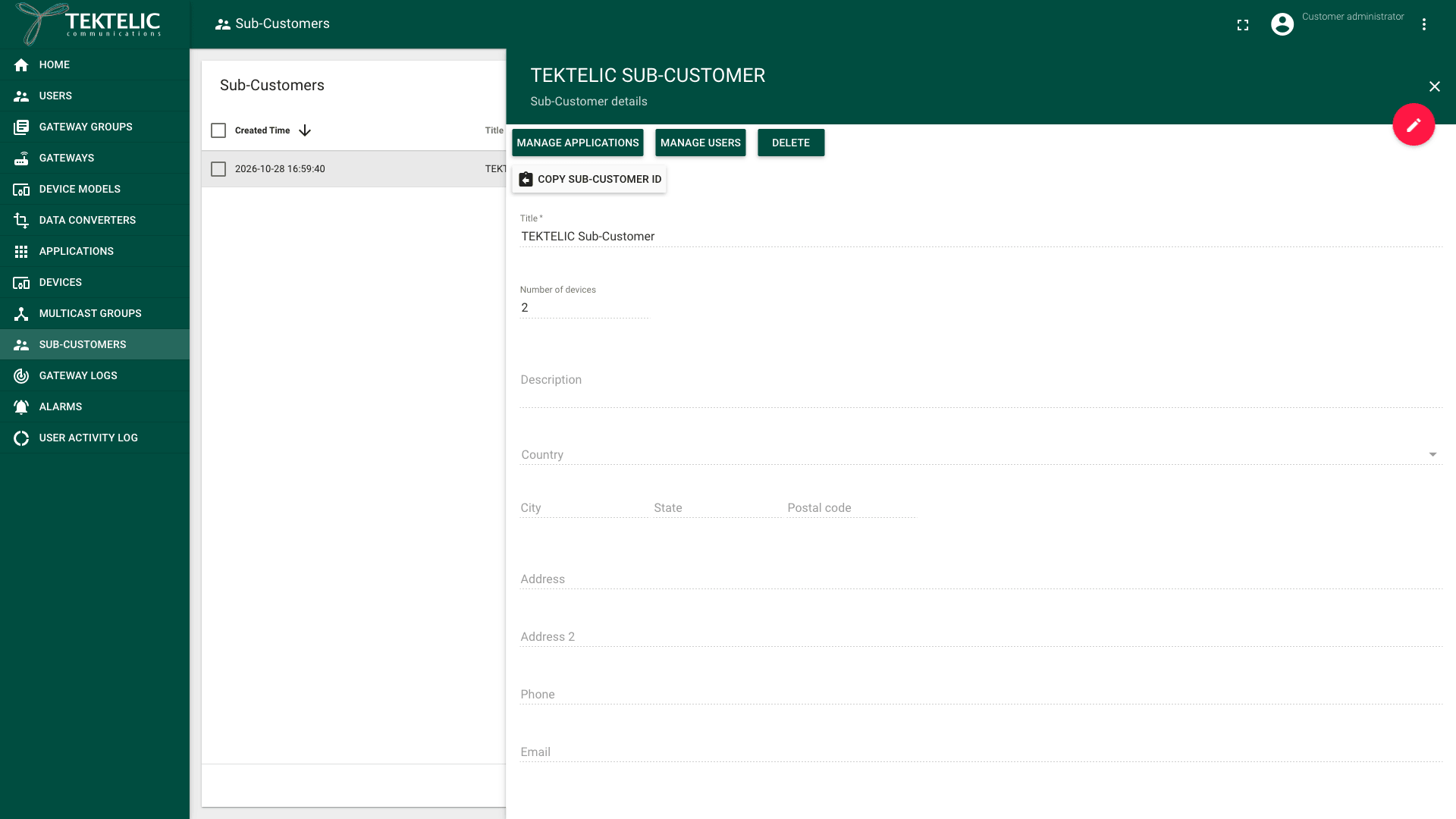
In the Sub-Customer's row, select the Manage users icon. You can also select the Sub-Customer and then Manage users in the Sub-Customer details panel. The page is titled with the Sub-Customer name and Users.
-
Select Add User (the + icon).
-
Enter the Email.
-
In Role, select Sub-Customer administrator.
-
Select the Activation method, then Add.
For the activation methods, see Manage Users.
Step 6. Share an application with a Sub-Customer (Customer only)
A Sub-Customer sees only the applications you assign to it, and their devices. It has no gateway pages. Only a Customer administrator can assign an application.
- In the side menu, select Applications.
- In the application's row, select the Assign to Sub-Customer icon. The icon shows only for applications that aren't assigned yet. The Assign application dialog opens with the prompt .
- Select the Sub-Customer.
- Select Assign.
Assign application dialog. The test account has no unassigned application.
The Assigned to column of the Applications list shows the Sub-Customer. You keep the application and can still manage it.
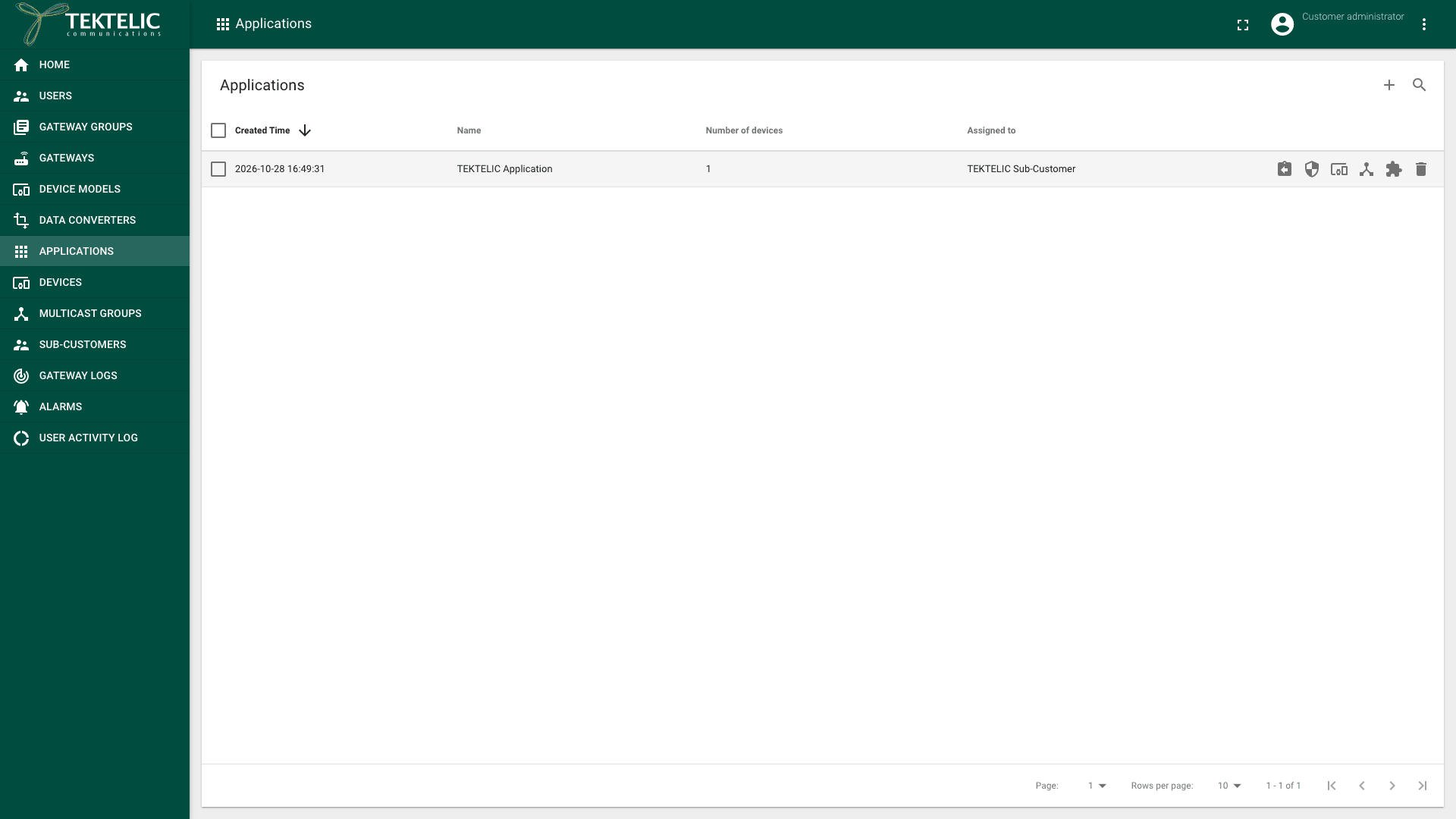
To take the application back, select the Unassign from Sub-Customer icon in its row. The dialog warns: Select Unassign application to confirm.
To see the applications of one Sub-Customer, select Manage applications in its row or details panel. For application settings, see Manage Applications.
Delete a Customer or a Sub-Customer
Deleting a Customer or a Sub-Customer can't be undone. The dialog warns: For a Sub-Customer, it warns: confirm which related data KONA Core deletes with a Customer or Sub-Customer, for example its users, applications and devices, and what happens to applications assigned to a deleted Sub-Customer.
- In the side menu, select Customers (Provider) or Sub-Customers (Customer).
- In the row, select the Delete icon. You can also select Delete in the details panel. To delete several, select their check boxes, then the Delete icon above the list.
- Read the dialog, for example .
- Select Yes to delete, or No to keep it.
Delete sub-customer confirmation dialog. The documentation team doesn't trigger this action on the production NS.
Before you delete, unassign the gateway groups or applications you want to keep using. We recommend removing the organization's users first, so that no one loses access by surprise.
Check the result
- Customer: the new Customer appears on the Customers page with its Subscription Plan. Its administrator signs in and sees the Sub-Customers page.
- Sub-Customer: the new Sub-Customer appears on the Sub-Customers page. Its Sub-Customer details panel shows the Number of devices in its assigned applications.
- Administrator: the user appears on the organization's users page with the administrator role.
- Shared application: the Assigned to column shows the Sub-Customer. The Sub-Customer administrator sees the application on their Applications page.
Each change is recorded in the User Activity Log, with Entity type CUSTOMER or SUB_CUSTOMER.
To create tenants from your own system, use Save customer, Save sub customer or Assign application to sub customer in the API Reference.
Troubleshooting
| Symptom | Likely cause | What to do |
|---|---|---|
| The Customer Subscription Plan is full. | Delete Sub-Customers you no longer need, or ask your Provider for a larger plan. | |
| The Provider Subscription Plan is full. | Delete Customers you no longer need, or ask your System administrator for a larger plan. On the TEKTELIC-hosted service, ask TEKTELIC. | |
| The Sub-Customer administrator sees no applications. | No application is assigned to the Sub-Customer. | Assign an application in step 6, and check the Assigned to column. |
Still stuck? A Customer contacts their Provider, and a Provider contacts TEKTELIC Support. Send the organization's title, the time in UTC, the exact error message and a screenshot.
Related
- Tenancy Model: the System, Provider, Customer and Sub-Customer levels.
- Manage Subscriptions: create plans and change a Customer's plan.
- Users, Roles & Permissions: what each administrator role can do.
- Manage Users: add users and activate them.
- Manage Gateway Groups: assign gateway groups to Customers.
- Manage Applications: create the applications you share with Sub-Customers.
- Customer and Sub customer operations in the API Reference.