Manage Subscriptions
Overview
Give each Customer the limits it needs in TEKTELIC KONA Core Network Server. You create Customer Subscription Plans, assign one to each Customer, and switch a Customer to another plan when it grows or shrinks.
This guide is for Provider administrators. For what a plan contains and how limits add up, see Subscription Plans & Limits.
Before you start
- Role: Provider administrator. A Provider user opens plans read-only. All Customer and Sub-Customer users can view their Customer's plan, read-only.
- Provider Subscription Plan: the totals you give your Customers can't exceed your own plan. See How limits add up.
- Customer: the Customer exists, or you create it with the plan. See Manage Customers & Sub-Customers.
Steps
Create a Customer Subscription Plan
A plan is a template. You create it once and assign it to as many Customers as you like.
- In the side menu, select Subscription Plans. The Customer Subscription Plans page opens. It lists each plan's Created Time, Name, Pricing/month, $, Max Applications and Max Sub-Customers.
- Select Add Subscription Plan (the + icon).
- Enter the Name. The name is required. Name the plan after its purpose, for example the size of the deployment, so that you pick the right one later.
- Enter Pricing/month, $. The field is required.
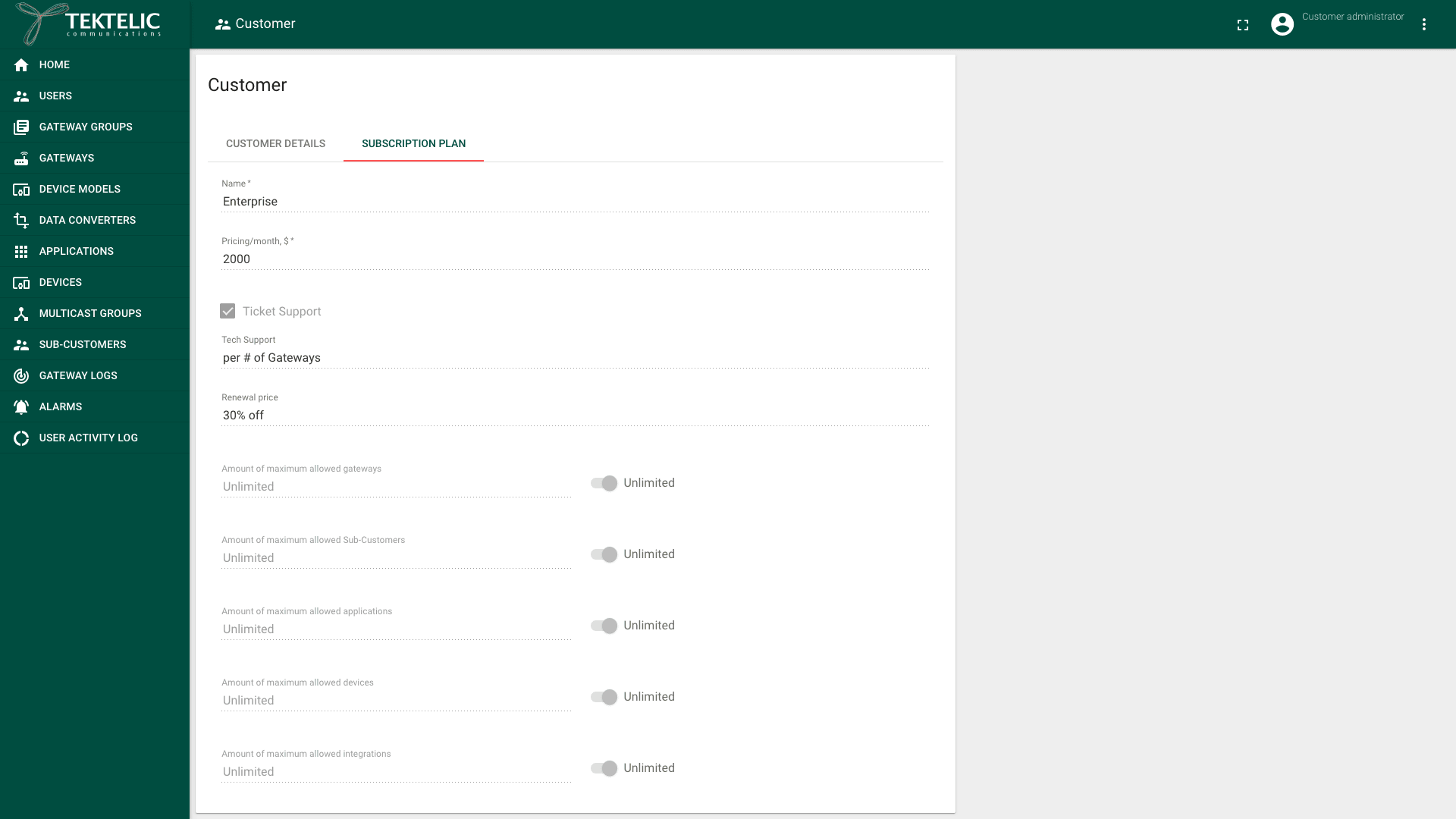
- Optional: select Ticket Support, and enter Tech Support and Renewal price. KONA Core shows these values to the Customer. It doesn't use them for limits.
- Set each maximum: Amount of maximum allowed gateways, Amount of maximum allowed Sub-Customers, Amount of maximum allowed applications, Amount of maximum allowed devices and Amount of maximum allowed integrations. Enter a whole number of at least 1, or turn on Unlimited next to it. A number is required when Unlimited is off. The fields start with 100 gateways, 10 Sub-Customers, 100 applications, 10,000 devices and 10 integrations. confirm these prefilled values in the live Add Subscription Plan dialog. They come from the UI source.
- Select Add. The plan appears in the list.
Add Subscription Plan dialog with the maximum allowed fields and the Unlimited switches. The page is for Provider roles; the test account is a Customer administrator.
We recommend setting numbers rather than Unlimited when your own Provider plan has limits. A Customer with Unlimited can use your whole reserve.
Assign or change a Customer's plan
- In the side menu, select Customers. The Subscription Plan column shows each Customer's current plan.
- Select the Customer's row. The Customer details panel opens.
- Select Edit mode (the pencil icon).
- In Subscription Plan, select the new plan. The field is required, so a Customer always has a plan.
- Select Apply to save.
Customer details panel with the Subscription Plan field in edit mode. The page is for Provider roles; the test account is a Customer administrator.
When you create a Customer, you select its plan in the Add Customer dialog. See Manage Customers & Sub-Customers.
Change the limits of a plan
- In the side menu, select Subscription Plans.
- Select the plan's row. The Subscription Plan details panel opens.
- Select Edit mode (the pencil icon).
- Change the maximums.
- Select Apply to save.
A plan can be assigned to several Customers. confirm that changing a plan's limits applies to every Customer that has the plan. To change the limits of one Customer only, create a new plan and assign it to that Customer.
Lower a Customer's limits (downgrade)
KONA Core checks a limit when a user creates a resource. A request that would exceed the maximum fails, for example with .
When you move a Customer to a plan with lower limits than its current usage:
- New resources of that type are rejected until the usage drops below the new maximum.
- confirm whether KONA Core lets you save a plan or an assignment whose maximums are below the current usage, or rejects it.
- confirm that the existing gateways, devices, applications and integrations above the new limit keep working, and that KONA Core doesn't remove any of them.
Before a downgrade, check the Customer's usage. The Customers page shows #of Sub-Customers, #of GWs and #of Devices for each Customer. Ask the Customer to remove what it no longer needs first. See Usage Statistics & Reports.
Delete a plan
Deleting a plan can't be undone. The dialog warns: confirm whether KONA Core lets you delete a plan that is assigned to a Customer.
- In the side menu, select Subscription Plans.
- In the plan's row, select the Delete icon.
- Read the dialog .
- Select Yes to delete, or No to keep it.
Move every Customer to another plan before you delete one.
To change your Provider Subscription Plan, contact your TEKTELIC Sales representative.
Check the result
- On the Customers page, the Subscription Plan column shows the new plan.
- The Customer administrator sees the plan in the top bar's three-dot menu, under Customer details > Subscription Plan. The tab shows the plan's name and every maximum, read-only.
To manage plans from your own system, use Save customer subscription and Save customer in the API Reference.
Troubleshooting
| Symptom | Likely cause | What to do |
|---|---|---|
| A Customer reports | The Customer uses all of its plan for that resource. | Assign a plan with a higher maximum, or ask the Customer to remove resources it no longer needs. |
A Customer reports a message that ends with allowed by your provider subscription! | Your Provider plan is full, across all your Customers. | Lower the allocation of another Customer, or ask for a larger Provider plan. On the TEKTELIC-hosted service, contact TEKTELIC. |
| Add Subscription Plan isn't shown. | You have the Provider user role. | Ask a Provider administrator to make the change. |
Still stuck? A Provider contacts TEKTELIC Support. Send the Customer's title, the plan name, the time in UTC, the exact error message and a screenshot.
Related
- Subscription Plans & Limits: plan types, parameters and how limits add up.
- Manage Customers & Sub-Customers: create Customers with a plan.
- Usage Statistics & Reports: check usage before you change a plan.
- Tenancy Model: how subscriptions apply per tenant.
- Customer subscription and Provider subscription operations in the API Reference.