Manage Users
Overview
Give each person their own account in TEKTELIC KONA Core Network Server, with the role they need. You add the user, send them an activation link, change their role later if needed, and remove access when they leave.
Which roles you can assign depends on your own role. This guide doesn't repeat the role rules: see Users, Roles & Permissions.
Before you start
- Role: an administrator role: Provider administrator, Customer administrator or Sub-Customer administrator. A user role sees the Users page read-only. See who manages which users.
- Email: the email address of the new user. The user signs in with it and receives the activation email there.
- Organization: to add a user for the level below yours, that organization must exist. For example, a Customer administrator needs the Sub-Customer first. See Manage Customers & Sub-Customers.
- Subscription plan: plans don't limit the number of users. See Subscription Plans & Limits.
Steps
Add a user
-
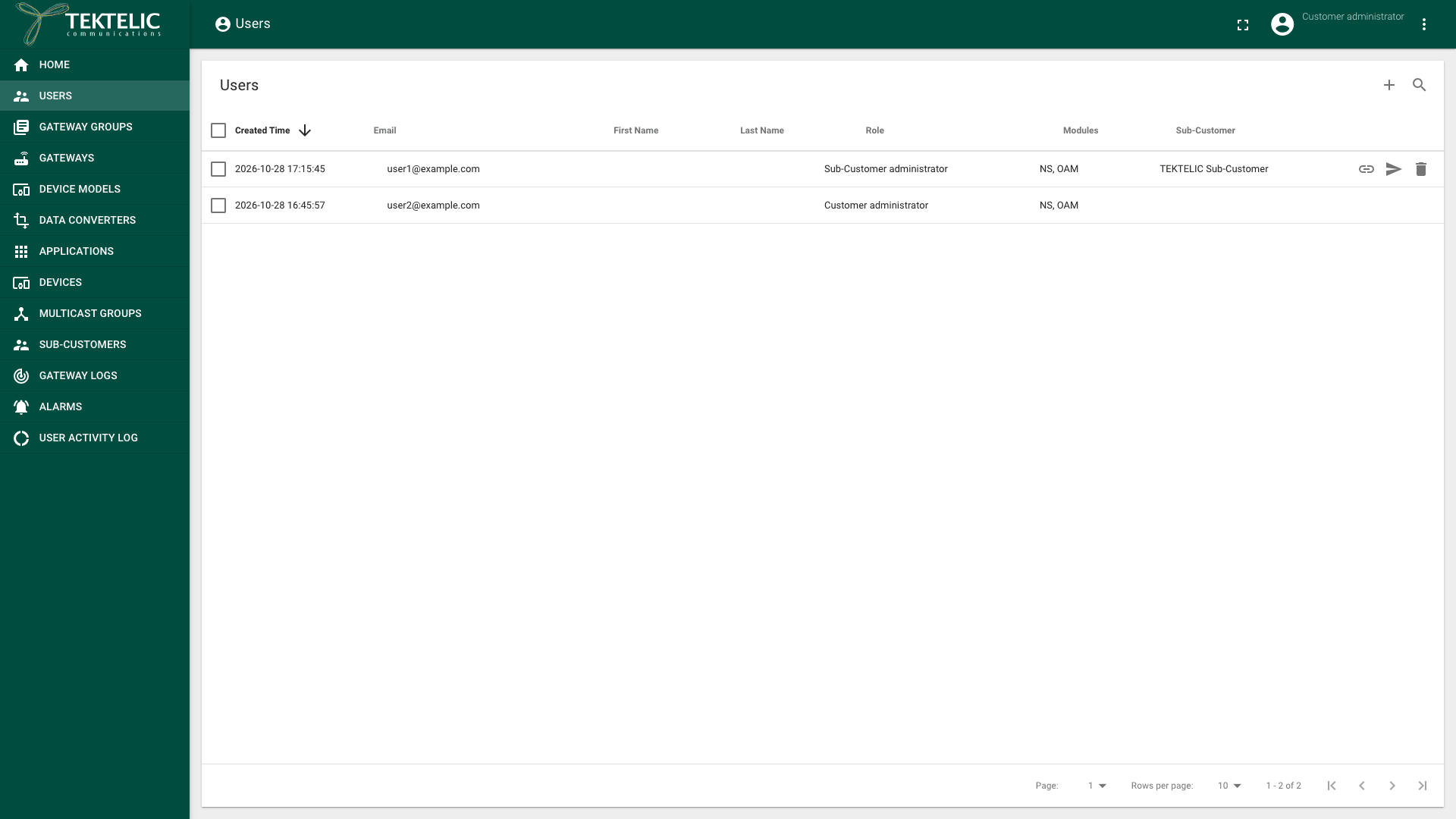
In the side menu, select Users. The Users page lists the users of your level and of the level below. The Sub-Customer column shows which Sub-Customer a user belongs to.
-
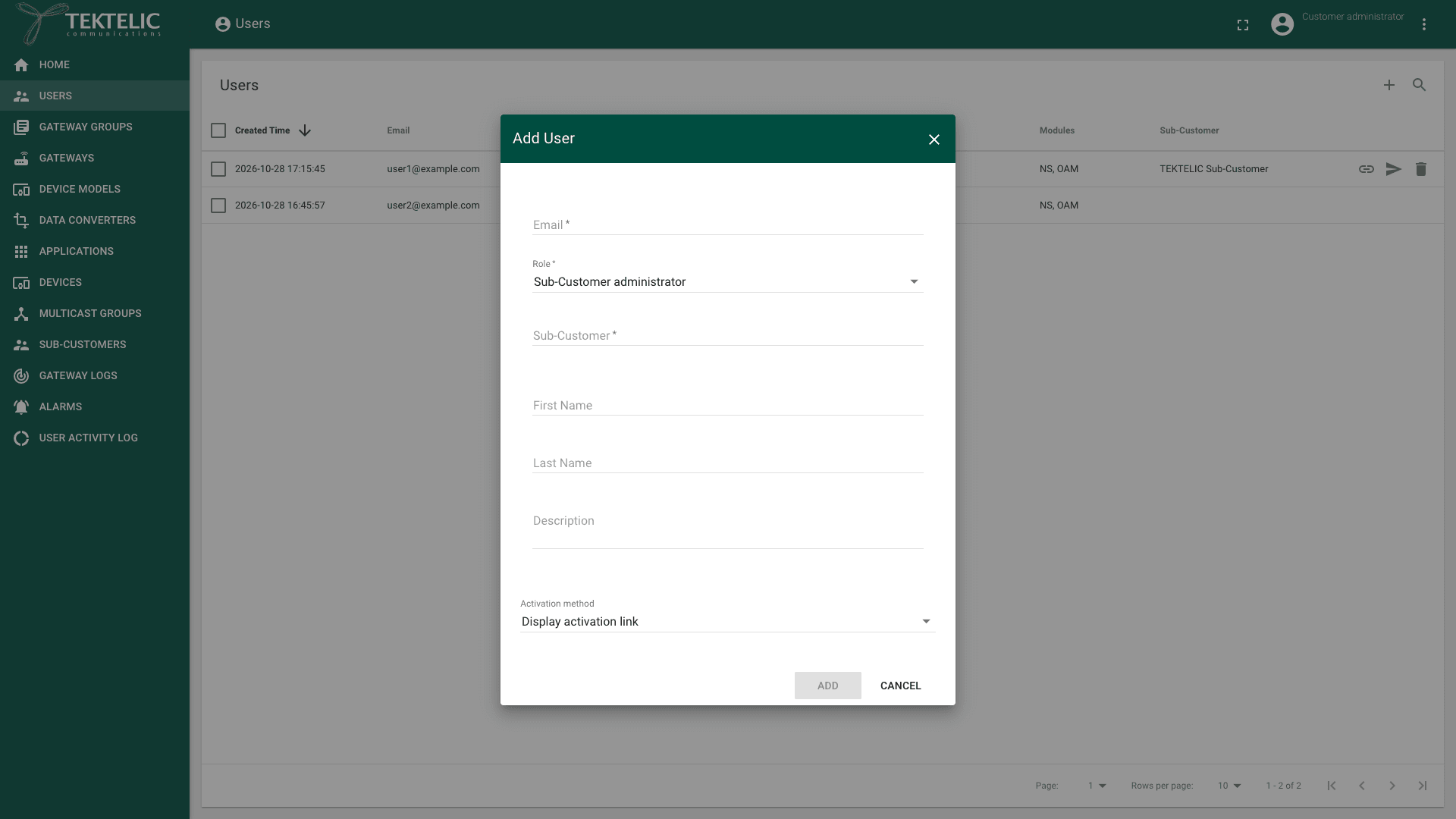
Select Add User (the + icon). The Add User dialog opens.
-
Enter the Email. The email is required and must be a valid address.
-
Select the Role. The list shows only the roles you can assign. A Customer administrator, for example, sees Customer administrator, Customer user, Sub-Customer administrator and Sub-Customer user. Choose the user role for anyone who only monitors the network.
-
If you selected a role of the level below, select the organization in the field that appears. For a Sub-Customer role, select the Sub-Customer. For a Customer role, a Provider administrator selects the Customer. The field is required.
-
Optional: enter First Name, Last Name and Description. A name makes the user easier to find in the list and in the User Activity Log.
-
Select the Activation method:
- Send activation mail: KONA Core emails the activation link to the user. We recommend it: the link goes straight to the person who owns the email address.
- Display activation link (default): KONA Core shows the link to you, and you pass it to the user. Use it when the user can't receive email from KONA Core.
-
Select Add. Add stays unavailable until all required fields are filled in.
- With Send activation mail, the message appears.
- With Display activation link, the User activation link dialog opens. Select Copy activation link, then send the link to the user over a channel you trust.
User activation link dialog. It opens only after a user is added, and the documentation team never adds users on the production NS.
The user selects Activate Your Account in the email and sets a password on the Create Password page. For the steps and screenshots, see Accounts & Trial Access. If the user can't find the activation message, resend the link as described below.
To add a user directly inside one organization, open it first. For example, select Sub-Customers, then the Manage users icon in the Sub-Customer's row. The page is titled with the Sub-Customer name and Users. In Add User there, you don't select the organization.
Send the activation link again
If the user lost the link or the email didn't arrive:
- In the side menu, select Users.
- In the user's row, select one of these icons. They are also buttons in the User details panel.
- Resend activation: KONA Core emails the activation link again.
- Display activation link: the User activation link dialog opens with Copy activation link.
Both actions are available for every user except you and except permanently disabled users.
Change a user's role or details
-
In the side menu, select Users.
-
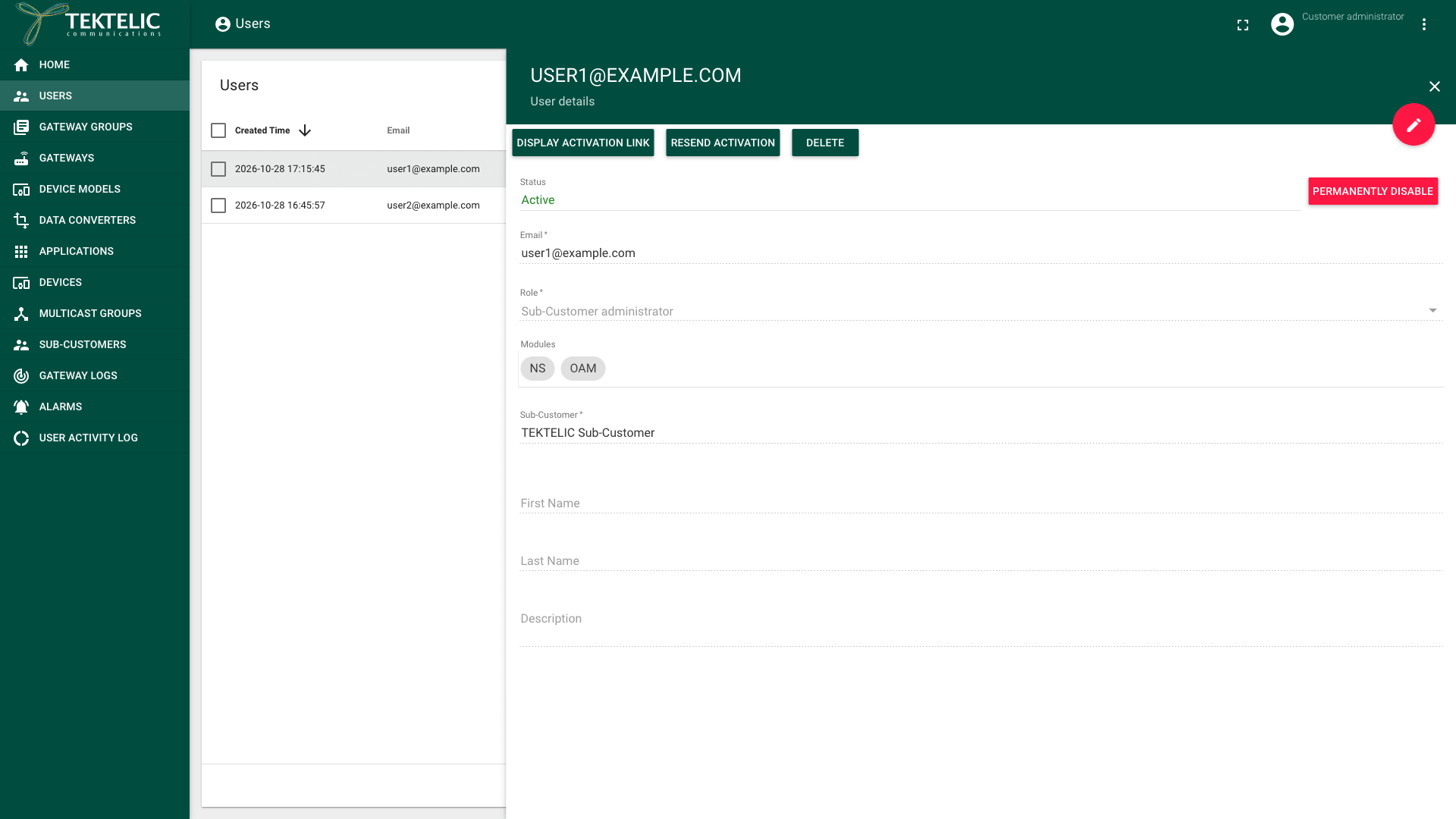
Select the user's row. The User details panel opens. It shows the Status, Email, Role, Modules and the organization of the user.
-
Select Edit mode (the pencil icon).
-
Select the new Role. You can only choose another role of the same level, for example Sub-Customer user instead of Sub-Customer administrator.
-
Change Email, First Name, Last Name or Description if needed.
-
Select Apply to save.
You can't change the organization of an existing user: the Sub-Customer field stays locked in edit mode. To move a person to another organization or level, arrange the account change with your administrator. One email address can identify only one account. Your own user and permanently disabled users open read-only. For what NS and OAM grant, see Module access.
Permanently disable a user
Permanently disable blocks the user from signing in and keeps the user record. KONA Core has no temporary deactivation: to remove access, you permanently disable or delete the user.
You can't enable a permanently disabled user again. To give the person access later, you need to add a new user. confirm whether a new user can reuse the email address of a disabled user.
- In the side menu, select Users.
- Select the user's row. The User details panel opens.
- Select Permanently disable. A dialog asks and warns:
- Confirm with Permanently disable.
Permanently disable confirmation dialog. The documentation team doesn't trigger this action on the production NS.
The Status changes from Active to Permanently disabled, and the details become read-only.
Delete a user
Delete a user when you no longer need the record. To keep the record, for example for audits, use Permanently disable instead.
Deleting a user can't be undone. The dialog warns:
- In the side menu, select Users.
- In the user's row, select the Delete icon. You can also select Delete in the User details panel. To delete several users, select their check boxes, then the Delete icon above the list.
- Read the dialog .
- Select Yes to delete, or No to keep the user.
Delete user confirmation dialog. The documentation team doesn't trigger this action on the production NS.
You can't delete your own user: its row has no Delete icon.
Check the result
- The new user appears on the Users page with the Role and, for the level below, the organization you selected.
- In the User details panel, the Status shows Active in green, or Permanently disabled in red.
- A deleted user no longer appears in the list.
- Each change is recorded in the User Activity Log. Filter by Entity type USER to see who added, changed or removed users.
To manage users from your own system, use Save user, Send activation email or Delete user in the API Reference.
Troubleshooting
| Symptom | Likely cause | What to do |
|---|---|---|
| Add User (the + icon) isn't shown. | You have a user role, which sees the Users page read-only. | Ask an administrator of your level to add the user, or to give you the administrator role. |
| Add stays unavailable, with , or | A required field is empty or the email isn't valid. | Enter a valid email. For a Sub-Customer role, select the Sub-Customer. |
| The user didn't receive the activation email. | The email went to a spam folder, or the address has a typo. | Check the Email in User details. Then select Display activation link and send the link yourself. |
Still stuck? A Sub-Customer contacts their Customer, a Customer contacts their Provider, and a Provider contacts TEKTELIC Support. Send the user's email address, the time in UTC, the exact message and a screenshot.
Related
- Users, Roles & Permissions: the roles at each level and what they can do.
- Manage Customers & Sub-Customers: create the organizations your users belong to.
- User Activity Log: see who changed what.
- Accounts & Trial Access: get an account and sign in for the first time.
- User operations in the API Reference.