User Activity Log
Overview
Find out who changed what in TEKTELIC KONA Core Network Server, and when. The User Activity Log lists user actions, such as sign-ins and changes to devices or gateways, with the user's email and IP address. You filter the log to the entries you need and export them as a CSV file.
Before you start
- Role: any role. Every role sees the User Activity Log in the side menu. Each role sees the log of its own organization and of the organizations below it. See Users, Roles & Permissions.
- What to look for: the user's email, the time, or the entity you are interested in, for example a device's DevEUI.
Steps
What the log records
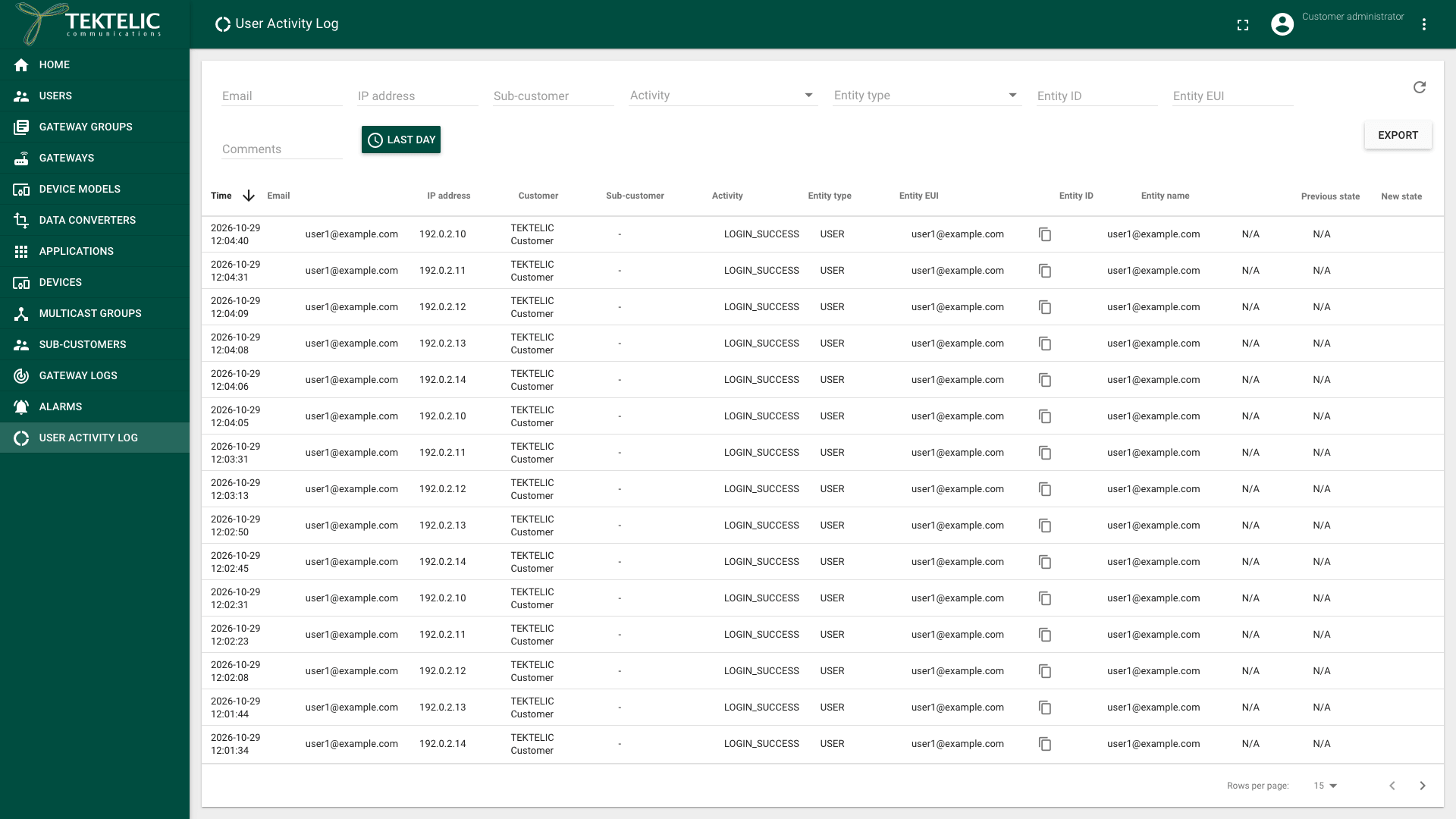
Each row is one user action. The columns are Time, Email, IP address, Activity, Entity type, Entity EUI, Entity ID, Entity name, Previous state, New state and Comments. The organization columns depend on your level:
| Your level | Organization columns |
|---|---|
| System | Provider |
| Provider | Provider, Customer |
| Customer | Customer, Sub-customer |
| Sub-Customer | Sub-customer |
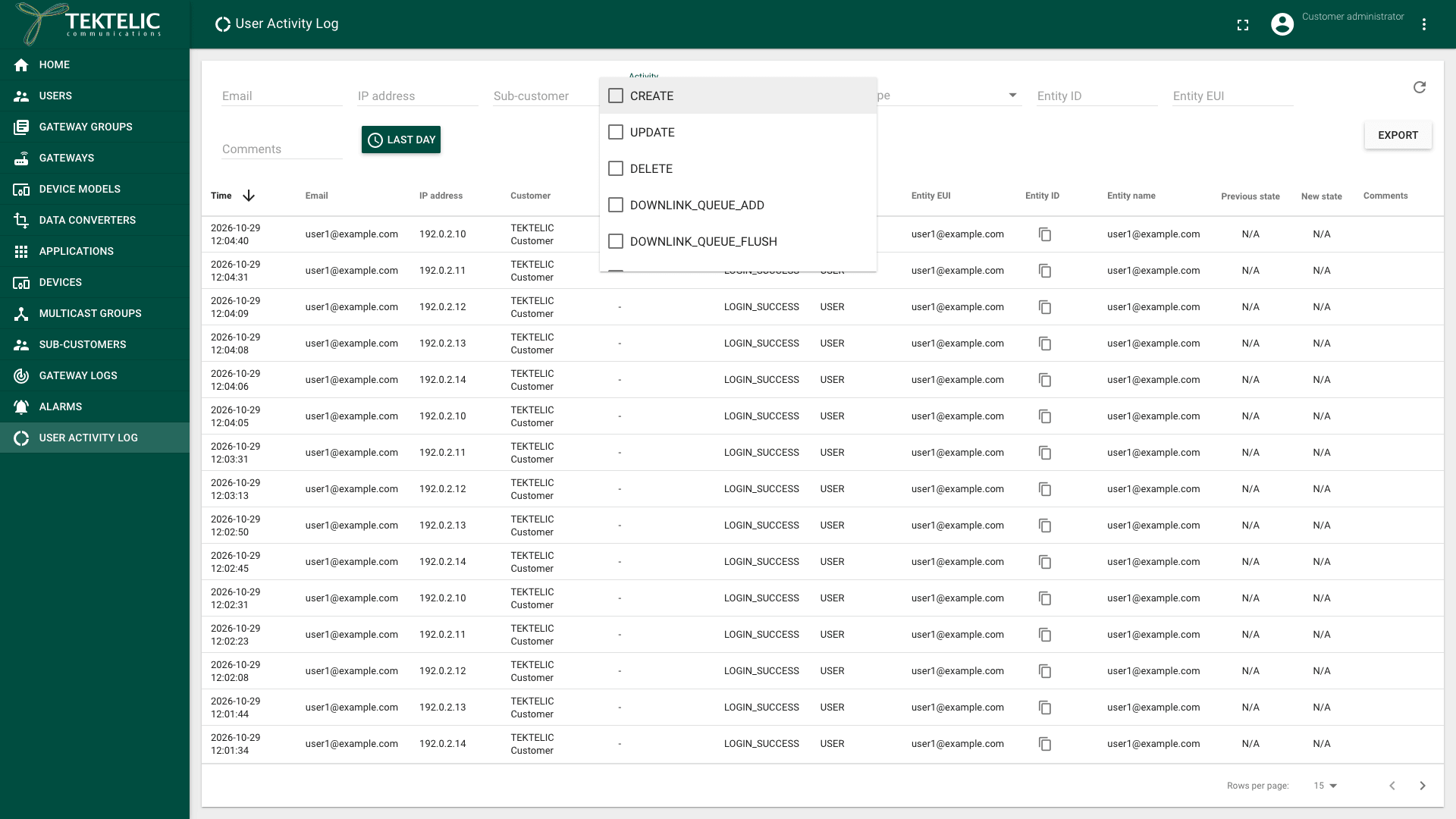
The Activity column names the action. Every level has CREATE, UPDATE and DELETE. The other activities depend on the entity:
| Entity type | Activities besides create, update and delete |
|---|---|
| DEVICE | DOWNLINK_QUEUE_ADD, DOWNLINK_QUEUE_FLUSH, MULTICAST_DEVICES_ADD, MULTICAST_DEVICES_DELETE, NETWORK_SETTINGS_UPDATE, DEVICE_SESSION_UPDATE, API_LIMIT_UPDATE, MAC_COMMAND_SEND |
| GATEWAY | GATEWAY_CONFIGURATION_CREATE, GATEWAY_CONFIGURATION_UPDATE, GATEWAY_CONFIGURATION_DELETE, GATEWAY_FIRMWARE_CREATE, GATEWAY_FIRMWARE_UPDATE, GATEWAY_FIRMWARE_DELETE, GATEWAY_JSONCONFIGURATION_CREATE, GATEWAY_JSONCONFIGURATION_UPDATE, GATEWAY_JSONCONFIGURATION_DELETE, GATEWAY_RPC_SEND |
| GATEWAY_GROUP | GATEWAY_GROUP_GATEWAY_ADD, GATEWAY_GROUP_GATEWAY_DELETE |
| USER | ACTIVATION_EMAIL_SEND, ACTIVATION_LINK_GET, PASSWORD_CHANGE, PASSWORD_RESET, RESET_TOKEN_CREATE, USER_ACTIVATE, LOGIN_SUCCESS, LOGIN_FAILED. Provider and Customer levels also have USER_SSO_LOGIN; the Provider level has USER_SSO_ATTACH. |
| ADMIN_SETTINGS (System) | TEST_EMAIL_SEND, TEST_SMS_SEND |
| OTHER (Provider and Customer) | FILE_TRANSFER_TOKEN_SAVE |
The Entity type list shows the types of your level:
| Your level | Entity types |
|---|---|
| System | ADMIN_SETTINGS, PROVIDER_SUBSCRIPTION, PROVIDER, USER, OTHER |
| Provider | CUSTOMER, CUSTOMER_SUBSCRIPTION, GATEWAY_MODEL, GATEWAY_GROUP, GATEWAY, USER, OTHER |
| Customer | DEVICE_MODEL, CONVERTER, APPLICATION, DEVICE, MULTICAST_GROUP, INTEGRATION, GATEWAY_GROUP, GATEWAY, SUB_CUSTOMER, USER, OTHER |
| Sub-Customer | DEVICE_MODEL, CONVERTER, APPLICATION, DEVICE, MULTICAST_GROUP, INTEGRATION, USER, OTHER |
For a change, Previous state and New state hold the entity before and after it. N/A means there is no state, for example for a sign-in. confirm that selecting a Previous state or New state value opens the State details dialog with the full entity.
The log records user actions, not network traffic. Uplinks and gateway messages are in other places: see Gateway Logs and Device Activity & Status.
Open and filter the log
-
In the side menu, select User Activity Log. The log opens with the entries of the Last day, newest first.
-
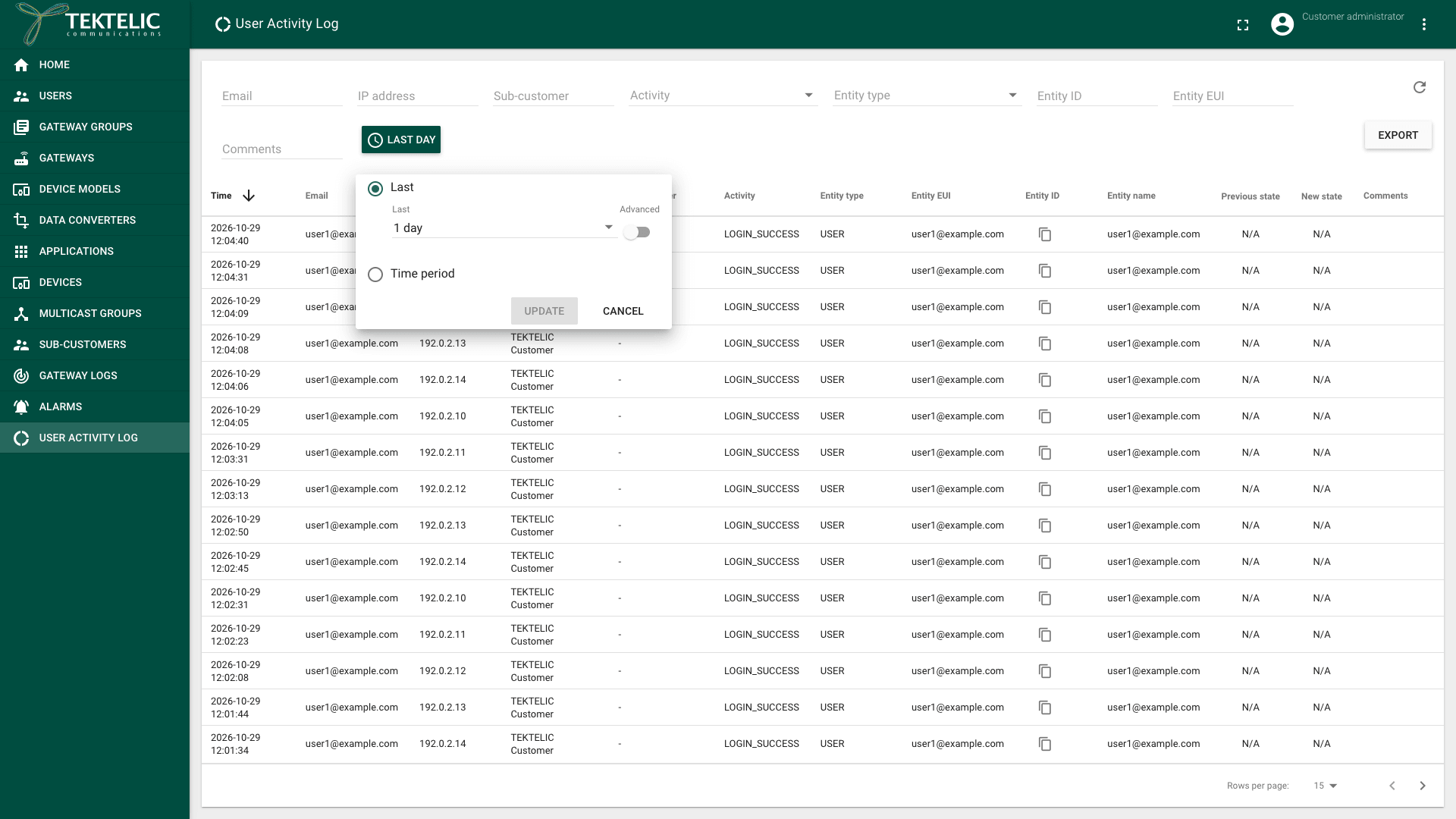
Select the time window button, which shows Last day by default. A panel opens.
-
Choose the period:
- Last: a period that ends now, for example 1 day. Turn on Advanced to enter the days, hours, minutes and seconds.
- Time period: a start and end date and time.
-
Select Update. The list reloads.
-
Narrow the list with the filters above it. Text filters apply when you leave the field:
- Email and IP address of the user.
- The organization filter of your level: Provider (System), Customer (Provider) or Sub-customer (Customer). A Sub-Customer has no organization filter.
- Entity ID, Entity EUI and Comments. Enter the DevEUI in Entity EUI to see every change to one device.
-
Select one or more values in Activity and Entity type. The list reloads shortly after your last selection.
-
Sort by a column, for example Time or Email, by selecting its header.
-
Select Refresh (the circular arrow icon) to load new entries.
To see all failed sign-ins, select LOGIN_FAILED in Activity. To see who changed a gateway, enter its GW-ID in Entity EUI. confirm that the Entity EUI of a gateway entry is its GW-ID.
Export the log
- Set the time window and filters for the entries you need. The export contains every entry that matches them, not only the current page.
- Select Export. The button shows the progress in percent. To stop, select Cancel.
- Open the downloaded file. It's named
<yyyy-MM-dd>_user-activity-log, with the current date.
Export is unavailable when the list is empty, with the hint .
The file is a CSV file with a semicolon (;) as the separator, and one header row. Its columns are ts, userEmail, userIpAddress, providerTitle, customerTitle, subCustomerTitle, activity, entityType, entityMetaId, entityId, entityMetaName, previousState, newState and description. The ts column has the format yyyy-MM-dd HH:mm:ss. confirm whether the Time column and the exported ts use UTC or the browser's time zone.
When you open the file in a spreadsheet, choose the semicolon as the separator.
Select a time range
The Time period option doesn't accept a start more than 3 years (1095 days) in the past. Export the log regularly if you need records for longer, for example for an audit.
Check the result
- The list shows only entries that match your time window and filters. The footer shows the page and Rows per page: 15, 30 or 45.
- The exported file opens with the same entries as the filtered list, across all pages.
- If the list is empty, the page shows . Widen the time window or clear a filter.
To read the log from your own system, use Get all logs in the API Reference.
Troubleshooting
| Symptom | Likely cause | What to do |
|---|---|---|
| The time window is too short, or a filter excludes every entry. | Select a longer period in the time window. Clear the text filters and the Activity and Entity type selections. | |
| An action of another organization is missing. | Each role sees only its own organization and the organizations below it. | Ask an administrator of the level above to check the log. |
| The CSV file shows all values in one column. | The spreadsheet expects a comma as the separator. | Import the file again and choose the semicolon as the separator. |
Still stuck? A Sub-Customer contacts their Customer, a Customer contacts their Provider, and a Provider contacts TEKTELIC Support. Send the user's email, the time in UTC, the entity's ID or DevEUI, and a screenshot of the filtered log.
Related
- Manage Users: add and remove the users who appear in the log.
- Users, Roles & Permissions: what each role can see and change.
- Gateway Logs: the messages your gateways send.
- User activity log operations in the API Reference.