Bulk Device Commissioning
Overview
Add many devices to one application in TEKTELIC KONA Core Network Server from a CSV file. Device bulk commissioning reads the file, creates one device for each row and reports which rows failed. At the end, the devices are in the application and join the LoRaWAN® network with OTAA when they're turned on.
All devices from one file get the same device model and the same settings. To add a single device, see Onboard a TEKTELIC Device.
Before you start
- Role: Customer administrator or Sub-Customer administrator. The Device bulk commissioning icon appears only where you can add devices. See Users, Roles & Permissions.
- Application: the application that gets the devices. See Manage Applications.
- Device model: one device model for all devices in the file. Split devices of different models into separate files. See Manage Device Models.
- Subscription plan: room for all devices in the file. See Subscription Plans & Limits.
- CSV file: the DevEUI, JoinEUI and AppKey of each device. See Prepare the file.
Prepare the file
The file is a CSV file with a header row and one row per device. KONA Core reads it as follows:
- Separator: a comma. Quotes aren't supported, so no value may contain a comma.
- Header row: the first row holds the column names. KONA Core finds each column by its exact name.
- Rows: every row has as many cells as the header row. Empty rows are skipped.
- Values: hexadecimal, without spaces or separators such as
-or:.
| Column | Use | Value |
|---|---|---|
DEVEUI | Sets the Device EUI | The DevEUI, 16 hexadecimal characters |
APPEUI | Sets the Application EUI | The JoinEUI (AppEUI), 16 hexadecimal characters |
APPKEY | Sets the Application Key | The AppKey, 32 hexadecimal characters |
Any other column, for example NAME | Can build the device name, and is added to the Description | Any text without commas |
The file has no columns for an ABP device address or session keys. Use the file for OTAA devices, and add ABP devices one by one: see Onboard a Third-Party Device.
For a TEKTELIC device whose APPEUI starts with 647FDA, APPKEY can be empty when the device is registered in the Join Server. The prefix alone isn't sufficient. Otherwise, provide the device's AppKey.
The dialog's File example button downloads a sample file, Device_Bulk_Commissioning_sample.csv. Its first rows look like this. The values are placeholders, not real devices:
NAME,DEVEUI,APPKEY,APPEUI
DEVICE 1,647FDA0000000000,647FDA0000000000647FDA0000000000,647FDA0000000000
DEVICE 2,647FDA0000000001,647FDA0000000001647FDA0000000001,647FDA0000000001
DEVICE 3,647FDA0000000002,647FDA0000000002647FDA0000000002,647FDA0000000002
The file holds AppKeys, which are secrets. Delete it once the devices are added. See Security & Keys.
Steps
-
In the side menu, select Applications.
-
In your application's row, select the Manage devices icon. The application's devices page opens.
-
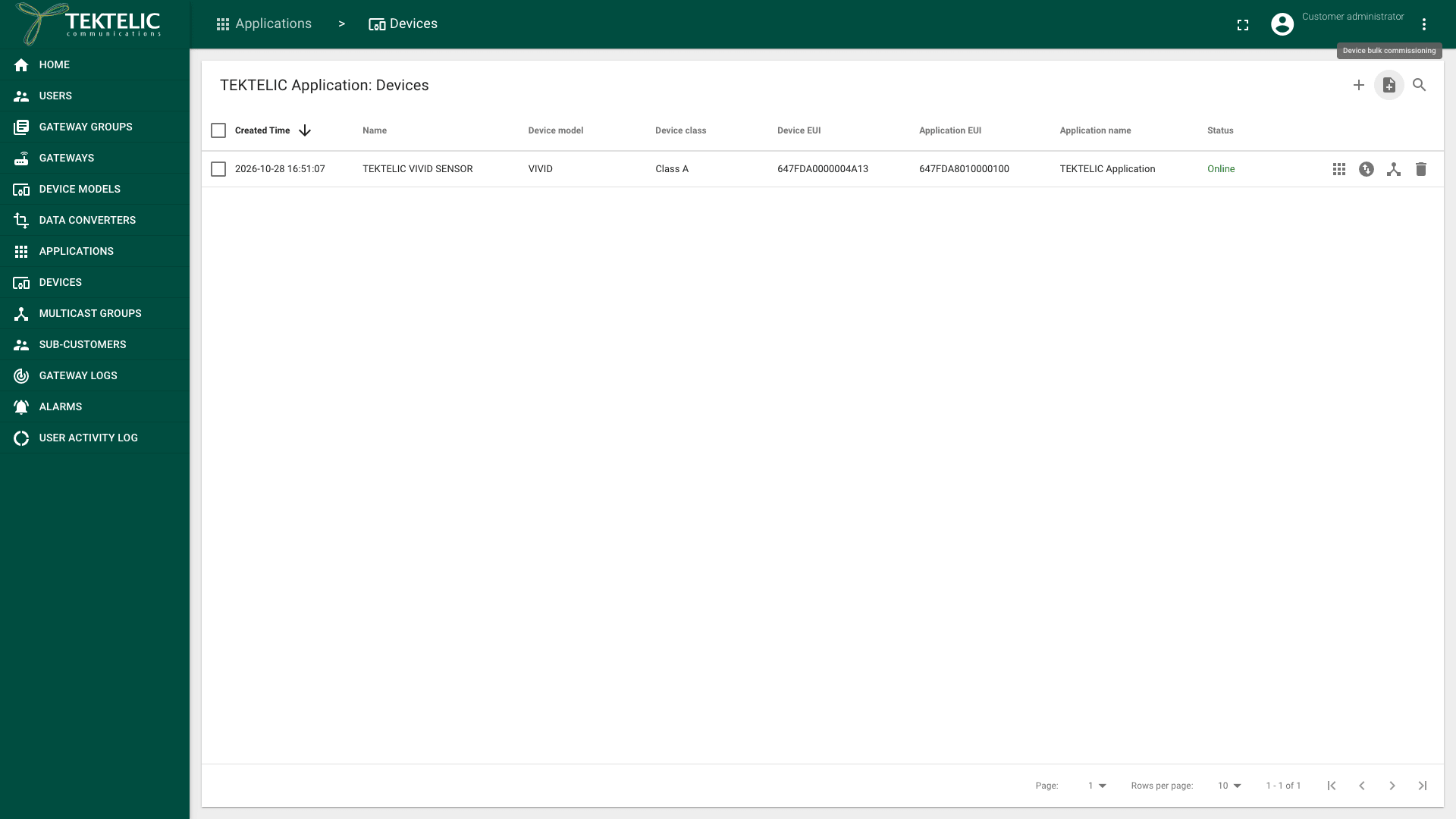
Select Device bulk commissioning (the file icon next to Add Device). The Device bulk commissioning dialog opens.
-
Optional: select File example to download the sample file.
-
Select Select a file, and choose your CSV file. The dialog shows which columns it uses:
DEVEUIfor the device EUI,APPEUIfor the Application EUI andAPPKEYfor the Application Key. Until you select a file, it shows No file for commissioning selected, and the other fields are unavailable.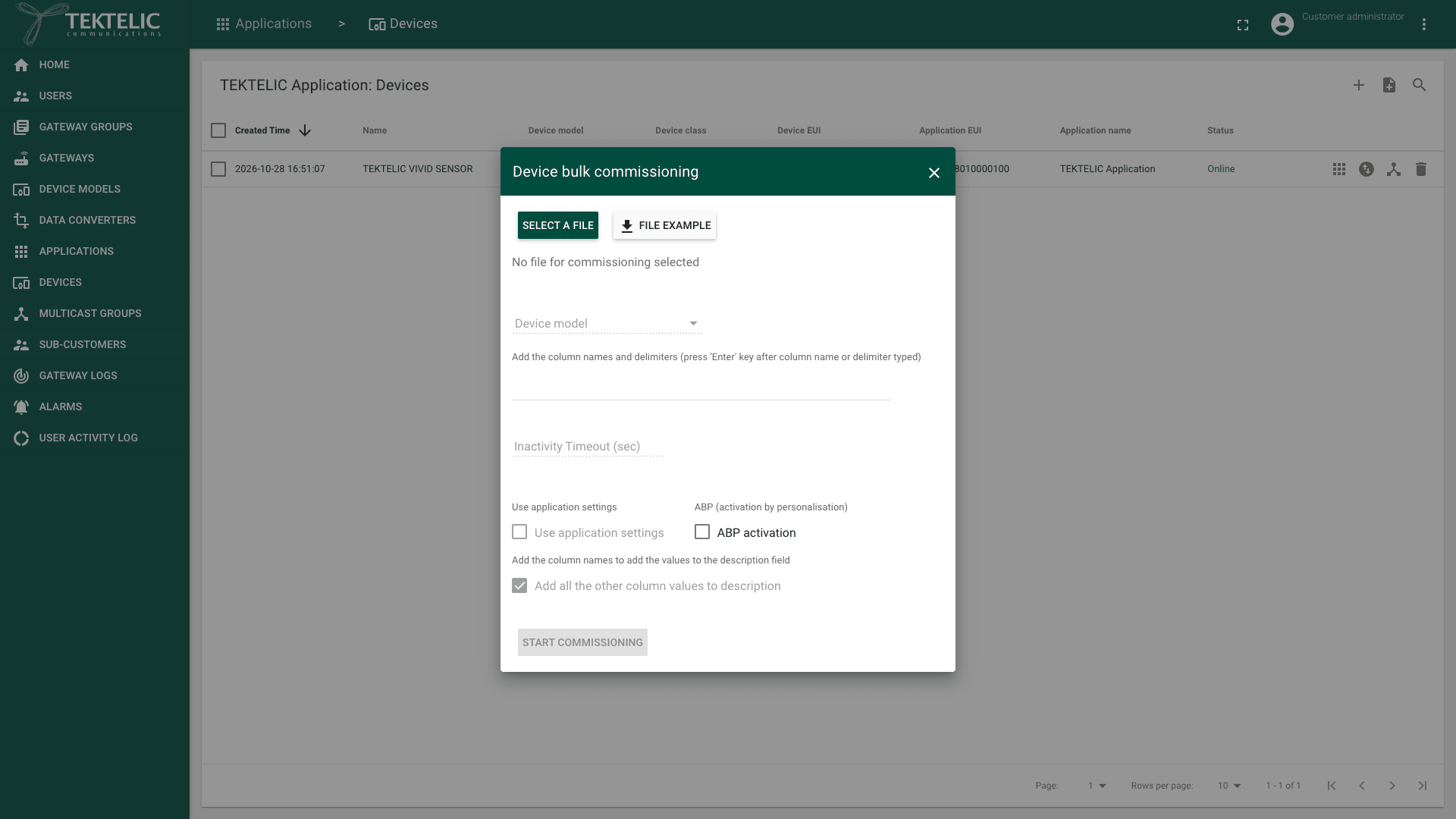
-
Select the Device model for all devices in the file.
-
Build the device name under Add the column names and delimiters (press 'Enter' key after column name or delimiter typed). Type a column name, for example
NAME, and press Enter. Each entry that matches a column name is replaced by that row's value. Any other entry is used as literal text, for example-between two columns. The entries are joined without spaces. At least one entry is required. -
Optional: enter an Inactivity Timeout (sec) for all devices. See Device Activity & Status.
-
Select Use application settings, so the devices use the network settings of the application. We recommend it. See Network Settings.
-
Leave ABP activation cleared, so the devices join with OTAA.
-
Leave Add all the other column values to description selected. KONA Core then writes each column that isn't used for the name or the keys into the device's Description, one line per column, as
<column> - <value>. To pick the columns yourself, clear the option and enter the column names. -
Select Start commissioning. It's available once a file, a device model and at least one name entry are set. KONA Core creates the devices one row at a time.
-
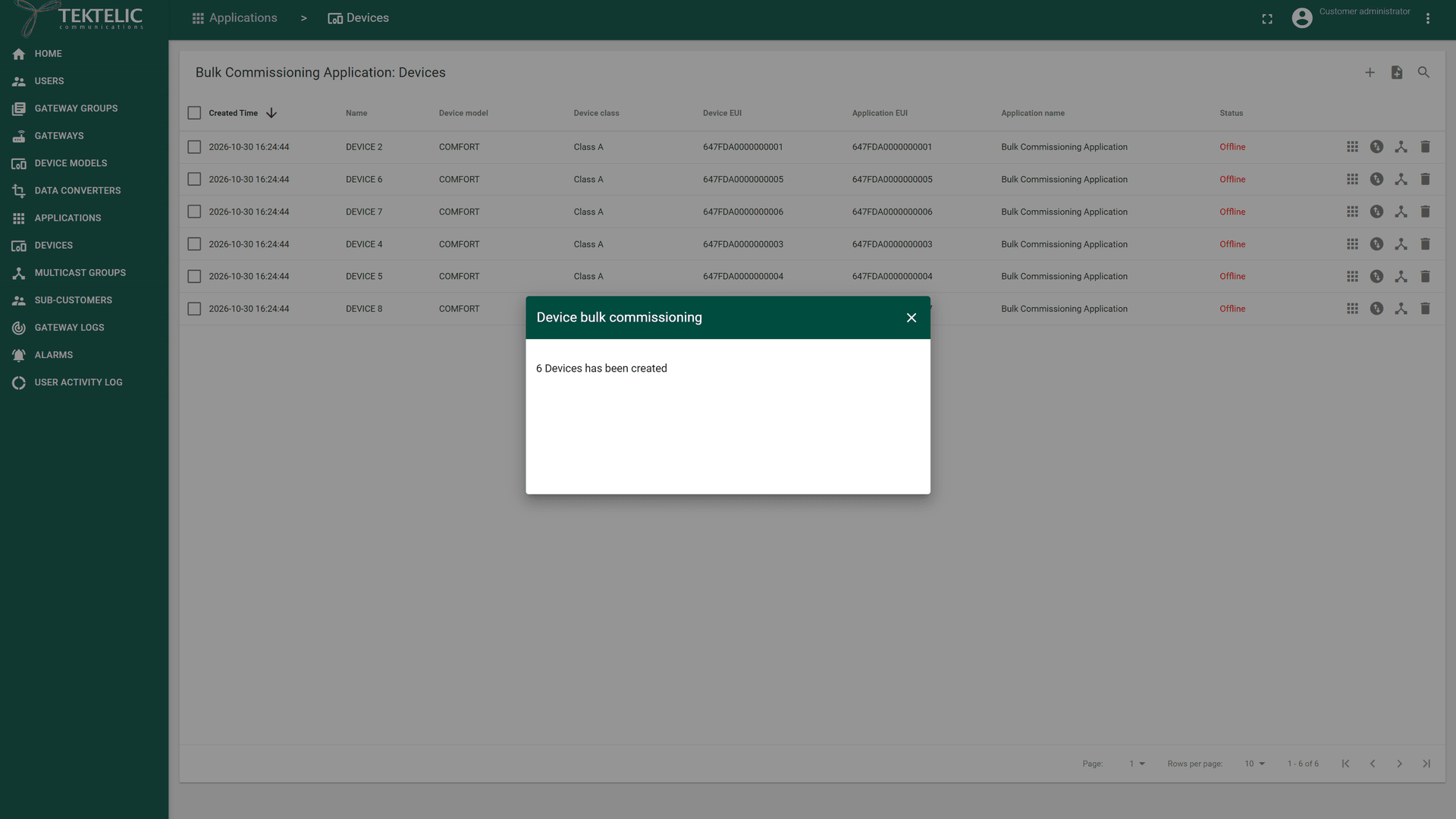
Read the result text in the dialog. It ends with the number of created devices, for example . Above it, the dialog lists an error message for each row that failed.
-
Close the dialog with the X icon. The devices list reloads with the new devices.
To add devices from your own system instead, use Save device once per device. The dialog sends the same request for each row.
Check the result
- Compare the number in the result text with the number of rows in your file.
- On the application's devices page, check that the new devices are listed with the right Name, Device model and Device EUI. New devices show the status Offline until they join.
- Open one device and check its Device details tab: Application EUI, Description, and Use application settings.
- Turn on a device, and check that it joins and sends its first uplink. See Onboard a TEKTELIC Device.
Troubleshooting
| Symptom | Likely cause | What to do |
|---|---|---|
| The result shows . | A row has more or fewer cells than the header row, for example because a value contains a comma. KONA Core skips that row. | Fix the row in the file. Then create a file with only the skipped rows, and run the commissioning again. |
| The result shows for a row. | The DevEUI already exists. | Check the existing device. Retry only rows that still need to be created. |
| The result shows for a row. | Adding the device would exceed the Customer's device limit. | Free subscription capacity or request a larger plan, then retry the failed rows. |
| The result lists another error for a row. | KONA Core rejected an invalid value. confirm the exact error message for an invalid key. | Correct the value and retry only the failed rows. |
| Start commissioning stays unavailable. | No device model is selected, or no name entry is set. | Select the Device model, type a column name or text for the name, and press Enter. |
If the devices are created but don't join, see the troubleshooting in Onboard a TEKTELIC Device.
If all rows fail, the result ends with . Each duplicate row has its own error above that summary.
Still stuck? A Sub-Customer contacts their Customer, a Customer contacts their Provider, and a Provider contacts TEKTELIC Support. Send the result text, the time in UTC, the header row and one failing row with the AppKey removed, and a screenshot. Never send the whole file with keys.
Related
- Onboard a TEKTELIC Device
- Onboard a Third-Party Device
- Manage Device Models
- Multicast Groups: add many existing devices to a multicast group from a file.
- Security & Keys
- Glossary
- API Reference: Save device.