Onboard a TEKTELIC Device
Overview
Add a TEKTELIC LoRaWAN® device to an application in TEKTELIC KONA Core Network Server. You pick the TEKTELIC device model, enter the device's IDs and key, and the device joins with OTAA. At the end, you see the join and the device's first uplink in KONA Core.
This guide covers TEKTELIC devices. For devices from other manufacturers, see Onboard a Third-Party Device. To add many devices at once, see Bulk Device Commissioning.
Before you start
- Role: Customer administrator or Sub-Customer administrator. User roles open devices read-only and don't see Add Device. See Users, Roles & Permissions.
- Application: an application to add the device to. A Sub-Customer can use its own applications or applications assigned by its Customer. See Manage Applications.
- Gateway: at least 1 gateway in range of the device, shown as Online. See Onboard a KONA Gateway via MQTT.
- Same frequency plan: the device and the gateway use the same frequency plan, for example EU868 or US915. See Regions & Frequency Plans.
- Subscription plan: room for 1 more device. See Subscription Plans & Limits.
- Device values: the device's DevEUI, JoinEUI and AppKey. See Find the device values.
Find the device values
KONA Core needs three values from the device. TEKTELIC delivers them with the device.
| Value | KONA Core field | What it is |
|---|---|---|
| DevEUI | Device EUI | The device's globally unique 64-bit ID. 16 hexadecimal characters. TEKTELIC DevEUIs start with 647FDA. |
| JoinEUI (AppEUI) | Application EUI | The ID the device sends in its join request. 16 hexadecimal characters. |
| AppKey | Application Key | The secret root key for the join. 32 hexadecimal characters. |
Look for these values on the device's cover or box. The QR code identifies the T-code and serial number.
The AppKey is a secret. Keep it out of email and chat. See Security & Keys.
Steps
Step 1. Check the TEKTELIC device model
A device model supplies the device class when you add a device. TEKTELIC device models are already in KONA Core, with the manufacturer Tektelic. For later model changes, see Manage Device Models.
-
In the side menu, select Device models. The Device models page opens.
-
Find the model of your device in the Name column, for example by its product name. Use Search device models (the magnifier icon) to filter the list.
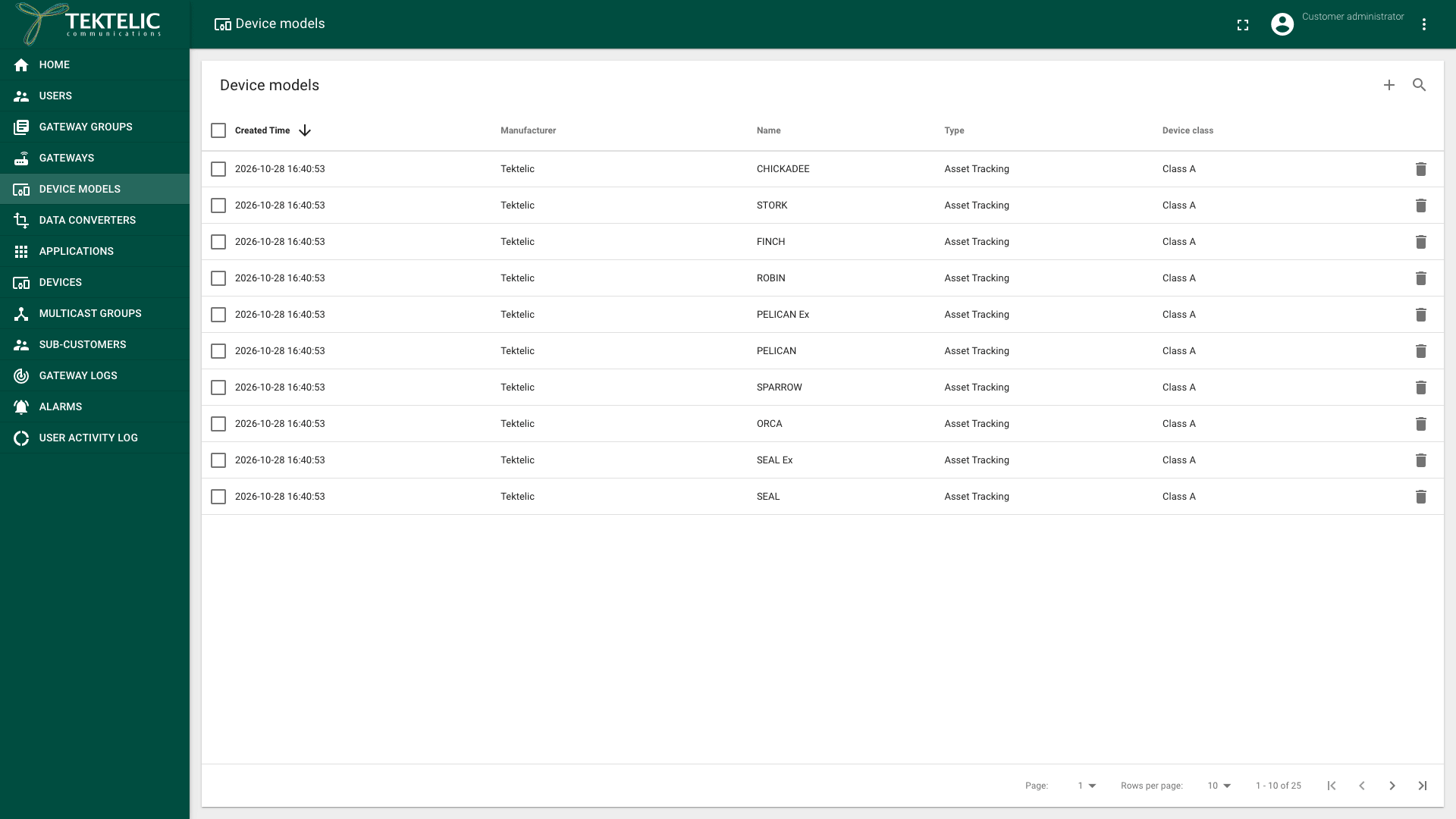
Some TEKTELIC products have a model for each class, for example a separate Class C model. Pick the one that matches the class the device firmware runs. KONA Core automatically adds TEKTELIC device models for each new Customer. The Customer administrator can add, edit or delete models: see Manage Device Models.
Step 2. Add the device
-
In the side menu, select Applications.
-
In your application's row, select the Manage devices icon. The application's devices page opens, titled with the application name and Devices.
-
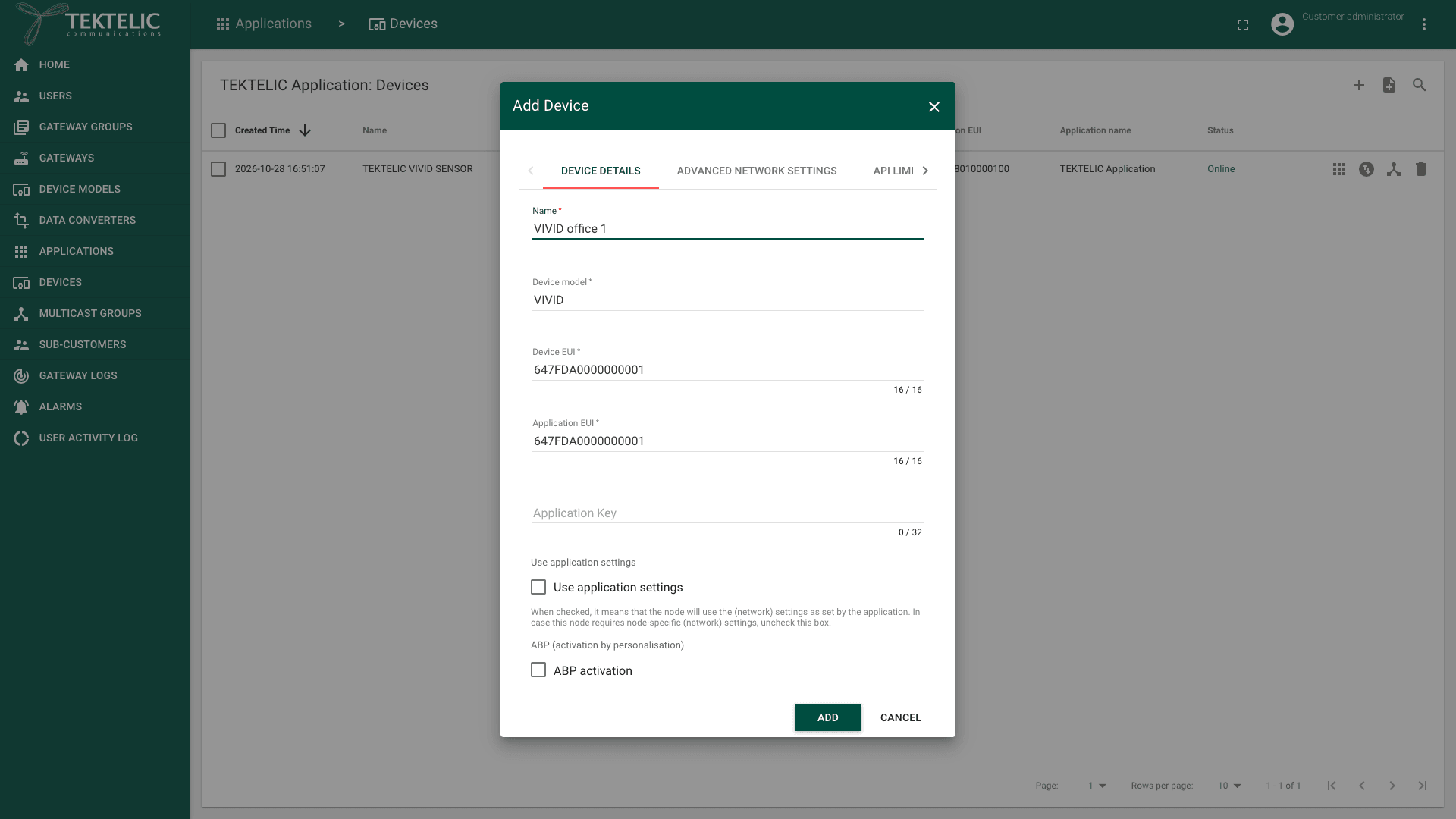
Select Add Device (the + icon). The Add Device dialog opens on the Device details tab. You can't add a device from the Devices page in the side menu.
-
Enter a Name for the device. We recommend a name that says where the device is installed.
-
In Device model, start typing the model name, then select the TEKTELIC model from the list.
-
Enter the Device EUI.
-
Enter the Application EUI.
-
Enter the Application Key. We recommend that you always enter it: the device then joins with the key you hold, and you can check it if the join fails.
-
Leave ABP activation cleared. The device then joins with OTAA, and gets new session keys at every join. For OTAA and ABP, see Device Activation & Classes.
-
Select Use application settings, so the device uses the network settings of its application. We recommend it. Clear it only if the device needs its own settings on the Advanced network settings tab. See Network Settings.
-
Optional: enter an Inactivity timeout (sec) and a Description. For the inactivity timeout, see Device Activity & Status.
-
Select Add. The device appears in the application with the status Offline. This is expected until the device joins and sends its first uplink.
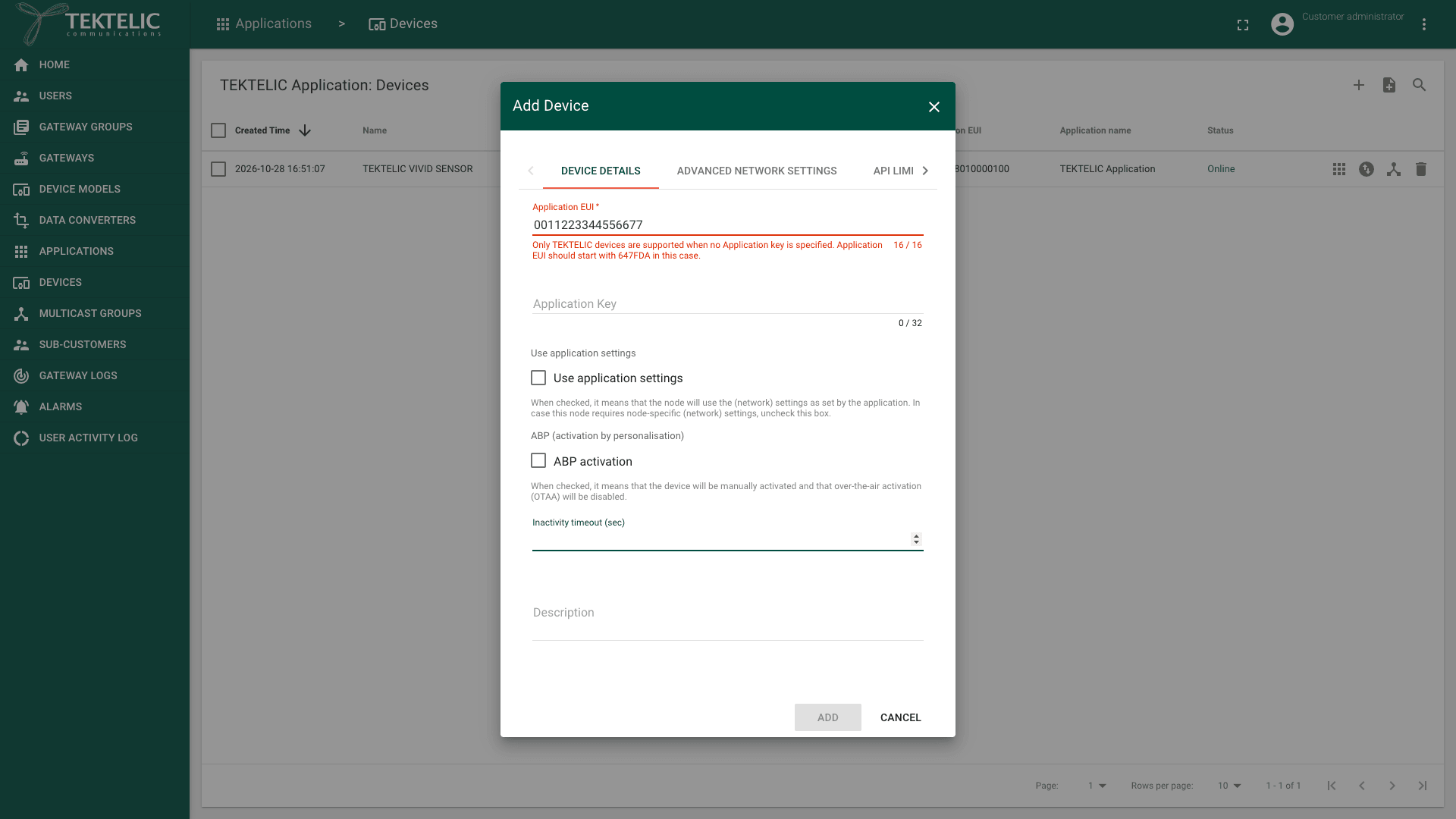
Application Key and Join Server. Enter the AppKey supplied for your device during standard onboarding. A TEKTELIC device already registered in the Join Server can be added without manually entering its AppKey. An Application EUI starting with 647FDA alone doesn't establish that the device is registered there. For other devices, an empty key can show
To add devices from your own system, use Save device.
Step 3. Turn on the device
- Activate the device near the gateway using the activation procedure for your specific device model.
- Wait for the join. The device sends a join request, and KONA Core answers with a join accept through the gateway. The first uplink usually arrives within 1 minute of power-on.
Check the result
-
In the side menu, select Devices.
-
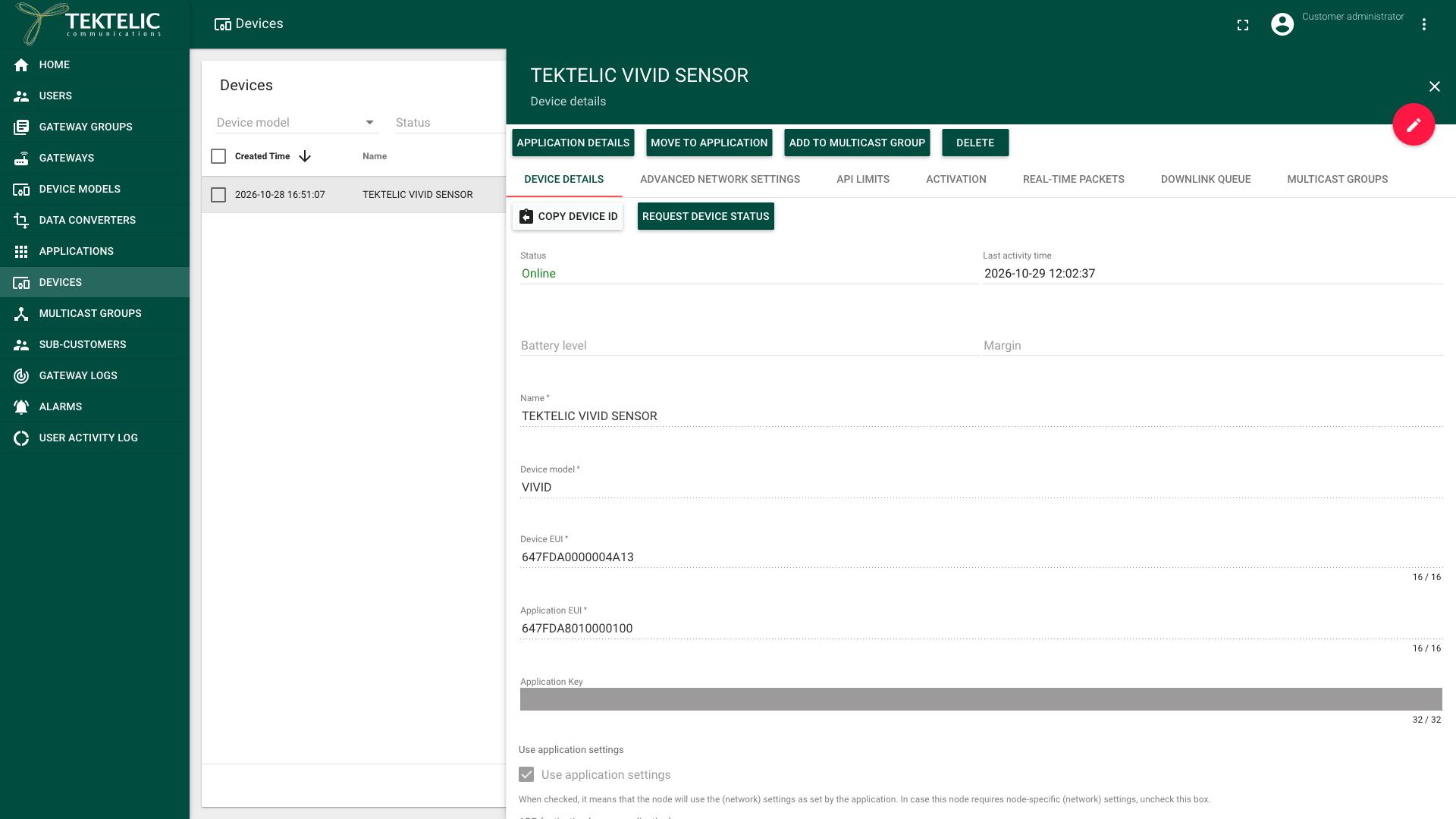
Check that your device's Status changes to Online.
-
Select the device's name in the list. The Device details panel opens. It shows the Status and the Last activity time.
-
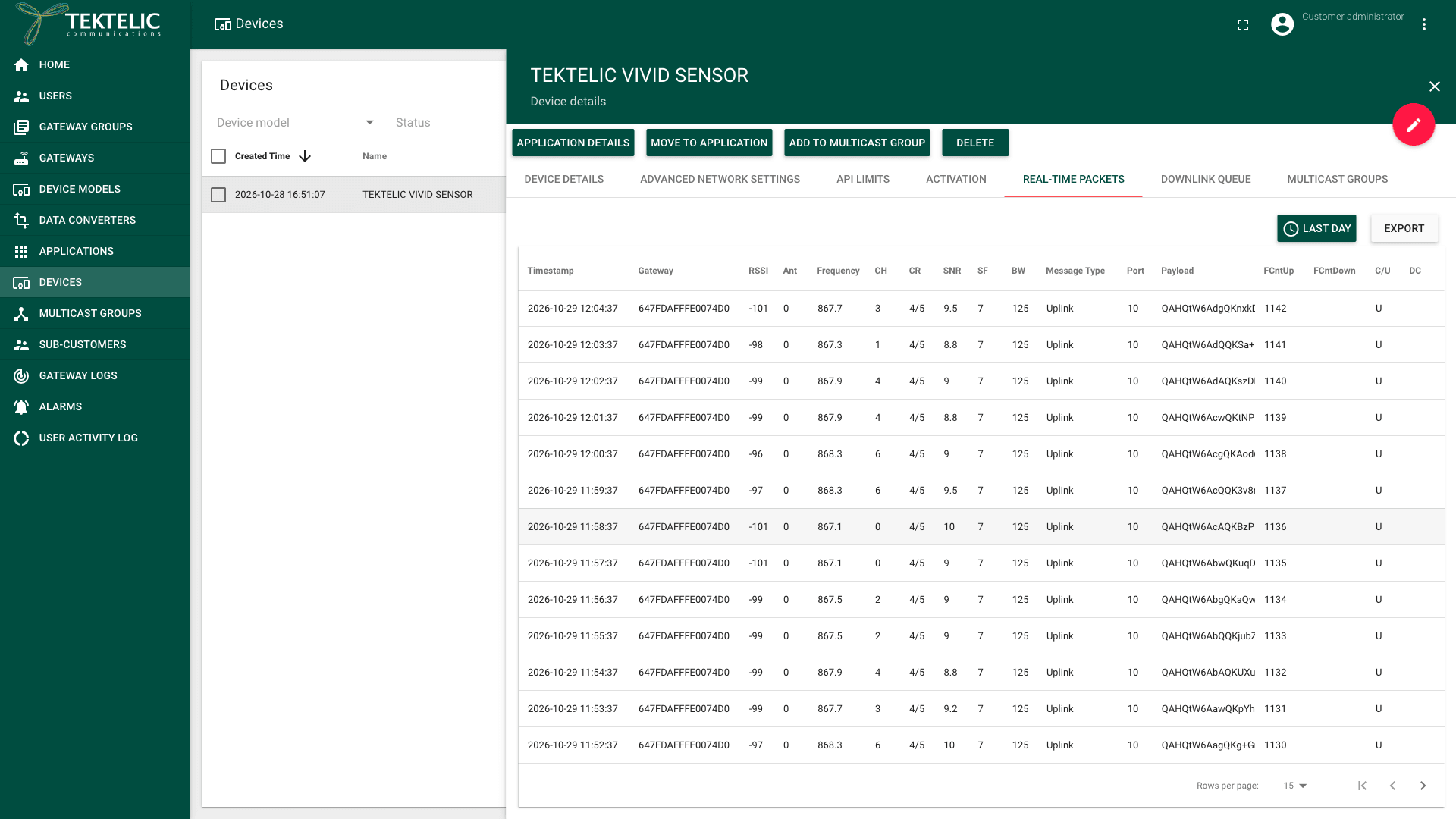
Select the Real-time packets tab. It lists the device's packets for the last day. The join shows as Join Request and Join Accept in the Message Type column. Each later uplink shows as Uplink, with the Gateway that received it and the raw Payload.
-
Optional: select the Activation tab. After the join, it shows the Device address that KONA Core assigned. The UI shows Uplink frame-counter once KONA Core has received the first uplink.
Decoded data. The Real-time packets tab shows the payload as received, not decoded. KONA Core doesn't display decoded payload values in the UI. A data converter turns the bytes into values such as a temperature, and an integration delivers them to your system.
KONA Core has built-in TEKTELIC converter types, but they work only with V1 integrations. For a V2 integration, such as an HTTP Integration, use a Custom v2 converter. To choose, see TEKTELIC Device Converters Library.
For what each status means, see Device Activity & Status.
Troubleshooting
| Symptom | Likely cause | What to do |
|---|---|---|
| The device never joins: it stays Offline, and Real-time packets shows no Join Request. | No gateway in range is online. Or the device and the gateway use different frequency plans. Or the device isn't activated. | Check that a gateway near the device shows Online. Compare the device's plan with the plan in the gateway model's name. Activate the device again. See Regions & Frequency Plans. |
| Real-time packets shows Join Request but no Join Accept. | The Device EUI, Application EUI or Application Key in KONA Core doesn't match the device. | Compare the three values with the values delivered with the device, character by character. Correct them in the device's Device details tab in edit mode. On the Alarms page, look for device events such as DEVICE_CANNOT_JOIN, DEVICE_JOIN_PROCEDURE_ERROR, LORA_MIC_FAILURE or UNKNOWN_DEVICE. DEVICE_CANNOT_JOIN reports repeated join requests without subsequent uplinks. LORA_MIC_FAILURE reports a failed message integrity check; UNKNOWN_DEVICE reports an unrecognized device. See Alarms & Events Reference. |
| Add stays unavailable in the Add Device dialog. | A required field is empty or invalid. Or Application Key is empty and Application EUI doesn't start with 647FDA. | Read the message under each field, for example Enter the Application Key. |
| Add shows | The Customer's subscription allows 1 device, and that limit is reached. | Remove a device you no longer need, or request a larger plan. See Subscription Plans & Limits. |
The Alarms page is available to all roles except System roles. You see a device's alarms only if you have access to that device. See Work with Alarms.
Still stuck? A Sub-Customer contacts their Customer, a Customer contacts their Provider, and a Provider contacts TEKTELIC Support. Send the DevEUI, the GW-ID of the nearest gateway, the time in UTC, the exact error message and a screenshot of the Real-time packets tab. Never send the AppKey.