Device Session & Frame Counters
Overview
View the session that TEKTELIC KONA Core Network Server keeps for a LoRaWAN® device. The session holds the device's address, session keys, frame counters and current receive settings. When an ABP device restarts its own counters, reset its frame counters so KONA Core accepts its uplinks again. For an OTAA device, you start a new session by letting the device join again.
Before you start
- Role: Customer administrator or Sub-Customer administrator to change values. User roles open the same tabs read-only. Provider roles have no top-level Devices page. Their access to their own Customers is described in Tenancy Model. See Users, Roles & Permissions.
- Device: added to KONA Core. For the keys and activation methods, read Security & Keys first.
- For a reset: the frame counter values the device uses after its restart, from the device's documentation or its manufacturer.
Steps
What a session and frame counters are
A session starts when the device is activated. With OTAA, it starts at each join. With ABP, it's set once, when you add the device. A session holds:
- the DevAddr, the device's short network address;
- the two session keys, NwkSKey and AppSKey;
- the two frame counters;
- the receive settings that the network server and the device agreed on, such as the RX1 delay and the RX2 frequency.
A frame counter numbers the frames. The device counts its uplinks, and KONA Core counts its downlinks to the device. The network server rejects an uplink whose counter it has already seen, so a recorded frame can't be replayed. For how the counters protect the device, see Security & Keys.
View the session
-
In the side menu, select Devices.
-
Select your device's name in the list. The Device details panel opens.
-
Select the Activation tab. It shows Device address, Network session key, Application session key, Uplink frame-counter and Downlink frame-counter.
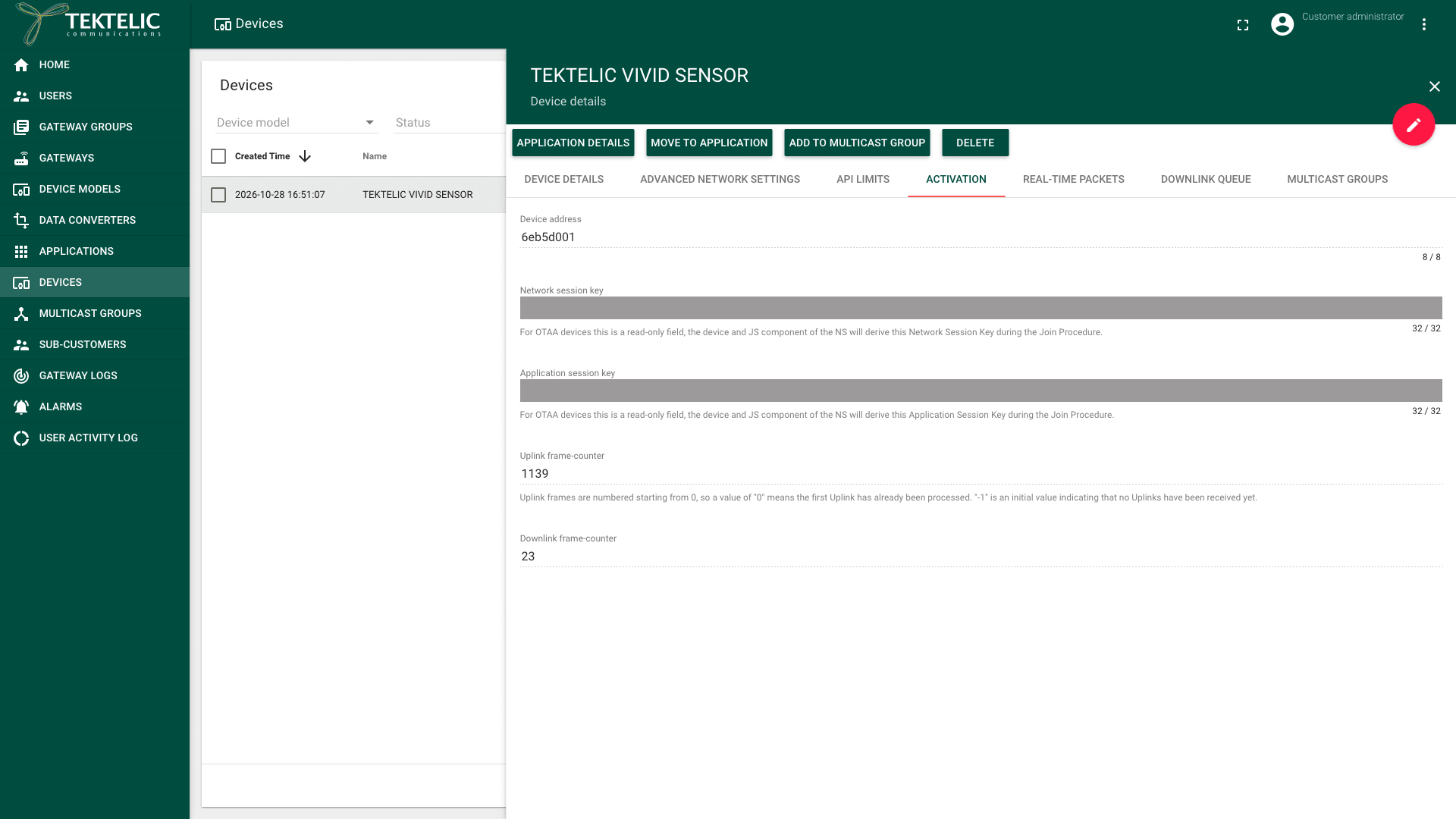
- Uplink frame-counter is the counter of the last uplink KONA Core processed. The value
0means the first uplink is processed. The value-1means KONA Core hasn't received an uplink yet. - Downlink frame-counter is the counter KONA Core uses for downlinks to the device.
- For an OTAA device, the session keys come from the join. The session-key fields are inactive and can't be edited. For an ABP device, you entered them.
- Uplink frame-counter is the counter of the last uplink KONA Core processed. The value
-
Select the Advanced network settings tab. Under Receive window delay, RX1 data-rate offset, RX2 data-rate and RX2 frequency (MHz), Currently used value shows the value of the current session. It can differ from the configured value until the device accepts the change.
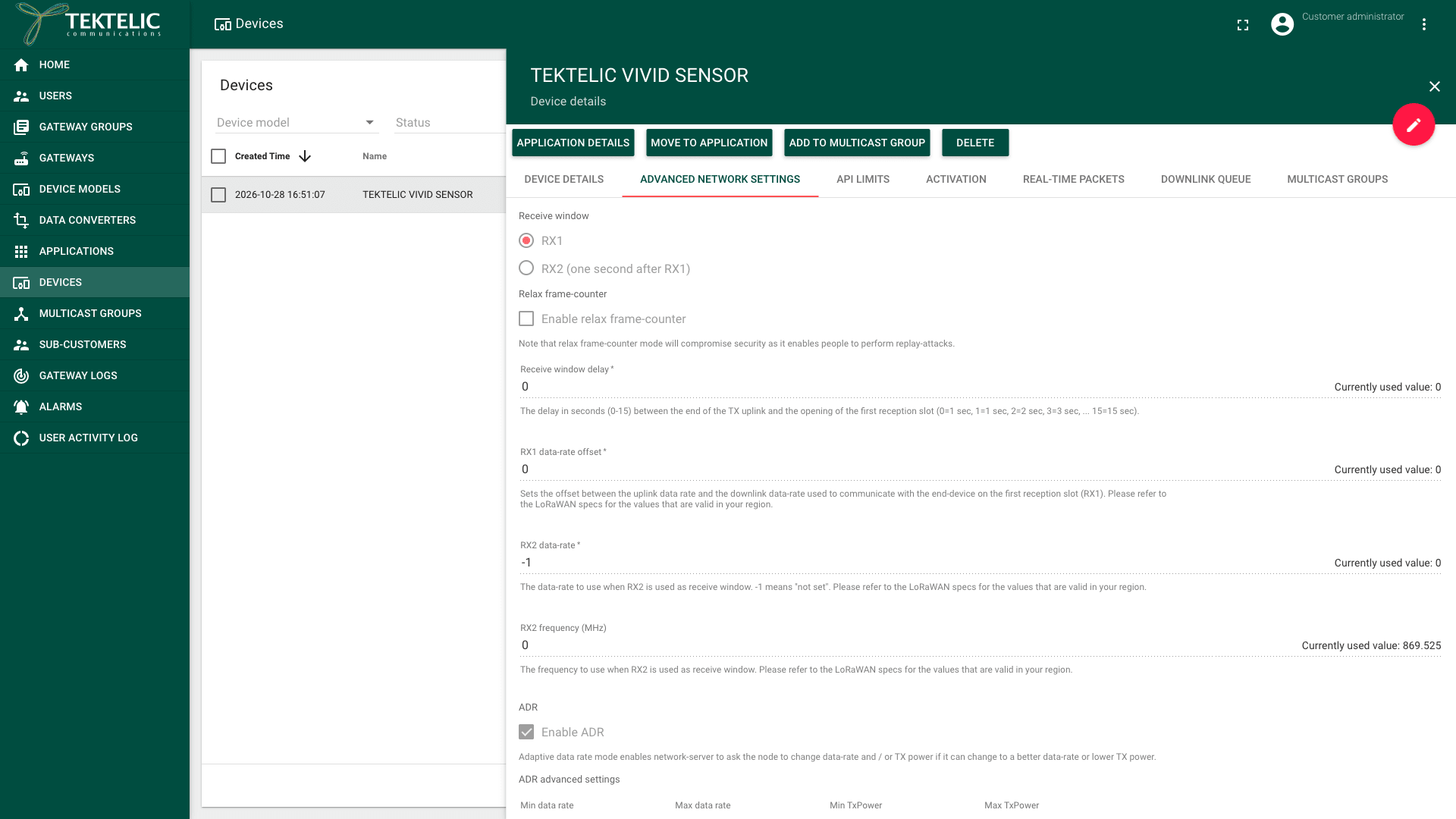
The session keys show as plain text to everyone who can open the device. Don't share screenshots of the Activation tab without masking them.
Decide whether you need a reset
Reset the frame counters only in these cases:
| Situation | What to do |
|---|---|
| An ABP device restarted, for example after a battery change, and starts counting its uplinks from 0 again. KONA Core rejects its uplinks, because their counters are lower than the last one. | Reset the counters of the device, as below. |
| An ABP device was reprogrammed or replaced, with the same DevEUI and session keys. | Reset the counters of the device, as below. |
| An OTAA device stops sending data or has a wrong session. | Don't edit the counters. Let the device join again. A successful join creates a new session and resets both frame counters to their initial values. |
confirm the event KONA Core raises when it rejects an uplink for its frame counter.
A frame counter reset weakens replay protection. After you lower Uplink frame-counter, KONA Core accepts frames with counters it had already seen, so a recorded old frame is accepted again. A wrong Downlink frame-counter makes the device reject every downlink. KONA Core applies the values directly. It doesn't tell the device. You can't undo a reset: write down the current values before you change them.
Don't use Enable relax frame-counter instead of a reset. As the UI warns, it enables replay attacks for as long as it stays selected.
Reset the frame counters of an ABP device
- Open the device and select the Activation tab, as in View the session.
- Write down the current Uplink frame-counter and Downlink frame-counter.
- Select Edit mode (the pencil icon) in the top-right corner of the panel. The fields become editable. The Downlink queue tab is hidden while you edit.
- In Uplink frame-counter, enter
-1. This is the initial value: KONA Core then accepts the device's next uplink, starting from 0. The field accepts whole numbers from -1. Other values show - In Downlink frame-counter, enter the downlink counter the device expects after its restart. Take the value from the device's documentation or manufacturer. The field accepts whole numbers from 0.
- Select Apply changes (the check mark icon) in the top-right corner of the panel. KONA Core saves the counters.
Activation tab of an existing ABP device in edit mode with the frame counters changed. The supplied image shows Add Device, not this edit step.
Reset counters only for ABP devices. For OTAA devices, KONA Core keeps the current session's counters instead of saving manual counter edits. After a restarted OTAA device completes a new join, KONA Core resets its counters for the new session.
To reset the counters from your own system, use Save device fcnts.
Change a currently used value of an ABP device
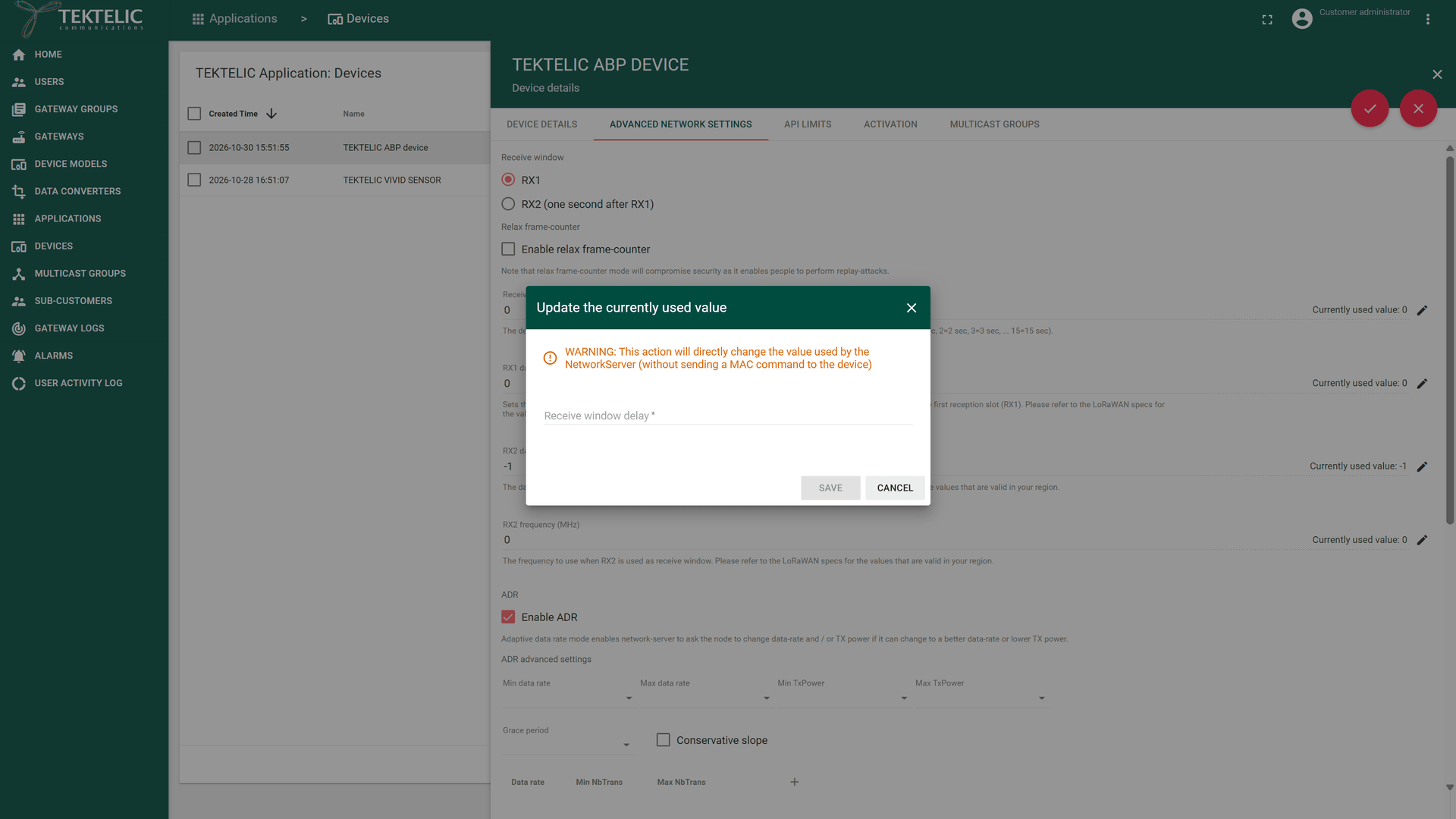
For an ABP device, you can also change one receive setting of the current session, without a join.
-
Select Edit mode (the pencil icon) in the top-right corner of the device panel.
-
Select the Advanced network settings tab.
-
Select the edit icon next to the Currently used value you want to change. The Update the currently used value dialog opens. It warns: .
-
Enter the new value.
-
Select Save.
Change a currently used value only to match a value the device already uses, for example after you configured the device directly. Otherwise, the device and KONA Core use different receive settings, and downlinks are lost.
Check the result
- Select the Activation tab. Downlink frame-counter shows the value you entered. Outside edit mode, the UI hides Uplink frame-counter while its value is
-1. - Wait for the device's next uplink.
- Select the Real-time packets tab. The new uplink is listed, with its counter in the FCntUp column.
- Select the Activation tab again. Uplink frame-counter now shows the counter of that uplink.
- On the Device details tab, check that Status is Online. See Device Activity & Status.
To read the session and counters from your own system, use Get device fcnts and Get device session by device id.
Troubleshooting
| Symptom | Likely cause | What to do |
|---|---|---|
| Uplinks still don't appear after the reset. | The device sends uplinks with a different DevAddr or session keys, or no gateway receives it. | Compare Device address and the session keys with the device's values. Check that a gateway near the device is online. |
| Uplinks appear, but downlinks don't reach the device. | Downlink frame-counter is lower than the device expects. | Ask the device's manufacturer for the expected value and set it again. |
| The changed counters are back to the old values after saving. | The device uses OTAA, so KONA Core keeps its session counters. | Let the device join again instead. |
Still stuck? A Sub-Customer contacts their Customer, a Customer contacts their Provider, and a Provider contacts TEKTELIC Support. Send the DevEUI, the counter values before and after the reset, the time in UTC and a screenshot of the Real-time packets tab.