Manage Device Models
Overview
Pick the right device model for every device you add to TEKTELIC KONA Core Network Server. Use a TEKTELIC device model for TEKTELIC devices, and add your own model for a third-party LoRaWAN® device. You can also edit and delete device models.
A device model describes a device type with five fields:
| Field | What it holds | Required |
|---|---|---|
| Manufacturer | The device maker, for example Tektelic. | Yes |
| Name | The model name. | Yes |
| Type | Free text that describes the device category. The TEKTELIC models use values such as Asset Tracking or Smart Buildings. | Yes |
| Device class | Class A, Class B or Class C. The device class used when adding a device with this model. | Yes |
| Description | Any notes. | No |
The device class is the only LoRaWAN setting on a device model. The model has no LoRaWAN version, no region or frequency plan, no network settings and no payload converter:
- Network settings belong to the application and, when needed, to a single device. See Network Settings.
- Payload decoding belongs to the data converter that you select on an integration. See Payload Converters Overview.
For how the class decides when a device receives downlinks, see Device Activation & Classes.
Before you start
- Role: Customer administrator or Sub-Customer administrator to add, edit or delete device models within its access scope. A Customer user sees the Device models page read-only, and a Sub-Customer user doesn't see it. See Users, Roles & Permissions.
- For a custom model: the device's user guide, to look up its device class.
Steps
Use a TEKTELIC device model
For a TEKTELIC device, use the TEKTELIC model. It has the right device class set, and you don't need to create anything.
-
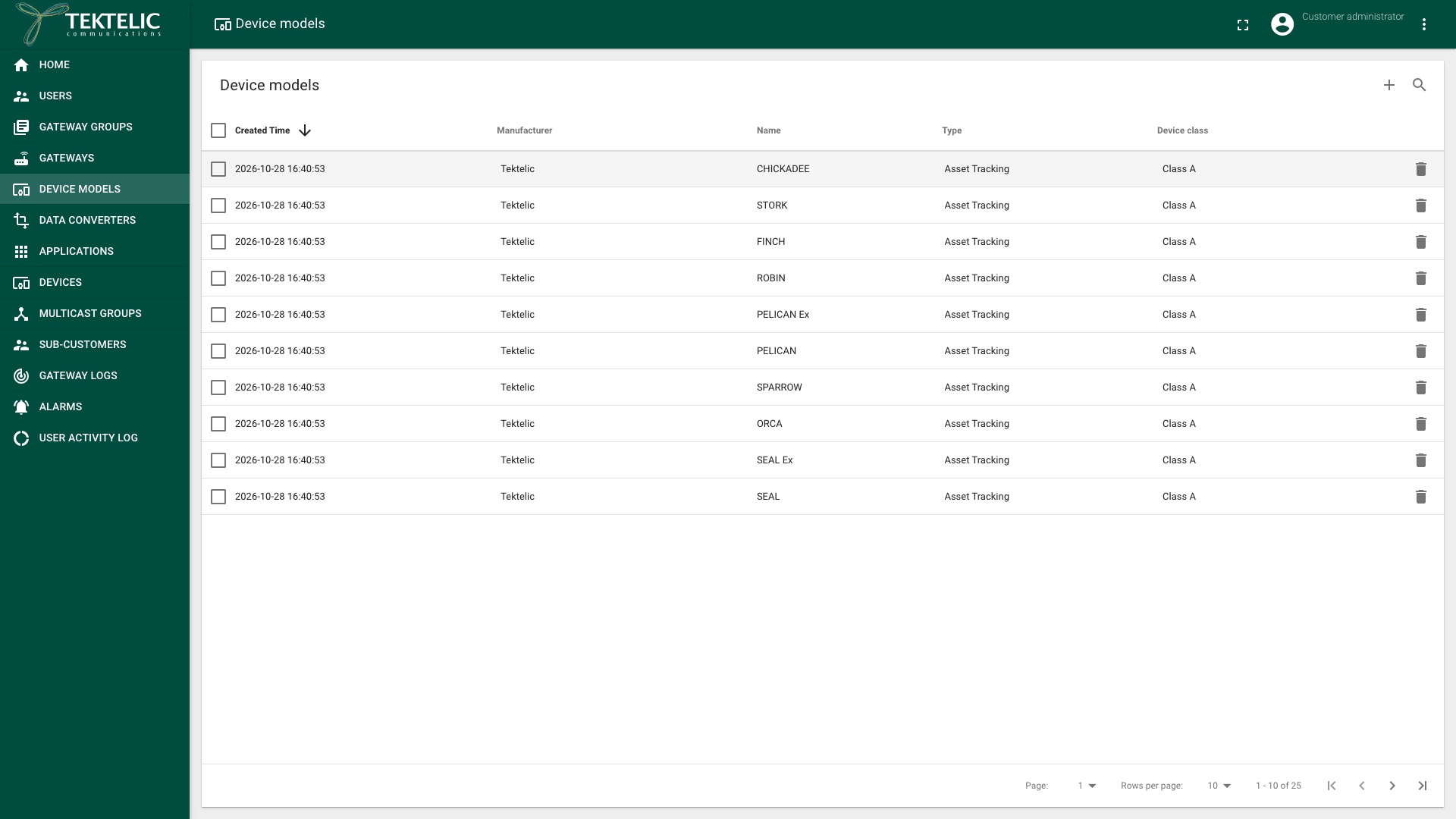
In the side menu, select Device models. The Device models page lists the models with their Created Time, Manufacturer, Name, Type and Device class.
-
Find the model of your device. TEKTELIC models show Tektelic in the Manufacturer column, for example VIVID, BREEZE or SEAL. Some devices have two models, one per class, for example MEMO (Class A) and MEMO Class C (Class C).
-
Note the model's Name. You select it in the Device model field when you add the device. See Onboard a TEKTELIC Device.
KONA Core automatically adds TEKTELIC device models for every new Customer. The Customer administrator can create, edit and delete models, including the automatically added models. Models in use by devices can't be deleted.
If your TEKTELIC device has no model in the list, add one in the next section with Manufacturer set to Tektelic.
Add a custom device model
Add a custom model for a third-party device, or for a device with no model in the list.
-
In the side menu, select Device models.
-
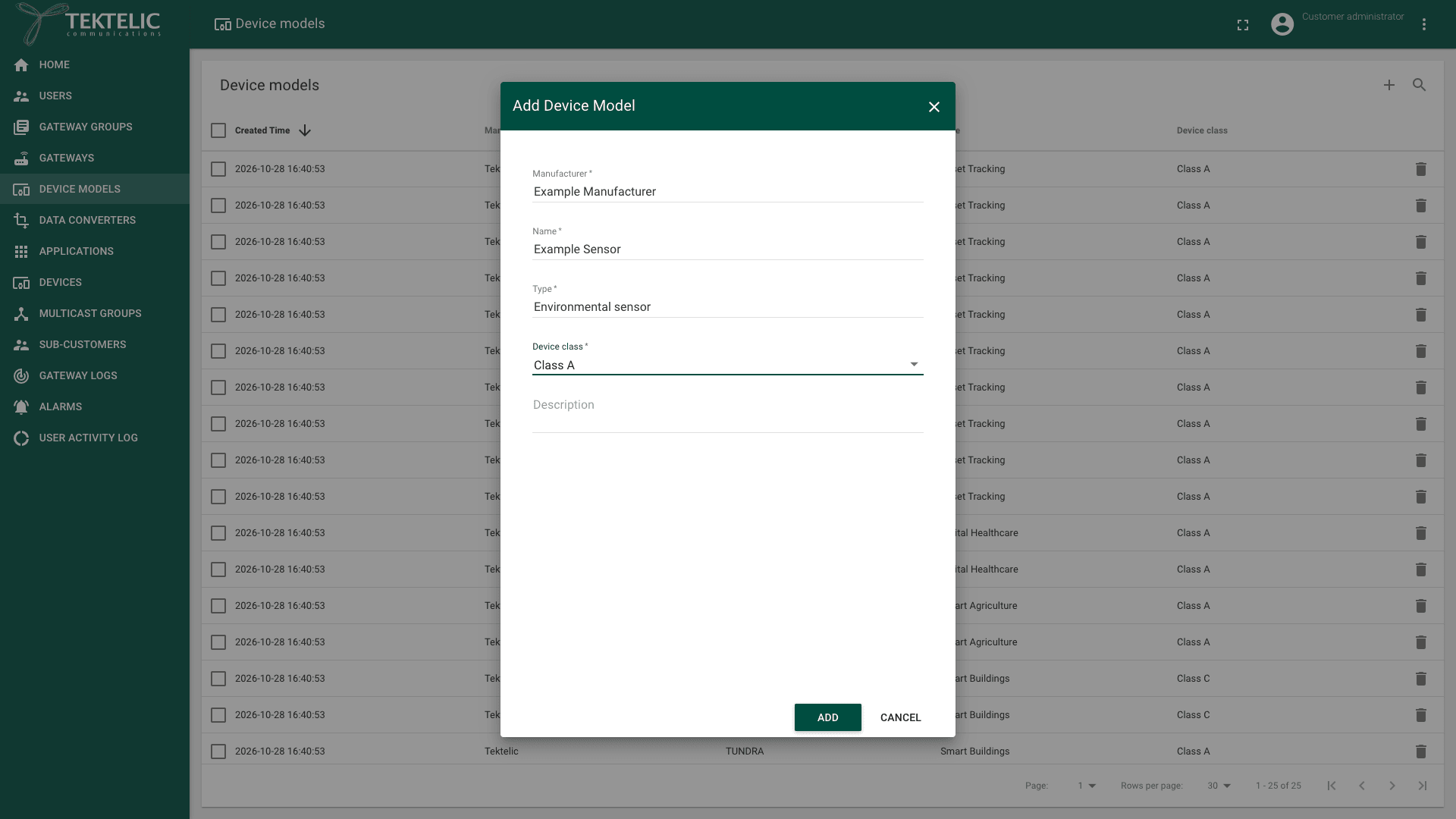
Select Add Device Model (the + icon). The Add Device Model dialog opens.
-
Enter the Manufacturer.
-
Enter the Name of the model.
-
Enter the Type. We recommend reusing a value from the list, such as Smart Buildings, so that models of one category sort together.
-
Select the Device class that the device firmware runs: Class A, Class B or Class C. Take it from the device's user guide. If the device supports several classes, use Class A unless your application needs low-latency downlinks.
-
Optional: enter a Description.
-
Select Add. The new model appears in the Device models list.
Select the class the device really runs. If the model says Class C but the device runs Class A, KONA Core sends downlinks when the device isn't listening. The device doesn't receive them.
For the full third-party device setup, see Onboard a Third-Party Device.
Edit a device model
-
In the side menu, select Device models.
-
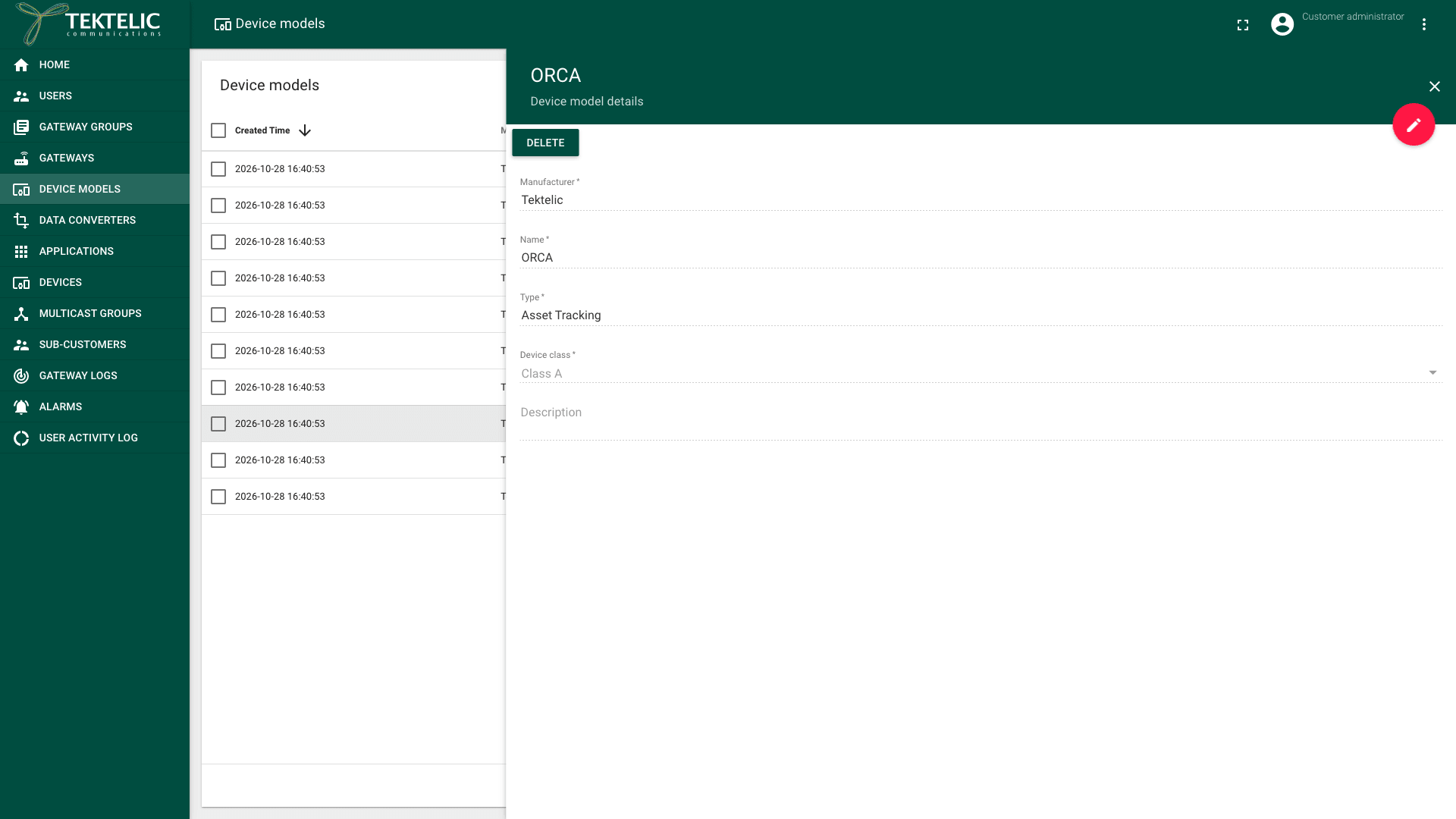
Select the model in the list. The Device model details panel opens, read-only.
-
Select Edit mode (the pencil icon).
-
Change the fields you need.
-
Select Apply changes (the check mark icon). The panel shows the new values.
You can change Device class even when devices use the model. This change doesn't affect devices already added with that model.
Delete a device model
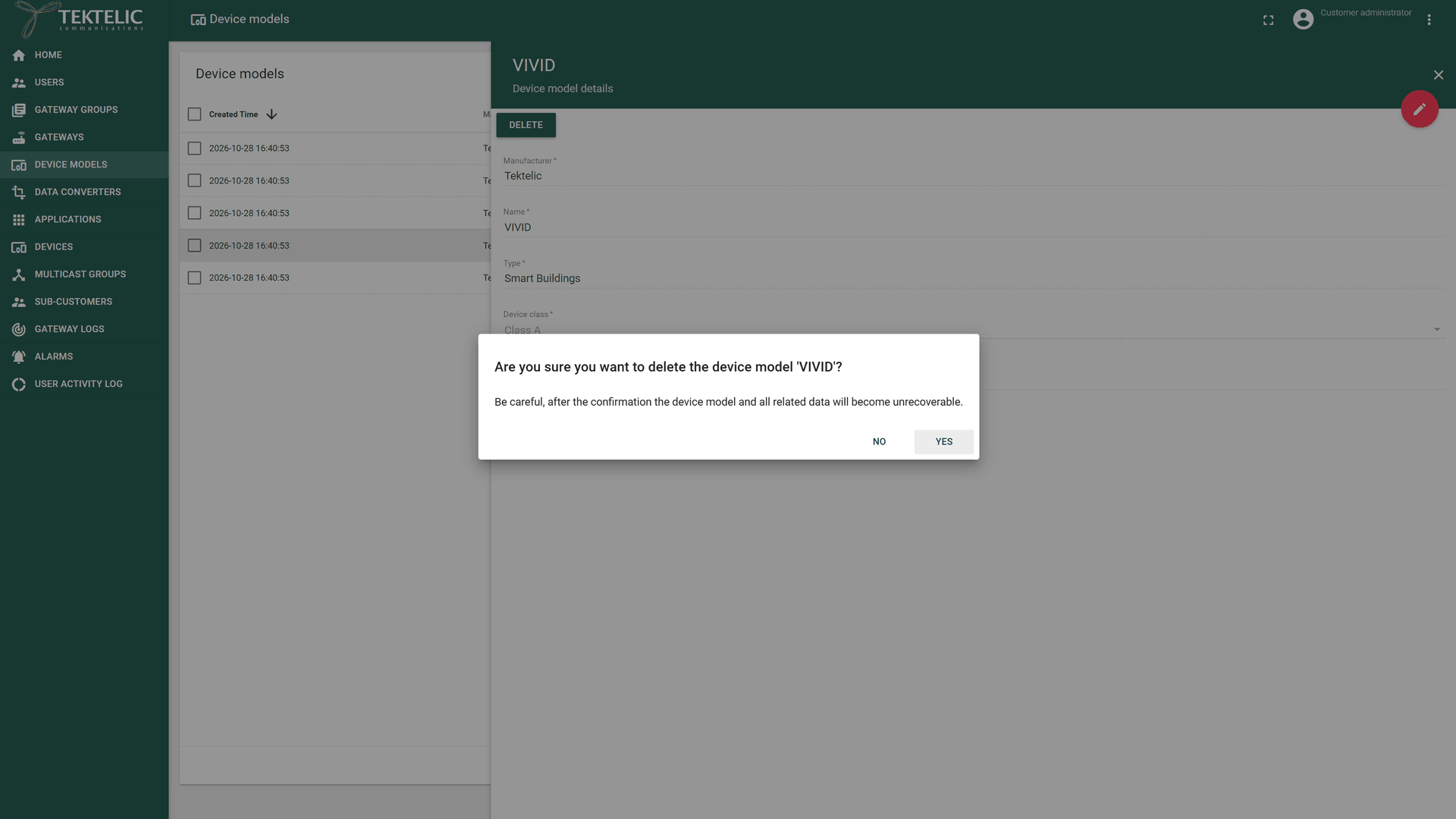
Deleting a device model can't be undone. The UI warns:
-
In the side menu, select Device models.
-
In the model's row, select Delete (the trash icon). You can also select the model and then Delete in its details panel. A dialog asks: with the name of the model.
-
Select Yes. The model disappears from the list.
KONA Core rejects deletion while devices still reference the model. Change those devices to another model before deleting it.
Check the result
- The Device models list shows your model with the Manufacturer, Name, Type and Device class you entered.
- When you add a device, the Device model field of the Add Device dialog offers the model.
- After you add devices, the Devices page shows the model in the Device model column and its class in the Device class column.
To read or change device models from your own system, use Save device model and Delete device model.