Configure Gateways
Overview
Change the settings of your gateways from TEKTELIC KONA Core Network Server, without access to the gateway itself. You edit how KONA Core handles a gateway. You also send configurations to one gateway, to a whole gateway group or to several gateways at once. At the end, the gateway reports the new configuration back, and KONA Core shows it as Synced.
Remote configuration is available only for TEKTELIC KONA gateways connected over MQTT. Third-party gateways connected over UDP don't support it. Firmware upgrades have their own guide: see Upgrade Gateway Firmware.
Before you start
- Role: Provider administrator or Customer administrator. Provider user and Customer user roles can see management tabs, but can't request information from the gateway or run commands. They can't add, edit or delete configurations. Sub-Customers have no gateway pages. See Users, Roles & Permissions.
- Gateway: added to KONA Core and Online. See Onboard a KONA Gateway via MQTT.
- Configuration content: the settings you want to send, in the format the gateway expects for that configuration type. confirm the content format of each configuration type (General, Frequency, Antenna, Upgrade Servers, Automatic Updates) and where KONA gateway users find it.
Steps
Which settings you can change
| Where in KONA Core | What you change | Where it takes effect |
|---|---|---|
| Gateway details panel, Gateway details tab | Name, GW-ID, Gateway model, Public, Logging enabled, Allow UDP connection, Allow non TLS MQTT connection, Offline timeout (sec), Inactivity timeout (sec), Description. The Disable and Enable buttons change the gateway's state. A disabled gateway shows Disabled in the gateways list. | In KONA Core: how KONA Core accepts and monitors the gateway. |
| Gateway details panel, Location tab | Location, Latitude, Longitude, Altitude. | In KONA Core. |
| Gateway group, Configuration tab | A configuration of the type General, Frequency, Antenna, Upgrade Servers or Automatic Updates. | On all gateways in the group that don't have their own configuration of that type. |
| Gateway, Configuration tab | The same configuration types, for one gateway. | On this gateway. See How changes are applied for scope and the remaining precedence question. |
| Configuration menu for selected gateways or groups | One JSON configuration, sent with Apply configuration. | On every selected gateway, or every gateway of the selected groups. |
Selecting Disable stops the gateway from transmitting data through KONA Core entirely. Select Enable to allow its traffic again.
Other gateway tabs send commands rather than configurations: Commands, Backups, Firewall, Wireless Modem, WAN and File transfer. See Gateway Commands & Management. The SW Management tab is for firmware: see Upgrade Gateway Firmware.
Change the gateway's settings in KONA Core
-
In the side menu, select Gateways. You can also open the gateway from its group: Gateway groups > Manage gateways.
-
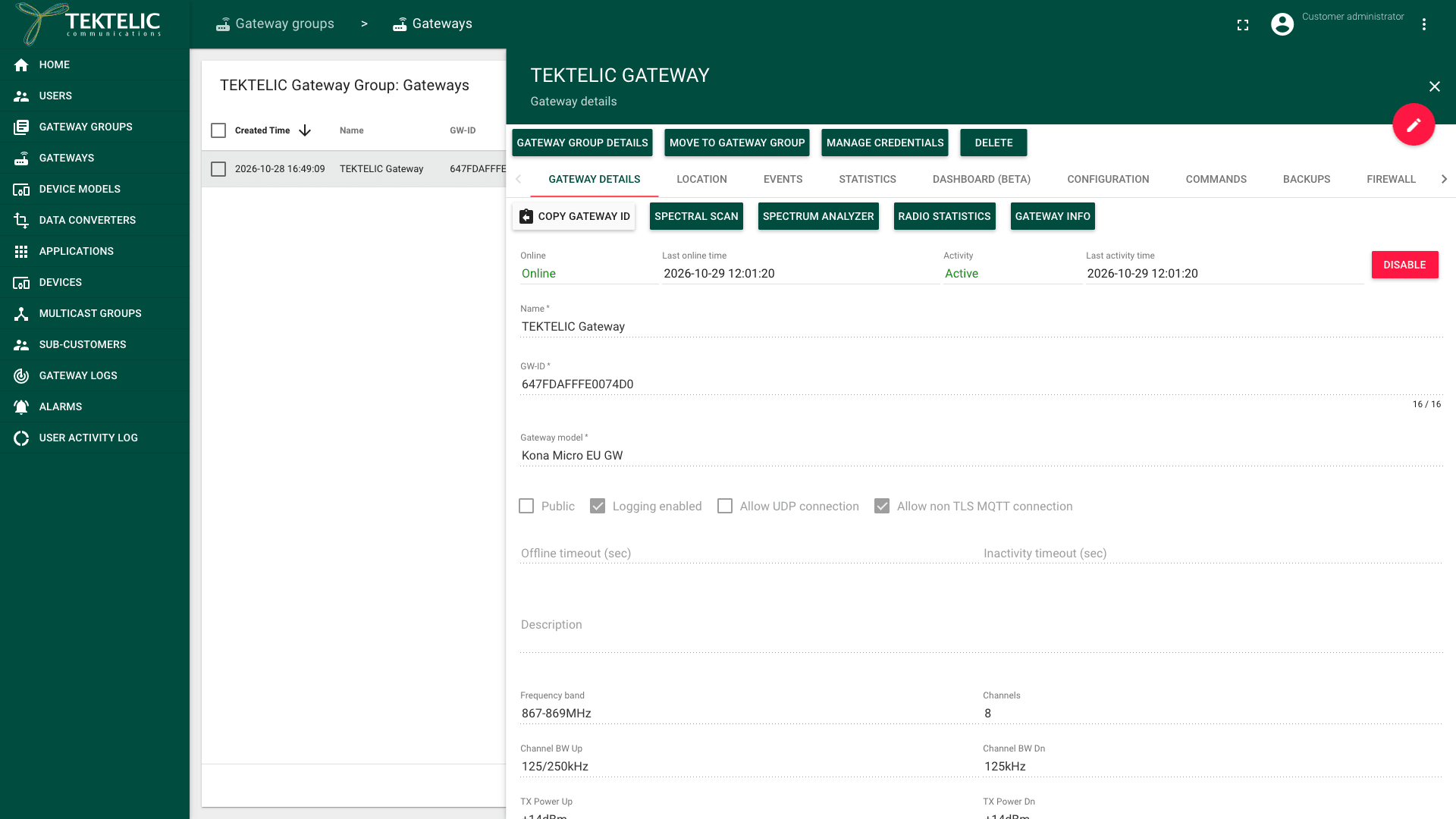
Select the gateway. The gateway details panel opens on the Gateway details tab. It shows Online, Last online time, Activity and Last activity time, and the radio data of the gateway model.
-
Select Edit mode (the pencil icon). The fields become editable, and only the Gateway details and Location tabs stay visible.
-
Change the fields you need. Keep Allow non TLS MQTT connection and Allow UDP connection cleared for a KONA gateway: it connects over MQTT with TLS. For the timeouts, see Events & Alarms.
-
Select Apply. The panel leaves edit mode and shows the new values.
The new values apply in KONA Core when you select Apply. They don't change the gateway's local configuration.
Clearing Allow non TLS MQTT connection doesn't terminate an existing MQTT connection. The gateway stays online and continues sending uplinks. confirm that the non-TLS restriction is enforced on the next MQTT connection. confirm whether changing Allow UDP connection affects current traffic immediately.
Set a configuration for a gateway group
We recommend group configurations: you set a value once, and every gateway in the group gets it. Test a new configuration on one gateway first, then set it on the group.
-
In the side menu, select Gateway groups.
-
Select the group. The Gateway group details panel opens.
-
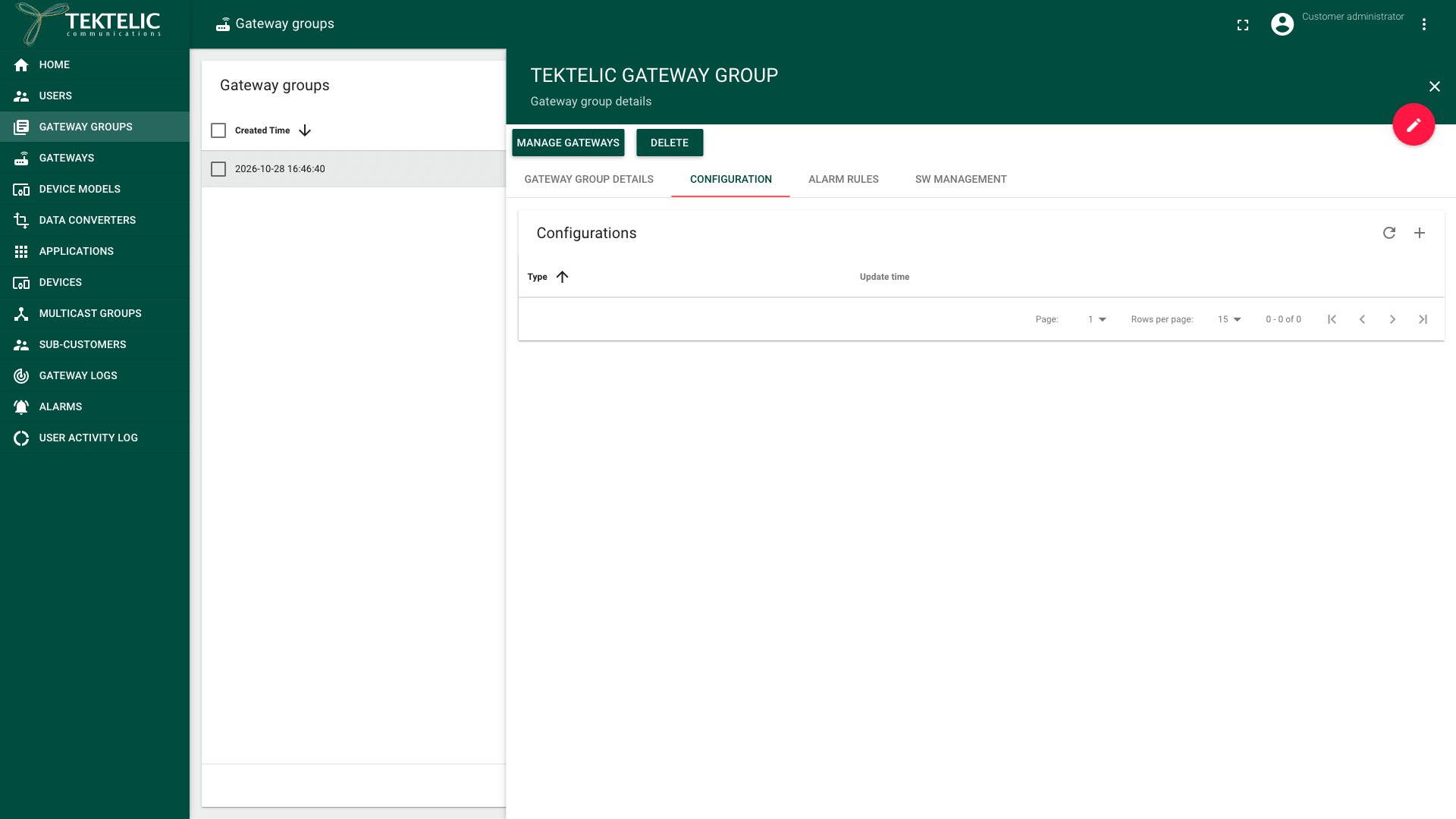
Select the Configuration tab. The Configurations table lists the group's configurations with Type and Update time.
-
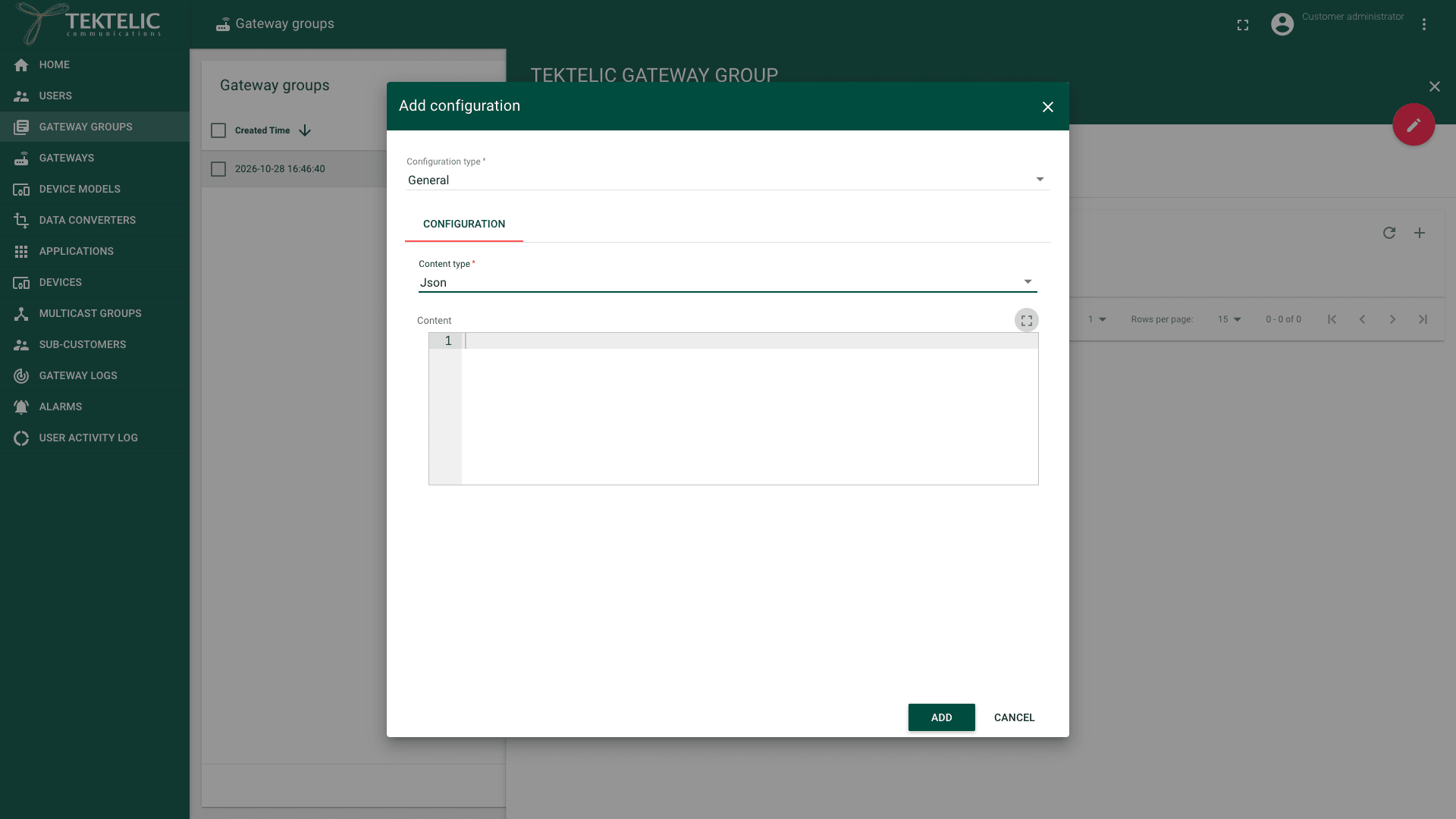
Select Add configuration (the + icon). The Add configuration dialog opens.
-
Select the Configuration type: General, Frequency, Antenna, Upgrade Servers or Automatic Updates. Each type exists once per group, so the list shows only the types the group doesn't have yet.
-
Select the Content type: Json, Text or Binary (Base64). We recommend Json: KONA Core checks that JSON content is valid before you can add it.
-
Enter the Content.
-
Select Add. The configuration appears in the table with its Update time.
To change a configuration later, select the Edit configuration icon in its row, change the content and select Save. The Delete configuration icon removes it after the confirmation .
Set a configuration for one gateway
-
Open the gateway details panel, as in the steps above.
-
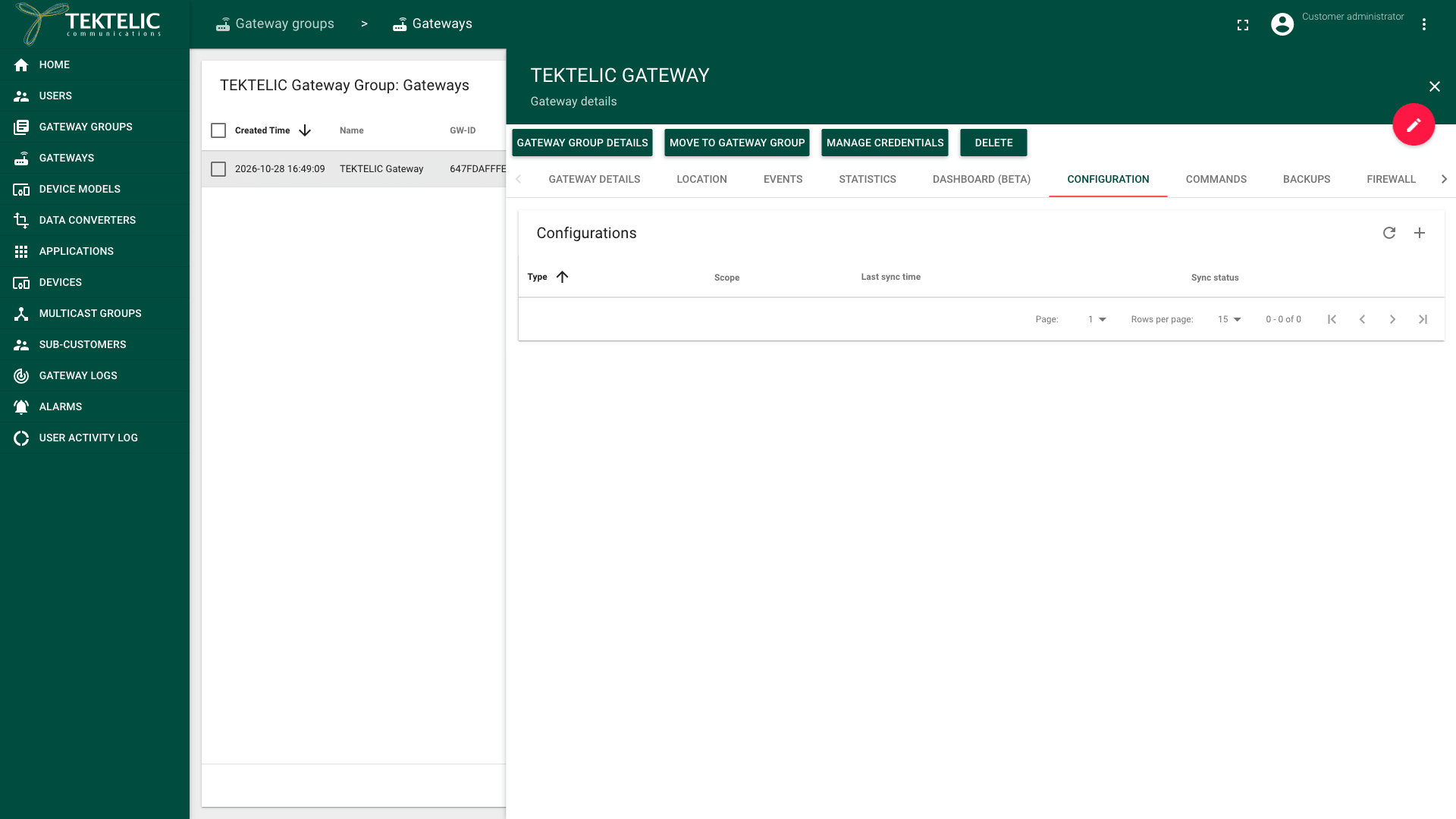
Select the Configuration tab. The Configurations table shows Type, Scope, Last sync time and Sync status. The Scope is Gateway for the gateway's own configurations and Group for those it takes from its group.
-
Select Add configuration (the + icon), and fill in the dialog as for a group.
-
Select Add. The configuration appears with the Scope Gateway.
A group configuration opens read-only in the gateway's table: select View configuration in its row. To change it, change it on the group.
To return a gateway to the group configuration of a type, select Edit configuration in the row of its own configuration. Select Use group configuration, then Save. The dialog shows the group's content under Group configuration details, or .
Send one configuration to several gateways
-
Open the gateways page of a group: Gateway groups > Manage gateways.
-
Select the check boxes of the gateways. To use whole groups instead, select the groups' check boxes on the Gateway groups page.
-
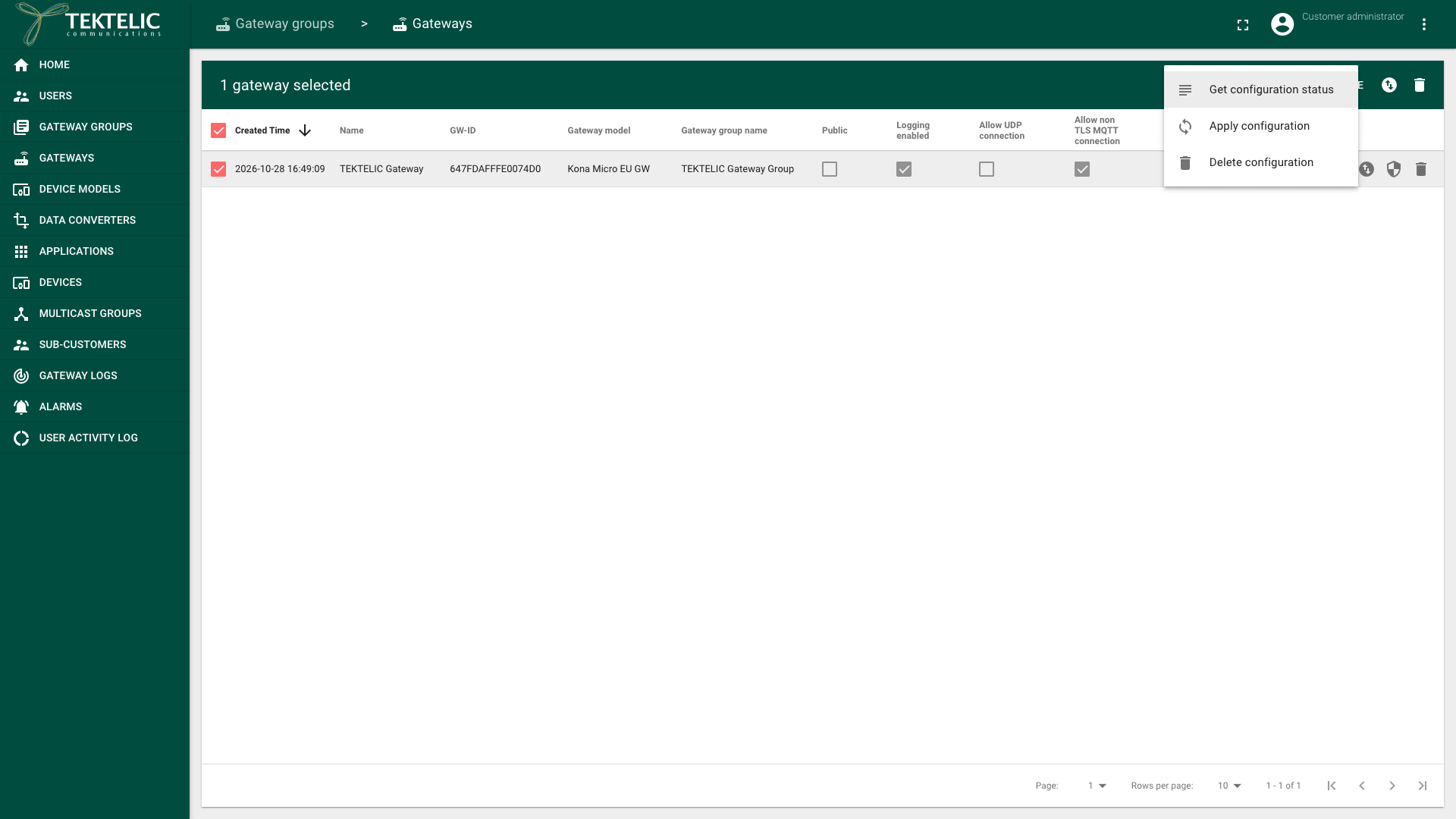
Select Configuration in the toolbar. The menu shows Get configuration status, Apply configuration and Delete configuration.
-
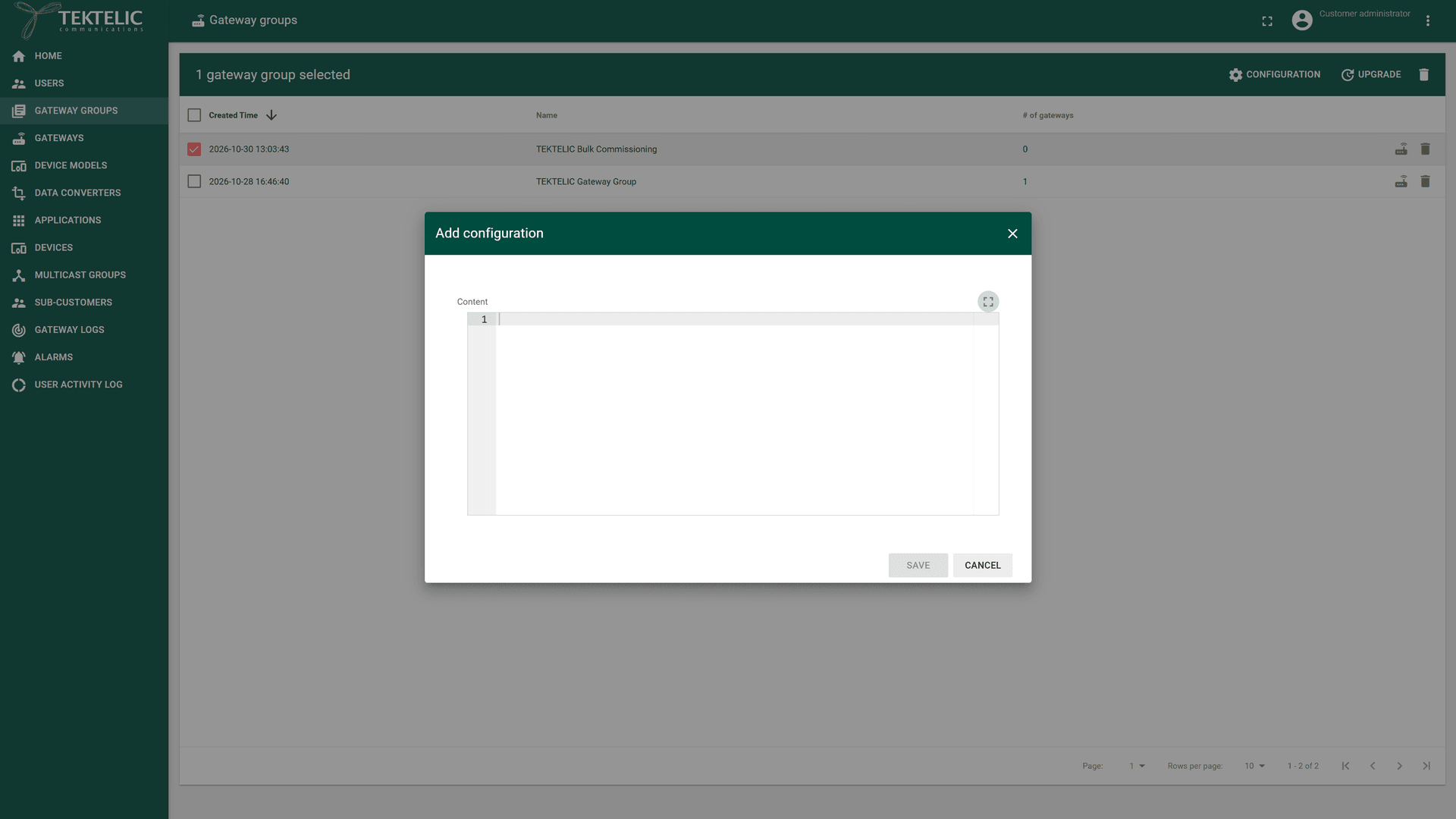
Select Apply configuration. The Add configuration dialog opens with one Content field for JSON.
-
Enter the JSON content.
-
Select Save. KONA Core sends the content to every selected gateway, or to every gateway in the selected groups.
To do the same from your own system, use Save gw json configuration desired and Save configuration in the API Reference.
For the bulk JSON Configuration API, the gateway applies a configuration with a newer timestamp. If the timestamp matches the last applied configuration, the gateway reports its current configuration without applying it again. A configuration with an older timestamp is ignored.
When an individual configuration has already been set for a gateway, the server skips that gateway when processing a group configuration through this API.
confirm how Apply configuration and the Configuration tab interact when they set the same value, and how the two configurations are stored.
Delete configuration in the same menu removes the configuration from all selected gateways or groups. It asks for confirmation first: To do the same from your own system, use Delete gw json configuration desired and Delete configuration in the API Reference.
How changes are applied and when they take effect
- Settings in the gateway details panel apply in KONA Core as soon as you select Apply.
- Configurations are stored in KONA Core as the configuration you want on the gateway. The gateway reports its own configuration back. The dialog of a gateway configuration shows that report on the Remote configuration tab, with its Last sync time.
- Sync status compares the two. It shows Synced when the reported content and content type match the configuration in KONA Core, and Not Synced when they differ.
- Configuration scope shows where a configuration is stored. A gateway's own configuration appears with Scope Gateway. A configuration inherited from its group appears with Scope Group. confirm precedence between gateway and group configurations of the same type on the Configuration tab.
KONA Core sends a configuration as soon as possible when the gateway is online.
For the bulk JSON Configuration API, the server retains the latest desired configuration in MQTT. The gateway receives it when the bridge reconnects and subscribes to the configuration topic. confirm offline delivery for configurations on the Configuration tab, and the typical time to apply a configuration.
Check the result
- Open the gateway details panel and select the Configuration tab.
- Select Refresh (the circular arrow icon) in the Configurations table.
- Check that the Sync status of your configuration shows Synced, with a recent Last sync time.
- Optional: open the configuration and select the Remote configuration tab. It shows the content the gateway reported.
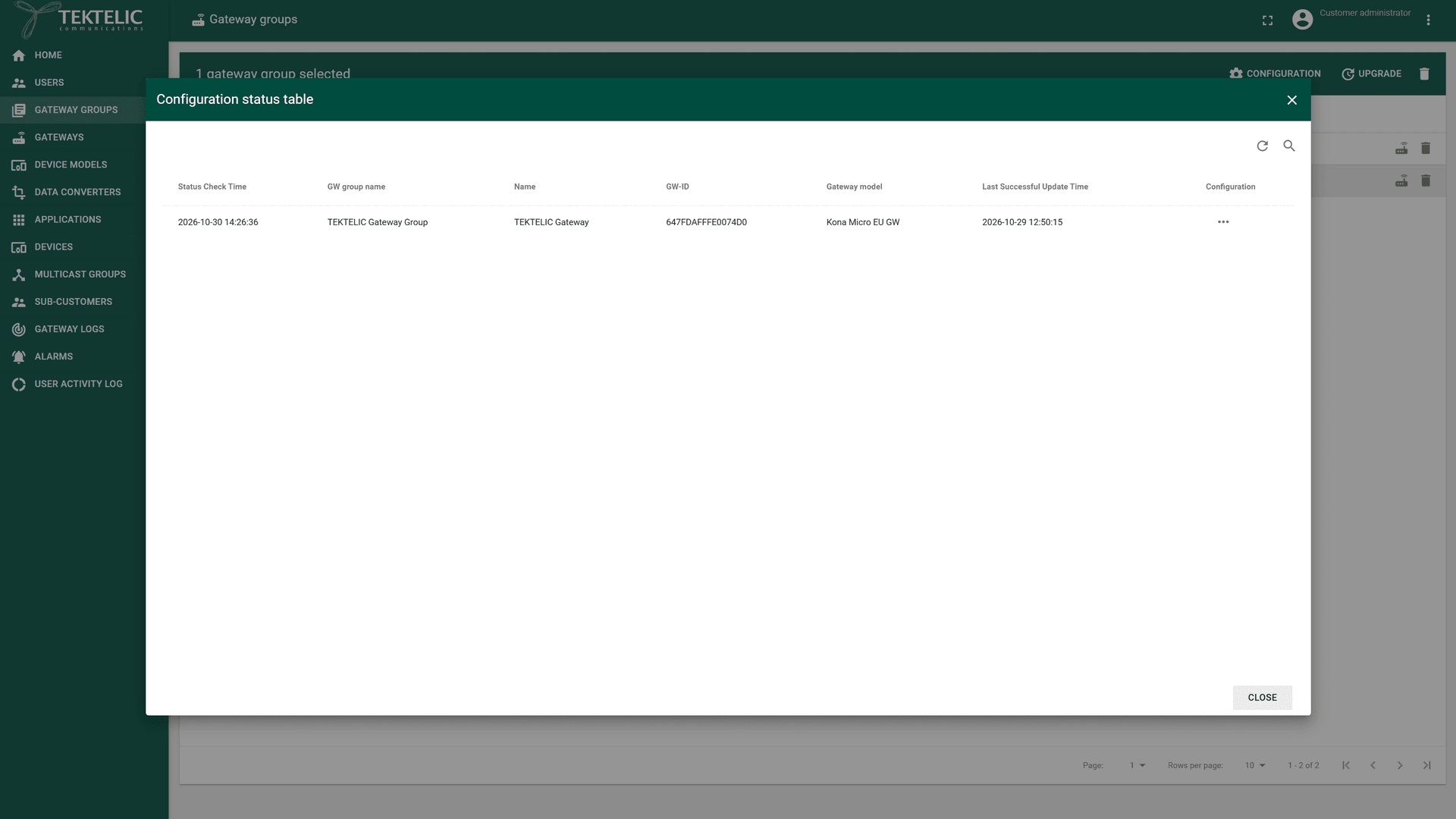
For a configuration sent with Apply configuration, select the gateways, then Configuration > Get configuration status. The Configuration status table lists each gateway with Status Check Time, Name, GW-ID, Gateway model and Last Successful Update Time. A gateway without a reported configuration shows .
Troubleshooting
| Symptom | Likely cause | What to do |
|---|---|---|
| Sync status stays Not Synced. | The gateway is offline, hasn't applied the configuration yet, or rejected its content. | Check that the gateway shows Online. Select Refresh. Compare the Configuration and Remote configuration tabs of the configuration. On the gateway's Events tab, look for errors. confirm the typical time until a configuration shows Synced. |
| Add configuration (the + icon) isn't shown or does nothing. | You have a user role, or the group or gateway already has a configuration of every type. | Ask for the administrator role. To change an existing type, select Edit configuration in its row. |
| Add stays unavailable in the Add configuration dialog. | A required field is empty (, ), or the JSON content isn't valid. | Fill in both fields. Check the JSON syntax, or select another Content type. |
Still stuck? A Customer contacts their Provider, and a Provider contacts TEKTELIC Support. Send the GW-ID, the configuration type, the time in UTC, the exact error message and a screenshot of the Configuration tab.
Related
- Gateway Commands & Management: reboot, backups, firewall and other commands.
- Upgrade Gateway Firmware
- Manage Gateway Groups
- Monitor Gateways
- Onboard a KONA Gateway via MQTT
- Events & Alarms
- Glossary