Gateway Commands & Management
Overview
Send a command to a KONA gateway from TEKTELIC KONA Core Network Server. For example, reboot it, or test its network connection with a ping. You select the command on the gateway's Commands tab, and KONA Core shows the gateway's answer on the same tab. You don't need access to the gateway's local network.
Remote commands, configurations and firmware upgrades are available only for TEKTELIC KONA gateways connected over MQTT. A gateway connected over UDP, such as a third-party gateway with a packet forwarder, can't use these features.
Before you start
- Role: Provider administrator or Customer administrator. User roles don't see the Commands tab. A Sub-Customer has no gateway pages. See Users, Roles & Permissions.
- Gateway: a KONA gateway connected over MQTT, with the status Online. See Monitor Gateways.
Steps
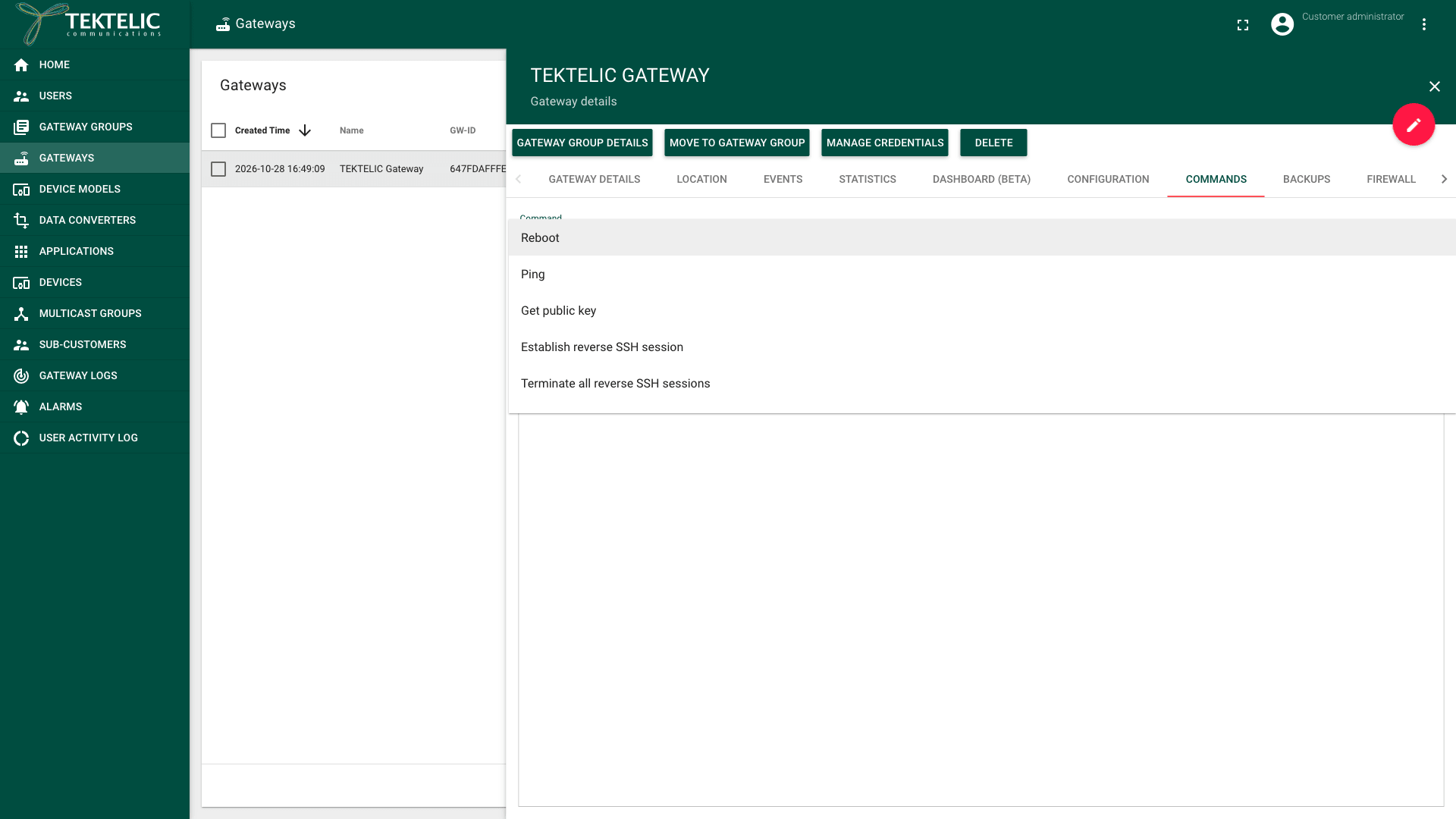
Available commands
| Command | What it does | Parameters |
|---|---|---|
| Reboot | Restarts the gateway. | None. |
| Ping | Pings an address from the gateway, to test its network connection. | Number of packets (at least 1) and Destination (an IP address or host name). Both are required. |
| Get public key | Returns the gateway SSH agent's public key, which can be used when setting up reverse SSH access. | None. |
| Establish reverse SSH session | Opens an SSH session from the gateway to an SSH server you name, so that support can reach the gateway behind a firewall. | SSH host and SSH port (required), Reverse SSH port (default is 9000), Username (required) and Password. |
| Terminate all reverse SSH sessions | Closes all reverse SSH sessions of the gateway. | None. |
| Get antennas count | Returns the number of antennas of the gateway. | None. |
The gateway runs the command. If its firmware doesn't support a command, KONA Core shows .
Send a command
-
In the side menu, select Gateways. You can also open the gateway from its gateway group: see Manage Gateway Groups.
-
Select the gateway in the list. The Gateway details panel opens.
-
Select the Commands tab.
-
Open the Command list and select the command, for example Ping.
-
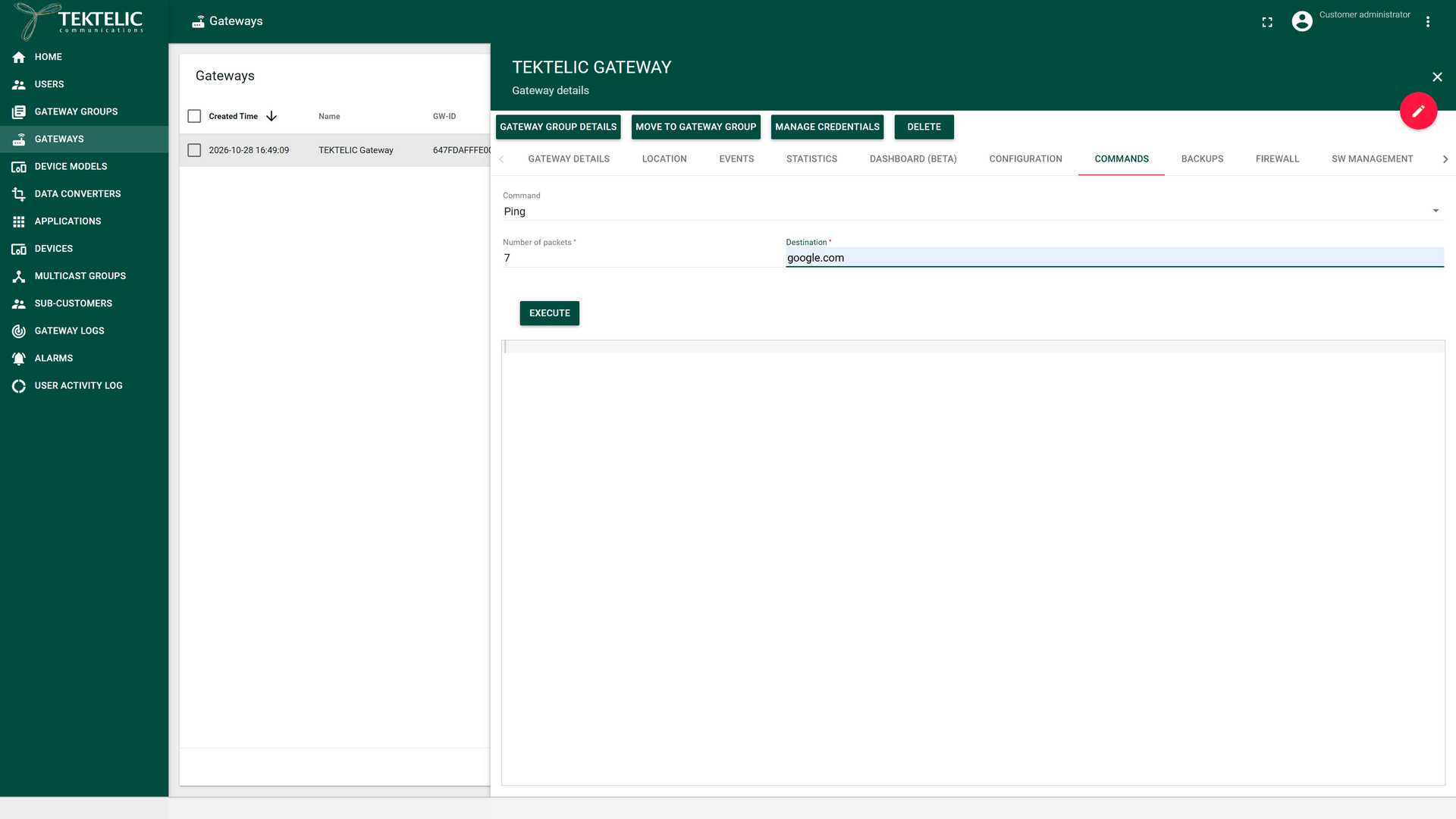
Enter the parameters, if the command has any. For Ping, enter the Number of packets and the Destination. Execute stays unavailable until every required field is filled.
-
Select Execute. KONA Core sends the command to the gateway.
Commands tab with the completed Ping command output. The supplied screenshot shows the parameters, with an empty output box.
Reboot restarts the gateway right away, without a confirmation dialog. A KONA gateway typically takes about 2 minutes to reboot. It doesn't forward uplinks until it is back online.
Other management tools
The Gateway details panel has more remote management tools. These tabs are also visible to user roles. User roles can't request information from the gateway or run commands through them.
| Where | What you do there |
|---|---|
| Gateway details tab: Spectral Scan, Spectrum Analyzer | Measure the radio spectrum around the gateway. |
| Gateway details tab: Radio Statistics | See the packets the gateway transmitted and received, with CRC passed and CRC fail counts. |
| Gateway details tab: Gateway Info | Read the Module Name, TCODE, Module Revision, Serial Number and Gateway ID. |
| Gateway details tab: Disable, Enable | Stop all data transmission through KONA Core, or allow the gateway's traffic again. |
| Configuration | Apply a configuration to the gateway. See Configure Gateways. |
| Backups | Create backup and Restore backup of the gateway. |
| Firewall | Read Firewall Configuration and Set Firewall Configuration. |
| SW Management | Read software versions and upgrade the firmware. See Upgrade Gateway Firmware. |
| Wireless Modem | Read the cellular modem status, manage APNs and upgrade the modem firmware. |
| WAN | Read the connectivity types and set the preferred and fallback interface. |
| File Transfer | Upload a file to the gateway. For a .zip or .tar.gz archive, select Decompress. |
These management tabs are available for all TEKTELIC KONA gateway models connected over MQTT. Individual commands still depend on support in the gateway's firmware. confirm the limits of each management tool.
Check the result
- Command output: the box below the command shows the gateway's answer. For Ping, it shows the ping output. If the gateway returns an error, the box shows it. For a command the gateway doesn't support, a message and the box show .
- Reboot: on the Gateway details tab, Online can show Offline while the gateway restarts, then Online again. Last online time shows when it reconnected. See Monitor Gateways.
- Gateway logs: when Logging enabled is selected, commands and their answers are logged as Gateway RPC command and Gateway RPC response. They aren't logged when this option is cleared. See Gateway Logs.
To send commands from your own system, use Execute command.
Troubleshooting
| Symptom | Likely cause | What to do |
|---|---|---|
| The Commands tab isn't shown. | Your role is a user role, or the panel is in edit mode. | Leave edit mode. If the tab is still missing, ask the administrator of your level for an administrator role. |
| The output shows . | The gateway's firmware doesn't support the command. | Upgrade the gateway firmware. See Upgrade Gateway Firmware. |
| No output appears, or an error appears. | The gateway is offline, or it connects over UDP. | Check that the gateway is Online. Commands only work over MQTT. See Monitor Gateways. |
Still stuck? A Customer contacts their Provider, and a Provider contacts TEKTELIC Support. Send the GW-ID, the command and its parameters (without passwords), the time in UTC, the exact output and a screenshot.