Bulk Gateway Commissioning
Overview
Add many gateways to one gateway group at once from a CSV file. KONA Core creates one gateway for each row, with its name, GW-ID and, optionally, its MQTT credentials and location. At the end, the dialog reports how many gateways it created and lists every row that failed.
All gateways of one file get the same gateway model and connection options. To add a single gateway, see Onboard a KONA Gateway via MQTT.
Before you start
- Role: Customer administrator or Provider administrator. A Sub-Customer can't add gateways. See Users, Roles & Permissions.
- Subscription plan: room for every gateway in the file. Each row that exceeds the plan limit fails with See Subscription Plans & Limits.
- Gateway group: the group that gets all the gateways. See Manage Gateway Groups.
- Gateway model: one gateway model for all gateways in the file. If your gateways have different models, make one file for each model. See Manage Gateway Models.
- CSV file: with a header row and one row per gateway. See Prepare the CSV file.
- For KONA gateways: the MQTT username and password of each gateway, from its test report sheet.
Steps
Prepare the CSV file
The file is a CSV file (.csv) with comma-separated values:
- The first line is the header row with the column names. Column names are case-sensitive.
- Every other line is one gateway. It must have as many cells as the header row.
- Empty lines are skipped.
- Don't use commas inside values, including quoted values. The dialog splits every line at each comma.
| Column | Required | Use |
|---|---|---|
GW ID | Yes | The gateway's GW-ID: 16 hexadecimal characters. |
MQTT USERNAME | No | The gateway's MQTT username. KONA Core saves it as Basic credentials of the gateway. |
MQTT PASSWORD | No | The gateway's MQTT password. Add it together with MQTT USERNAME. |
Any other column, for example NAME | No | Use it to build the gateway name, as a location column, or as text for the Description. |
The GW ID, MQTT USERNAME and MQTT PASSWORD columns, the name columns and the location columns are never copied into the description. KONA Core saves the credentials only when the file has both MQTT USERNAME and MQTT PASSWORD.
Sample file
In the Gateway bulk commissioning dialog, select File example. It downloads Gateway_Bulk_Commissioning_sample.csv with a name column and the GW ID column:
NAME,GW ID
GATEWAY 1,647FDA000000A000
GATEWAY 2,647FDA000000A001
GATEWAY 3,647FDA000000A002
GATEWAY 4,647FDA000000A003
GATEWAY 5,647FDA000000A004
For KONA gateways, we recommend adding the MQTT credentials, so the gateways can connect without a second step. Example with placeholders:
NAME,GW ID,MQTT USERNAME,MQTT PASSWORD,SITE
<gateway-name>,<gw-id>,<mqtt-username>,<mqtt-password>,<site>
The file holds gateway passwords. Store it like any other secret, and delete copies you no longer need.
Commission the gateways
-
In the side menu, select Gateway groups. The Gateway groups page opens.
-
In your group's row, select the Manage gateways icon. The group's gateways page opens. The Gateways page in the side menu has no bulk commissioning.
-
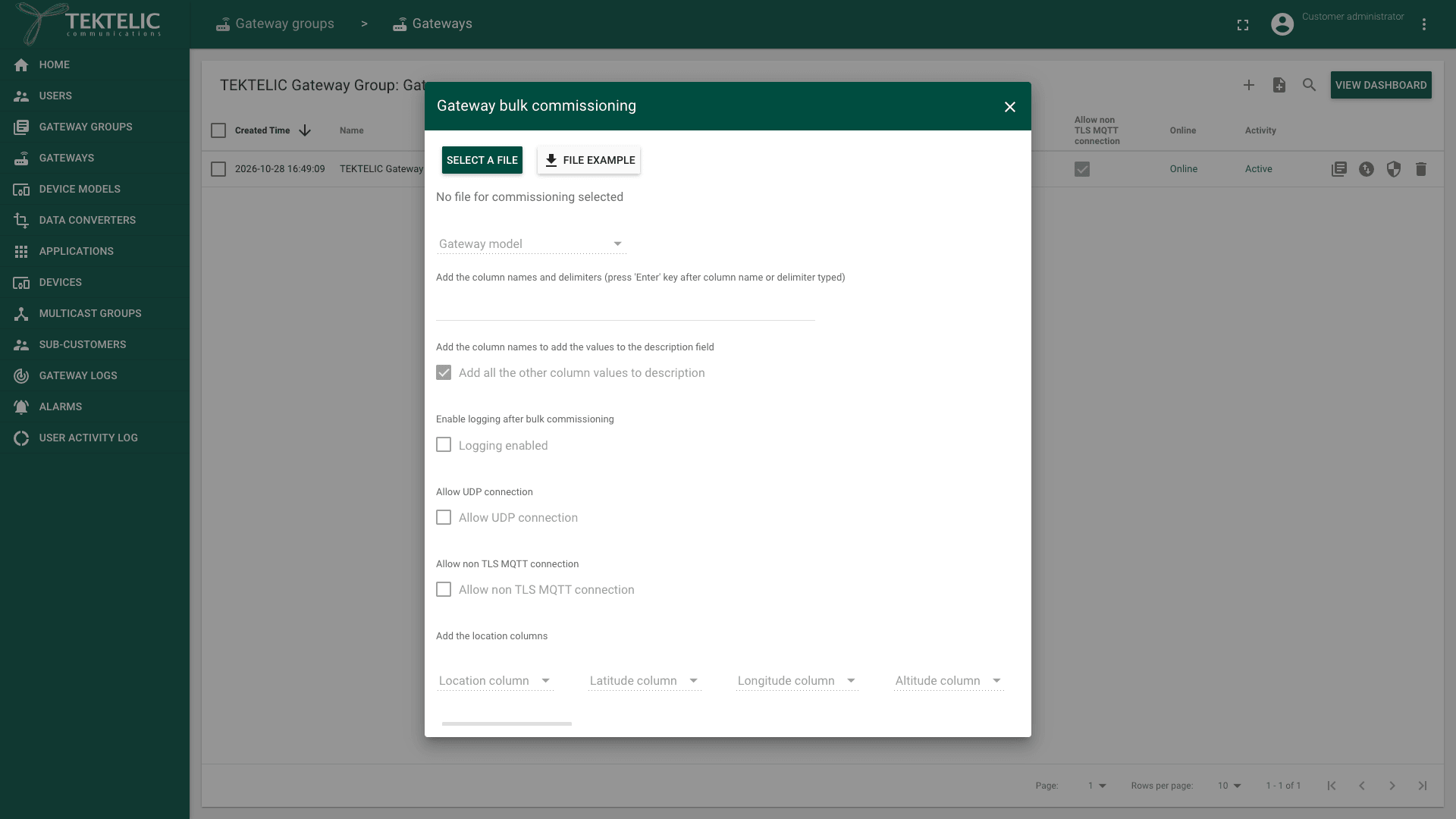
Select Gateway bulk commissioning (the file icon next to +). The Gateway bulk commissioning dialog opens, with No file for commissioning selected.
-
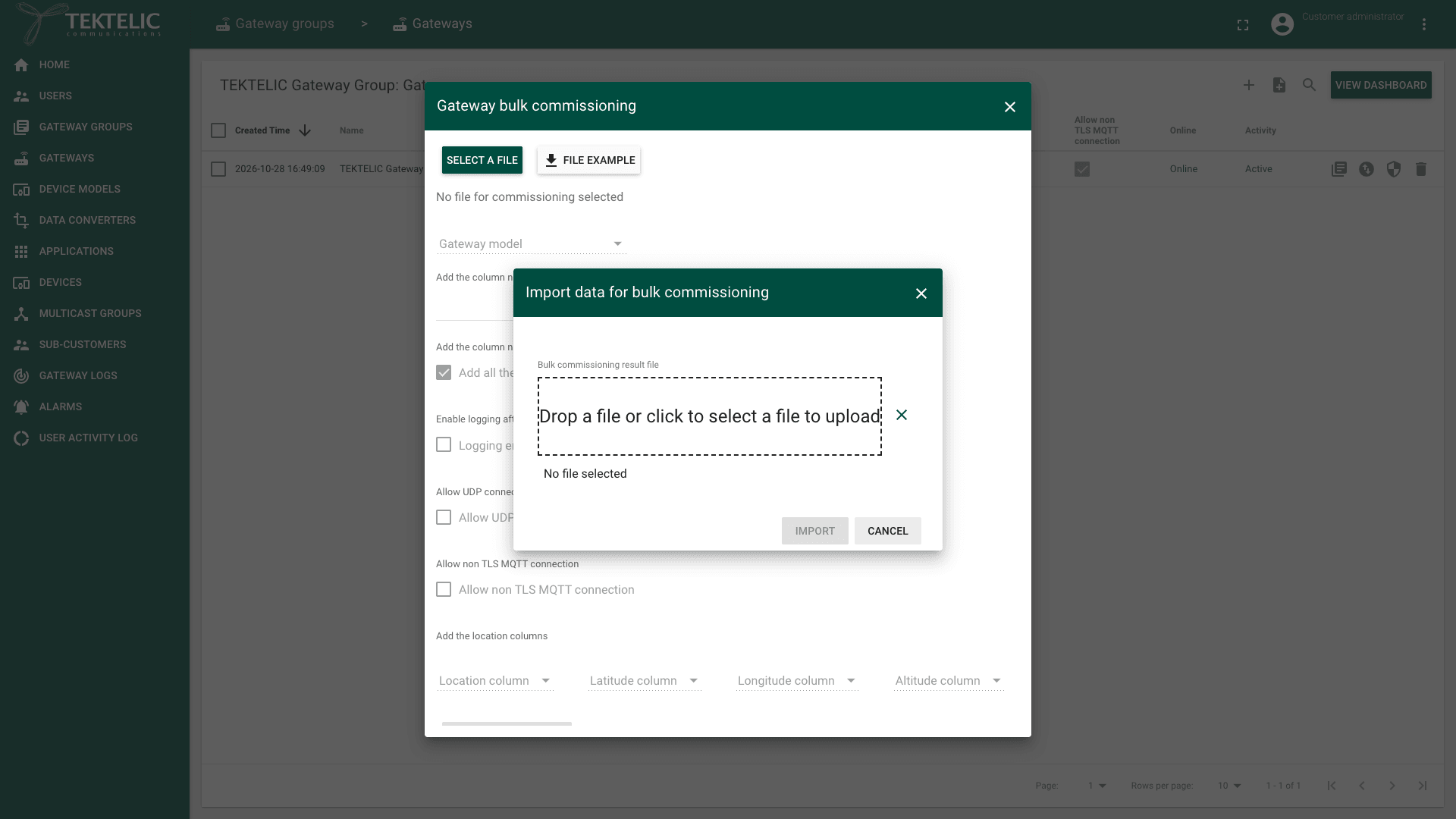
Select Select a file. The Import data for bulk commissioning dialog opens.
-
Drop your CSV file on Drop a file or click to select a file to upload, or select the area and choose the file. The dialog shows the file name. Only
.csvfiles are accepted. -
Select Import. You return to the Gateway bulk commissioning dialog, and the other fields become available.
-
In Gateway model, select the model for all gateways in the file.
-
Build the gateway name under Add the column names and delimiters (press 'Enter' key after column name or delimiter typed). Type a column name, for example
NAME, and press Enter. Each entry that matches a column name adds that column's value. Any other entry is added as typed, for example-as a delimiter. You need at least one entry. -
Under Add the column names to add the values to the description field, keep Add all the other column values to description selected. Each other column is added to the gateway's Description as
<column name> - <value>, one per line. To add only some columns, clear the option and enter their names. -
Select Logging enabled if you want the gateways' messages in Gateway logs. See Gateway Logs.
-
Leave Allow UDP connection cleared for KONA gateways. Select it only for third-party gateways that connect over UDP. See Onboard a Third-Party Gateway via UDP.
-
Leave Allow non TLS MQTT connection cleared. We recommend TLS for every KONA gateway.
-
Optional: under Add the location columns, select the columns for Location column, Latitude column, Longitude column and Altitude column. Location column is a dropdown where you select a source column, such as the name or GW-ID column. Latitude, longitude and altitude must be numbers. KONA Core skips a coordinate value that isn't a number.
-
Select Start commissioning. It is available when a file is imported, a Gateway model is selected and the name has at least one entry. The dialog then shows the result instead of the form.
-
Read the result. The last line shows the number of created gateways, for example . Every line above it is a row that failed.
-
Close the dialog. The group's gateway list already shows the new gateways: it reloads when commissioning ends.
KONA Core sends each row as a separate request, so the valid rows are created even if other rows fail. confirm that KONA Core creates the valid rows when other rows of the same file fail. To retry the failed rows, make a file with only those rows and start again.
Check the result
- On the group's gateways page, check that every gateway from the file is in the list, with its Name, GW-ID and Gateway model.
- Check the Allow UDP connection and Allow non TLS MQTT connection columns match your choice.
- For a KONA gateway with credentials in the file, select its Manage credentials icon and check the Username. Select Cancel to close the dialog.
- After the gateways are configured and powered on, check that Online shows Online and Activity shows Active. See Onboard a KONA Gateway via MQTT.
Troubleshooting
| Symptom | Likely cause | What to do |
|---|---|---|
| The result shows . | Row <n> has more or fewer commas than the header row, for example a comma inside a value or a missing cell. | Fix the row so it has one cell for each column, then commission only the failed rows again. |
| The result shows | The GW-ID has 15 characters. | Enter the gateway's full 16-character hexadecimal GW-ID. |
| The result shows | KONA Core reports that the GW-ID already exists. | Check the existing gateways before retrying. The quoted message is a reported duplicate error; its example ID also contains a non-hexadecimal character. |
| The result shows for a row. | Adding that gateway would exceed the Customer's plan. | Free capacity or request a larger plan, then retry the failed rows. |
| Start commissioning stays unavailable. | No file is imported, no Gateway model is selected, or the name has no entry. | Import the file, select the model and add at least one name entry. If a name entry doesn't appear, press Enter after typing it. |
If a gateway is created but stays offline, check its credentials and configuration as described in Onboard a KONA Gateway via MQTT.
If no gateways were created, the result ends with . Review the errors above that line before retrying.
Still stuck? A Customer contacts their Provider, and a Provider contacts TEKTELIC Support. Send the CSV file without the password column, the full result text, the time in UTC and a screenshot.
Related
- Onboard a KONA Gateway via MQTT
- Onboard a Third-Party Gateway via UDP
- Manage Gateway Groups
- Manage Gateway Models
- Monitor Gateways
- API Reference: to add gateways from your own systems, use Save gateway and Save credentials.