Onboard a KONA Gateway via MQTT
Overview
Connect a TEKTELIC KONA gateway to TEKTELIC KONA Core Network Server over MQTT with TLS. You add the gateway to a gateway group, save its MQTT credentials, and point the gateway to KONA Core. At the end, the gateway shows Online and Active, and KONA Core receives the uplinks of your LoRaWAN® devices through it.
This guide covers KONA gateways. For other gateways, see Onboard a Third-Party Gateway via UDP. To add many gateways from a file, see Bulk Gateway Commissioning.
Before you start
- Role: Customer administrator or Provider administrator. A Sub-Customer can't add gateways. User roles open gateways read-only. See Users, Roles & Permissions.
- Subscription plan: room for one more gateway. See Subscription Plans & Limits.
- Gateway group: the group the gateway joins. See Manage Gateway Groups.
- Gateway model: a gateway model for your KONA gateway, with the gateway's frequency plan, for example EU868 or US915. A Provider creates gateway models. See Manage Gateway Models.
- Gateway software: a BSP version on the gateway that supports the TEKTELIC MQTT Bridge. confirm the minimum BSP version for each KONA gateway model.
- Network access: the gateway has internet access and can open an outbound connection to its region's KONA Core MQTT host on TCP port 8883 with TLS. See the host table in step 3.
- GW-ID: the 16-character gateway ID printed on the gateway's sticker.
- Test report sheet: delivered with the gateway. Its MQTT/OAM/Geolocation SERVER CREDENTIALS section holds the gateway's MQTT username and password.
- Gateway access: a computer that can reach the gateway, to change its configuration.
Steps
Step 1. Add the gateway in KONA Core
-
In the side menu, select Gateway groups. The Gateway groups page opens.
-
In your group's row, select the Manage gateways icon. The group's gateways page opens, titled with the group name and Gateways. You can't add a gateway from the Gateways page in the side menu.
-
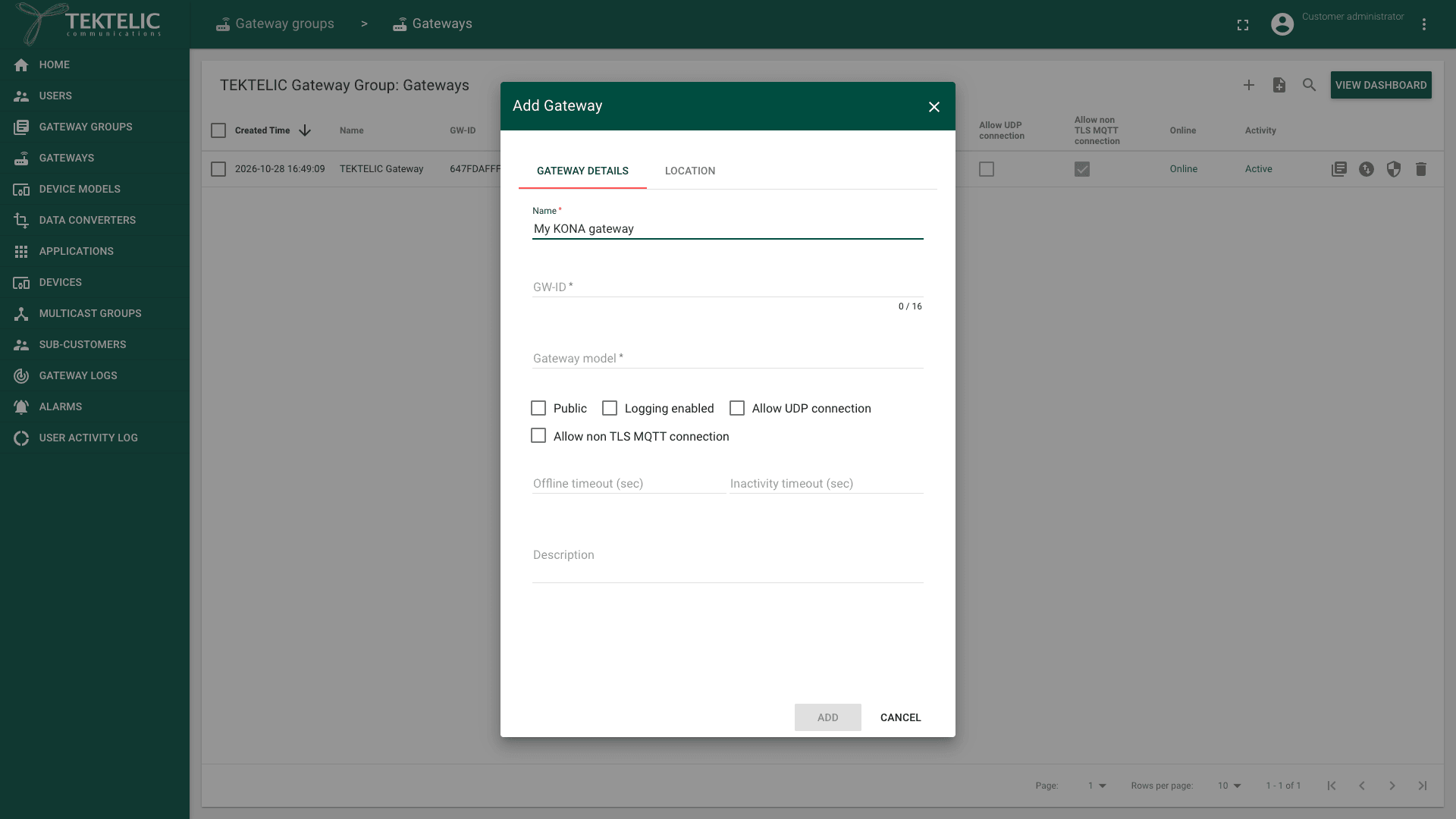
Select Add Gateway (the + icon). The Add Gateway dialog opens on the Gateway details tab.
-
Enter a Name. The name is required.
-
Enter the GW-ID. It is required and must be 16 hexadecimal characters. Otherwise the dialog shows
-
Select the Gateway model that matches your KONA gateway type and its frequency plan, for example Kona Micro EU GW.
-
Leave Public cleared unless you want the gateway to forward uplinks from devices of all Customers under the same Provider. A public gateway doesn't need to be assigned to those Customers. See What is shared between levels.
-
Select Logging enabled if you want to see this gateway's messages in Gateway logs. See Gateway Logs.
-
Leave Allow UDP connection cleared. A KONA gateway connects over MQTT.
-
Leave Allow non TLS MQTT connection cleared. The gateway then can connect only over TLS, which encrypts the connection. We recommend TLS for every KONA gateway.
-
Leave Offline timeout (sec) and Inactivity timeout (sec) empty to use their defaults of 300 seconds (5 minutes). The offline timeout monitors connection availability. The inactivity timeout monitors data activity.
-
Optional: enter a Description, and on the Location tab enter the gateway's position.
-
Select Add. The gateway appears in the group's gateway list.
Step 2. Save the gateway's MQTT credentials
The gateway signs in to the KONA Core MQTT broker with a username and password. KONA Core must have the same values as the gateway.
-
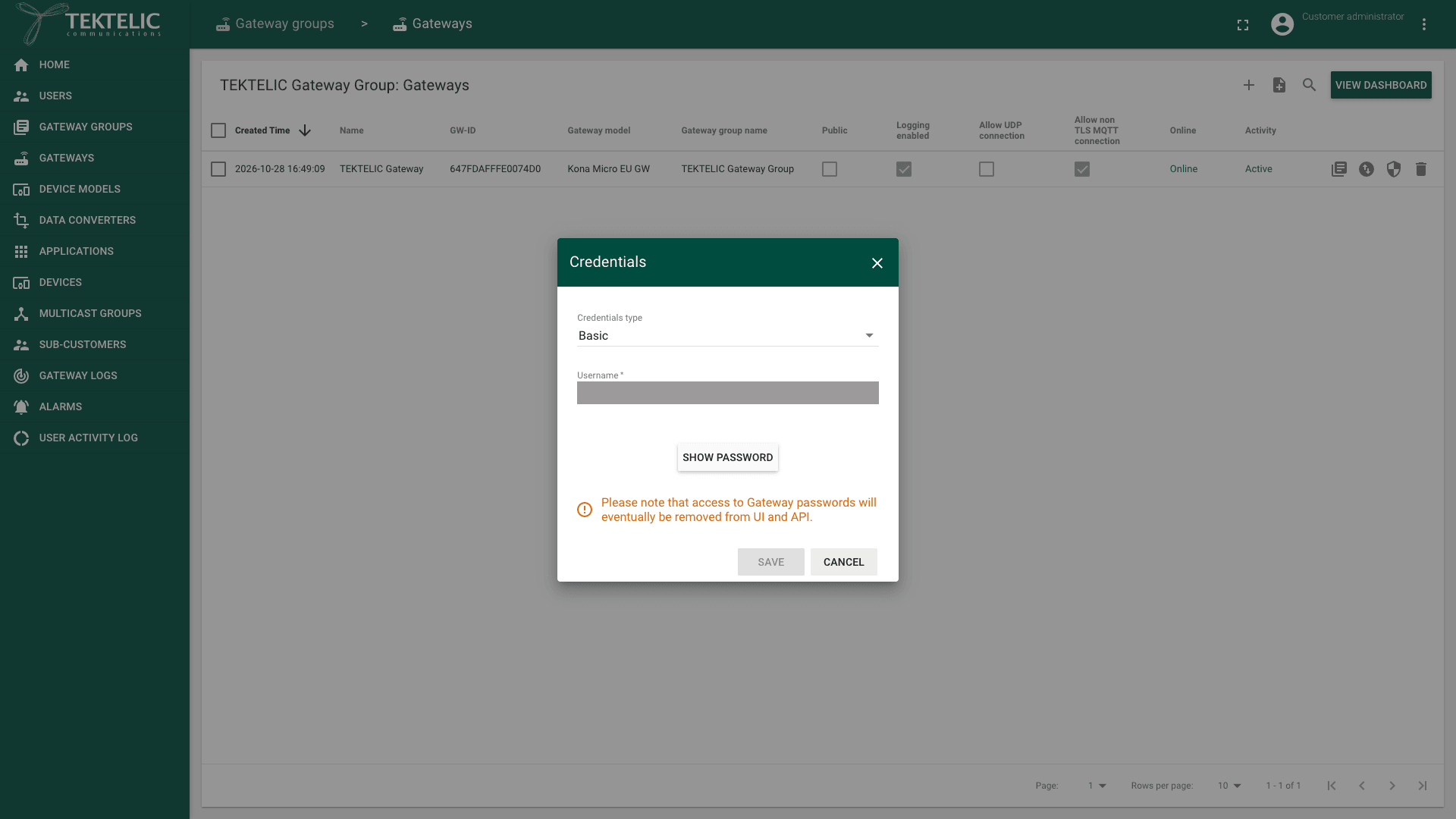
In the gateway's row, select the Manage credentials icon. You can also select the gateway and then Manage credentials in its details panel. You don't need edit mode. The Credentials dialog opens.
-
In Credentials type, keep Basic. This is the username and password method from the test report sheet.
-
Enter the Username from the test report sheet.
-
Select Show password. The Password field appears.
-
Enter the Password from the test report sheet. You must enter the gateway's credentials in KONA Core manually, including for a factory-new gateway.
-
Select Save.
The dialog warns that access to gateway passwords will eventually be removed from the UI and API. Keep the password in your own records, for example with the test report sheet.
Credentials type has two more options. Use them only if your gateway is set up for certificate sign-in:
| Credentials type | What you enter |
|---|---|
| Basic | Username and Password. Recommended for KONA gateways. |
| X.509 Certificate | A standard X.509 certificate in Gateway certificate. |
| Tektelic Certificate | Nothing. This method uses a certificate unique to each gateway. The dialog says Gateway should be configured to use NS root certificate. confirm the gateway-side certificate setup steps. |
For a gateway configured to use its TEKTELIC certificate, open Manage credentials and select Tektelic Certificate in Credentials type.
Step 3. Point the gateway to KONA Core
Configure the gateway's MQTT Bridge with the KONA Core host and the same credentials. Use KONA Link or SSH. For KONA Link, see the Kona Link User Guide.
Set these values on the gateway:
| Value | What to enter |
|---|---|
| Host | The KONA Core MQTT host of your region. |
| Port and TLS | The KONA Core MQTT port, with TLS turned on. |
| Username | The same Username as in step 2. |
| Password | The same Password as in step 2. |
| Region | MQTT host | TLS port |
|---|---|---|
| EU | lorawan-ns-eu.tektelic.com | 8883 |
| NA | lorawan-ns-na.tektelic.com | 8883 |
Over SSH, these values are in /etc/default/tektelic-bridge.ns.toml: host, gw_username and gw_password. Older KONA gateways and BSP versions use /etc/default/mqtt-bridge.conf; set the same host and MQTT credentials there. Restart the MQTT bridge, or reboot the gateway, after you save the file.
Check the result
-
In KONA Core, open the group's gateways page.
-
In your gateway's row, check that Online shows Online and Activity shows Active. Allow up to 1 minute for Online after the MQTT bridge restarts. Activity becomes Active when the gateway sends data.
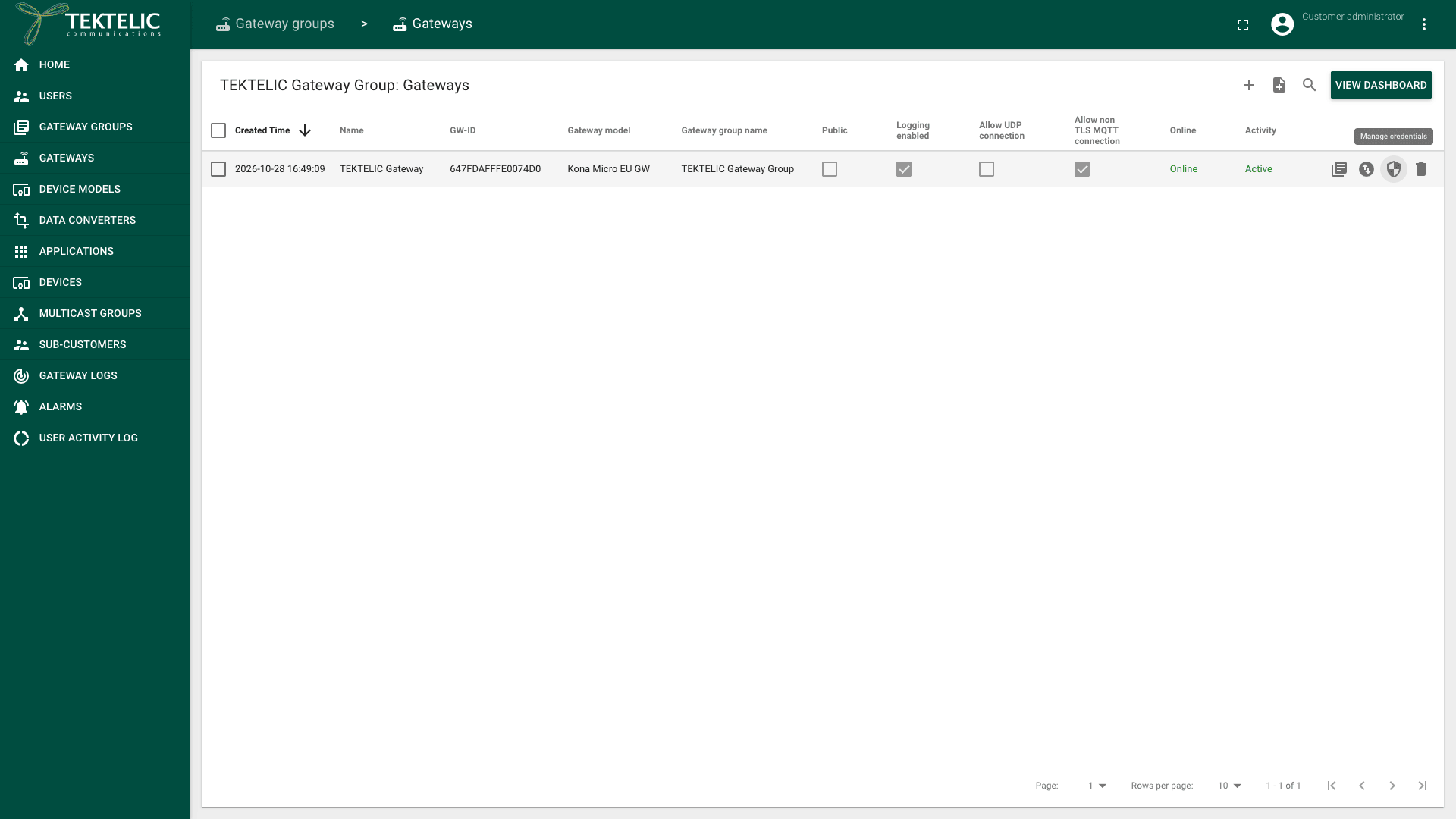
The screenshot shows an existing gateway with Allow non TLS MQTT connection selected. Keep it cleared for this guide's TLS setup.
| Column | Value | Meaning |
|---|---|---|
| Online | Online or Offline | Whether the MQTT connection responds to keep-alive pings. |
| Activity | Active or Inactive | Whether data was transferred within the configured inactivity timeout. |
A gateway can be Online and Inactive for a while after it connects. This is normal until the gateway sends its first data.
For statistics and dashboards, see Monitor Gateways. To change gateway settings from KONA Core, see Configure Gateways. To check the state from your own system, use Get gateway online state.
Troubleshooting
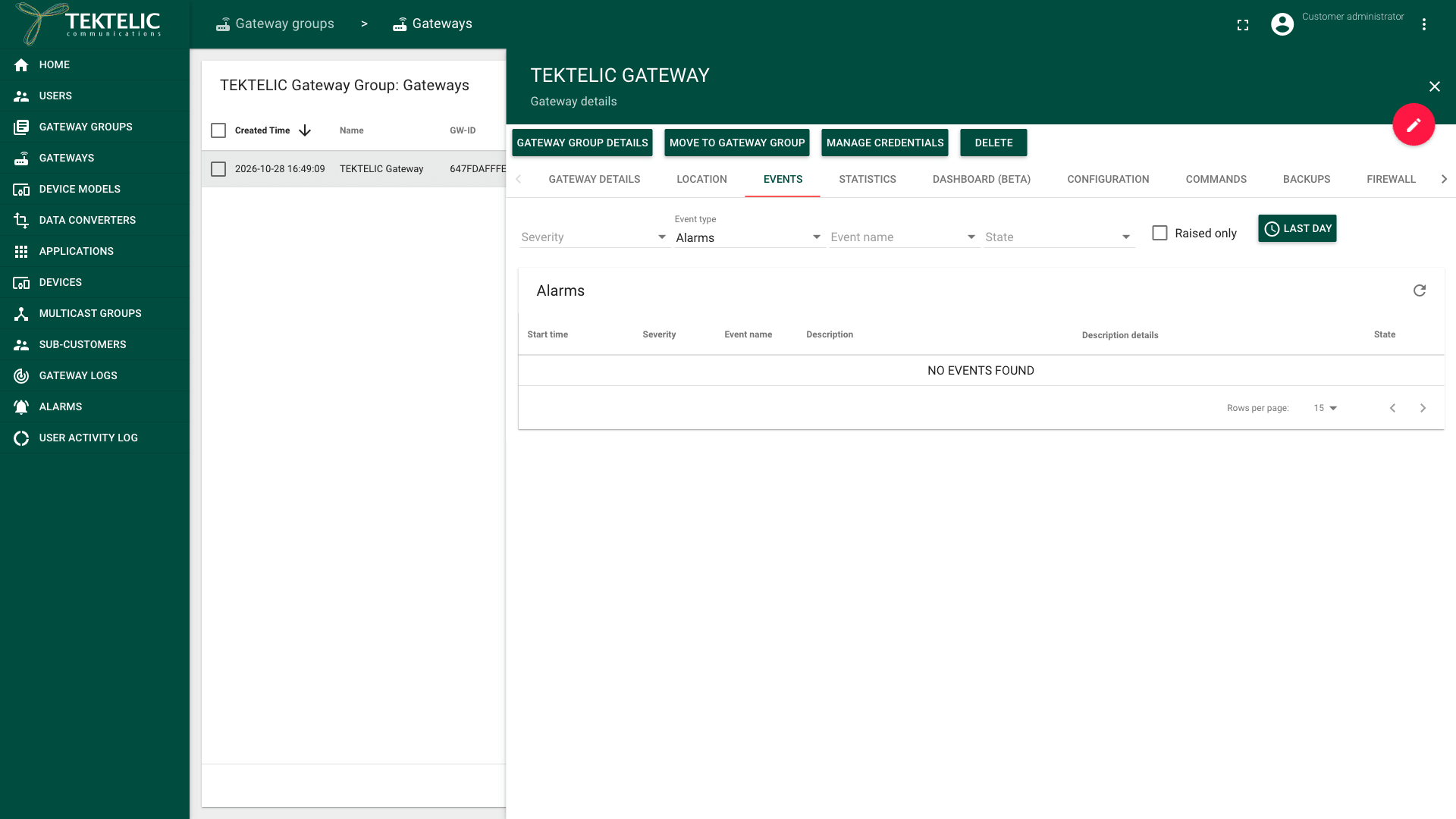
To see why a gateway is offline, select the gateway and open the Events tab. It shows Alarms of the LAST DAY by default. Set Event type to Events for GATEWAY_AUTHENTICATION_ERROR and GATEWAY_MAC_MISMATCH. Use the period button to see a longer time. For event types and states, see Events & Alarms.
| Symptom | Likely cause | What to do |
|---|---|---|
| The gateway stays Offline, and the Events tab shows GATEWAY_AUTHENTICATION_ERROR. | The username or password on the gateway doesn't match Manage credentials in KONA Core. | Enter the same credentials on both sides (steps 2 and 3), then restart the MQTT bridge. |
| The gateway stays Offline, with no event. | The gateway can't reach the MQTT host or port, for example because a firewall blocks it. Or the gateway connects without TLS while Allow non TLS MQTT connection is cleared. | Check the host, the port and TLS on the gateway. Ask your network administrator to allow outbound connections to the KONA Core MQTT host. Keep TLS on the gateway rather than allowing non-TLS connections. |
| The gateway stays Offline, and the Events tab shows GATEWAY_MAC_MISMATCH. | The configured gateway MAC address is incorrect: GW-ID differs from the gateway's own ID. | Compare the GW-ID with the gateway's sticker. To fix it, edit the gateway. See Configure Gateways. |
Also check that the gateway isn't disabled. The gateway's details panel shows Enable when the gateway is disabled.
Still stuck? A Customer contacts their Provider, and a Provider contacts TEKTELIC Support. Send the GW-ID, the time in UTC, the exact event name or error message, and a screenshot of the Events tab.
Related
- Monitor Gateways
- Configure Gateways
- Bulk Gateway Commissioning
- Onboard a Third-Party Gateway via UDP
- Manage Gateway Groups
- Manage Gateway Models
- Architecture Overview: how gateways connect over MQTT and UDP
- Security & Keys
- API Reference: to add gateways from your own systems, use Save gateway and Save credentials.