Manage Gateway Groups
Overview
Create gateway groups in TEKTELIC KONA Core Network Server, and decide which gateways belong to each one. At the end, every gateway sits in the group you want, and you can manage the group's gateways together.
Every gateway belongs to exactly one gateway group. A group is used for three things:
- Shared settings: a group has its own Configuration, Alarm Rules and SW Management tabs. They hold the configuration, alarm rules and firmware upgrades for the gateways in the group. See Configure Gateways, Configure Gateway Group Alarm Rules and Upgrade Gateway Firmware.
- Organization: you group gateways by site, region or purpose, and open each group's gateways from one page.
- Access: a Provider assigns a group to a Customer. The Customer then sees the group and its gateways. When the Provider unassigns the group, the Customer can no longer access it. See Tenancy Model.
Before you start
- Role: Provider administrator or Customer administrator. The Provider user and Customer user roles open gateway groups read-only and don't see add, move or delete. Sub-Customers have no gateway pages. See Users, Roles & Permissions.
- Plan: we recommend one group per site or per group of gateways that need the same configuration and alarm rules. Alarm rules and configuration are set per group, so a mixed group forces one setting on all its gateways.
Steps
Create a gateway group
-
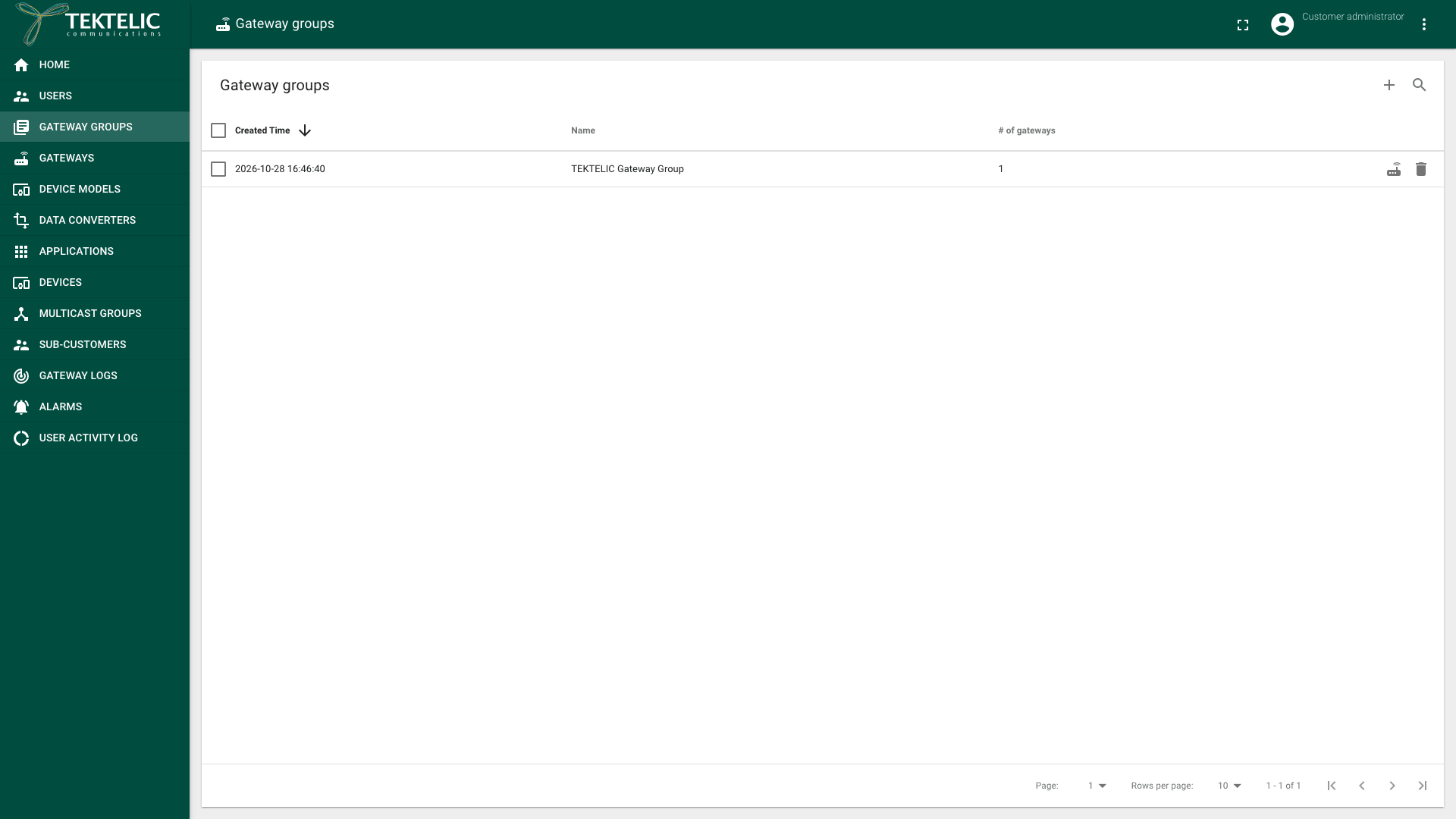
In the side menu, select Gateway groups. The Gateway groups page opens. It lists the groups with Created Time, Name and # of gateways. A Provider also sees Assigned to, the Customer the group is assigned to.
-
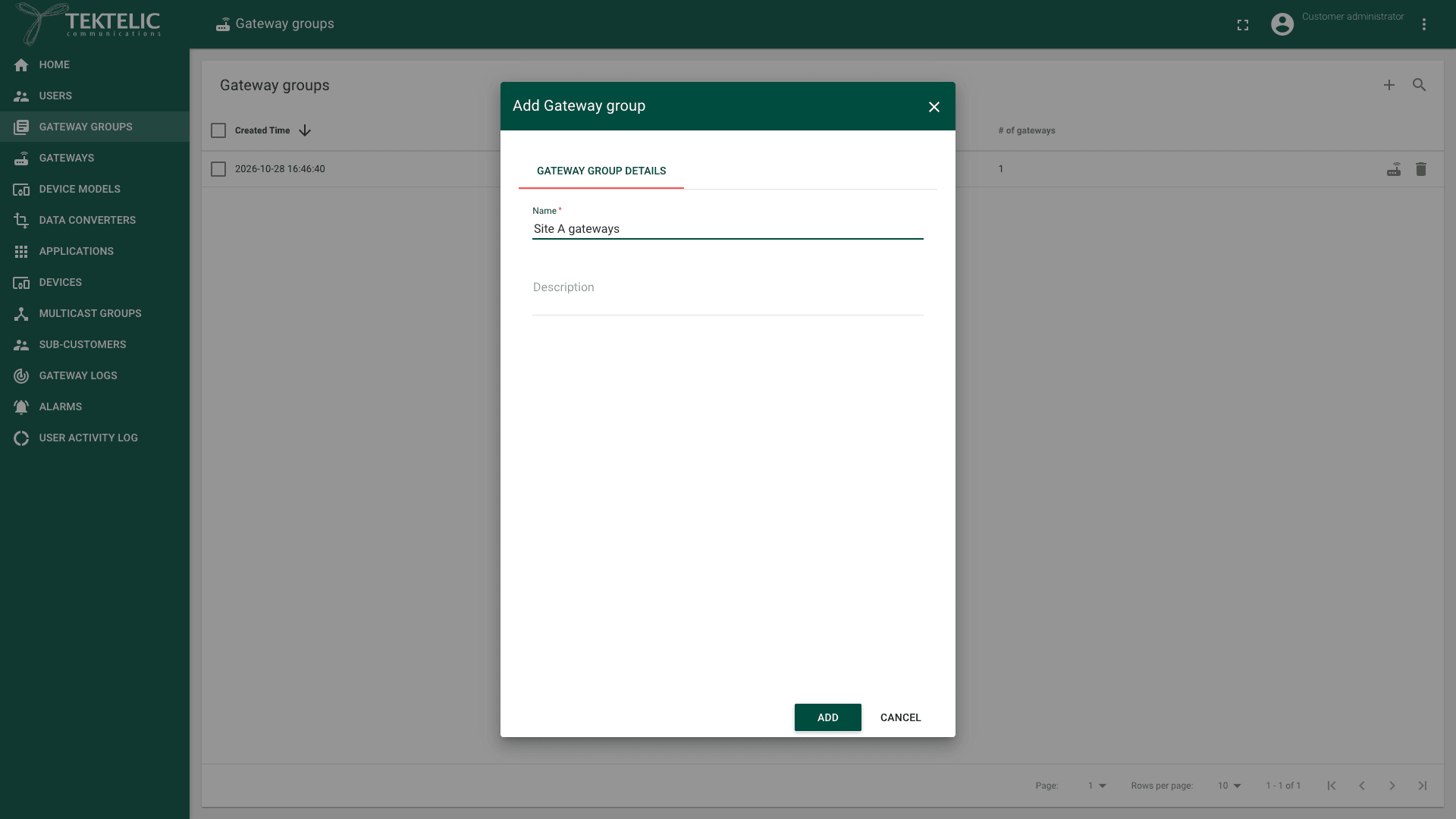
Select Add Gateway group (the + icon). The Add Gateway group dialog opens.
-
Enter a Name. The name is required.
-
Optional: enter a Description, for example the site address.
-
Select Add. The new group appears in the list.
Open a gateway group
-
On the Gateway groups page, select the group. The Gateway group details panel opens.
-
Read the group's data: Name, # of gateways, Assigned to and Description. Copy gateway group Id copies the group's ID, which the API Reference asks for.
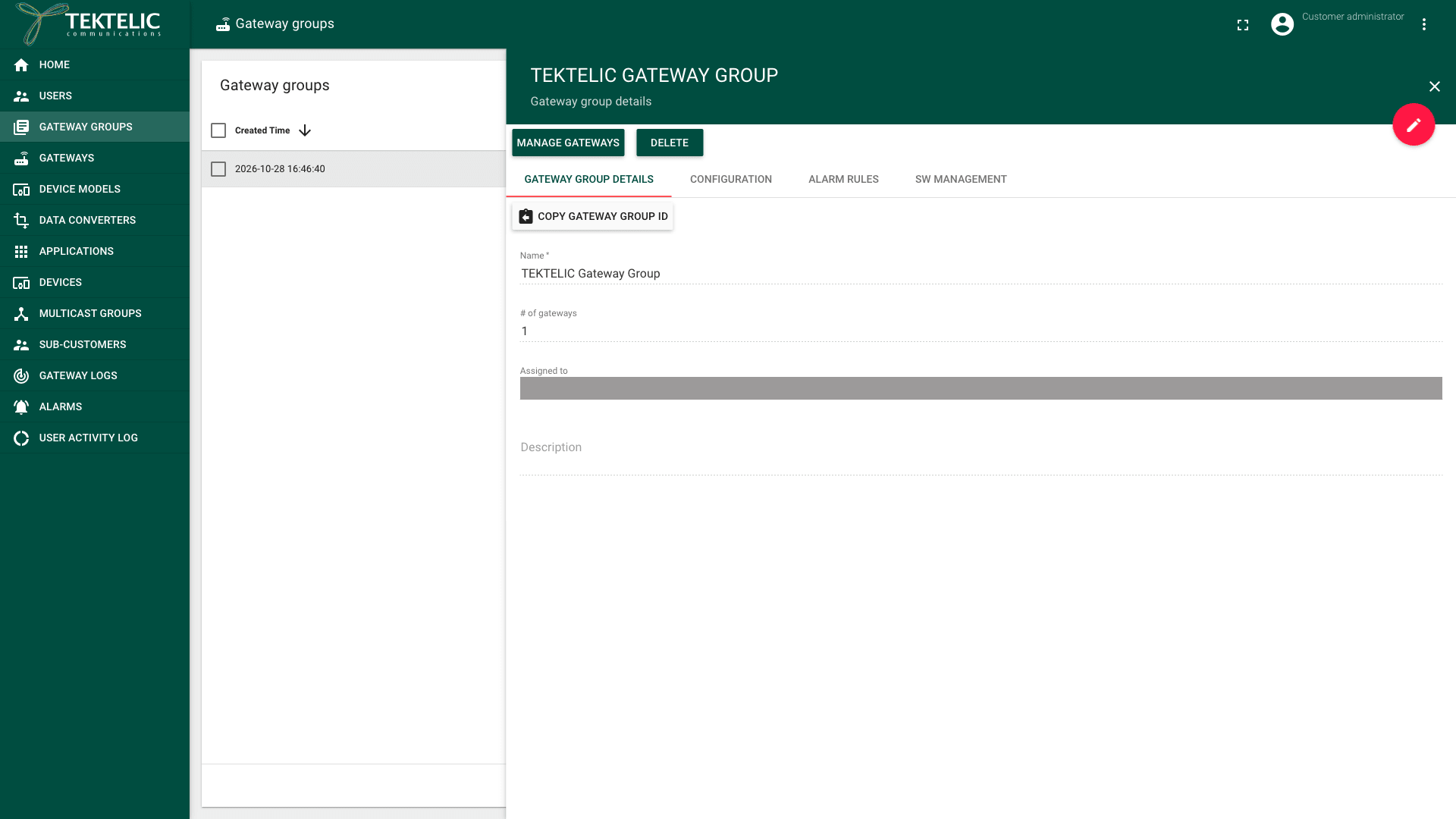
To rename the group or change its description, select Edit mode (the pencil icon), change the Name or Description, and select Apply.
Add gateways to a group
You add a gateway inside its group. The Gateways page in the side menu lists the gateways of all your groups, but it has no Add Gateway.
-
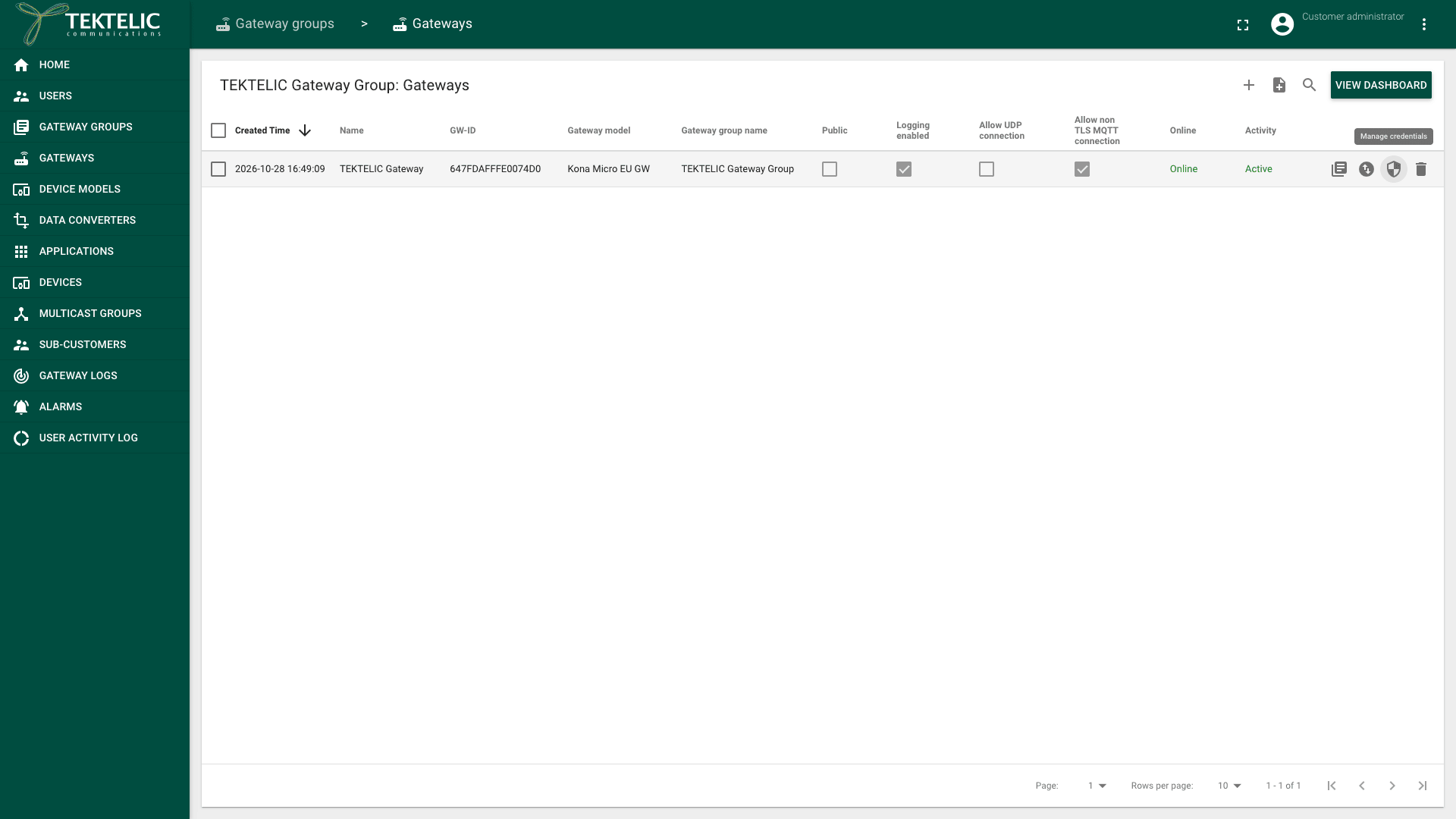
On the Gateway groups page, select the Manage gateways icon in the group's row. You can also select Manage gateways in the group's details panel. The group's gateways page opens, titled with the group name and Gateways.
-
Select Add Gateway (the + icon), and add the gateway. For the fields, see Onboard a KONA Gateway via MQTT or Onboard a Third-Party Gateway via UDP.
-
To add many gateways from a CSV file, select Gateway bulk commissioning (the file icon next to +) instead. See Bulk Gateway Commissioning.
The new gateway appears in the group's list, and # of gateways goes up by one. Each gateway counts against your subscription plan. See Subscription Plans & Limits.
Move gateways to another group
A gateway can't be outside a group. To take a gateway out of a group, move it to another group, or delete it.
-
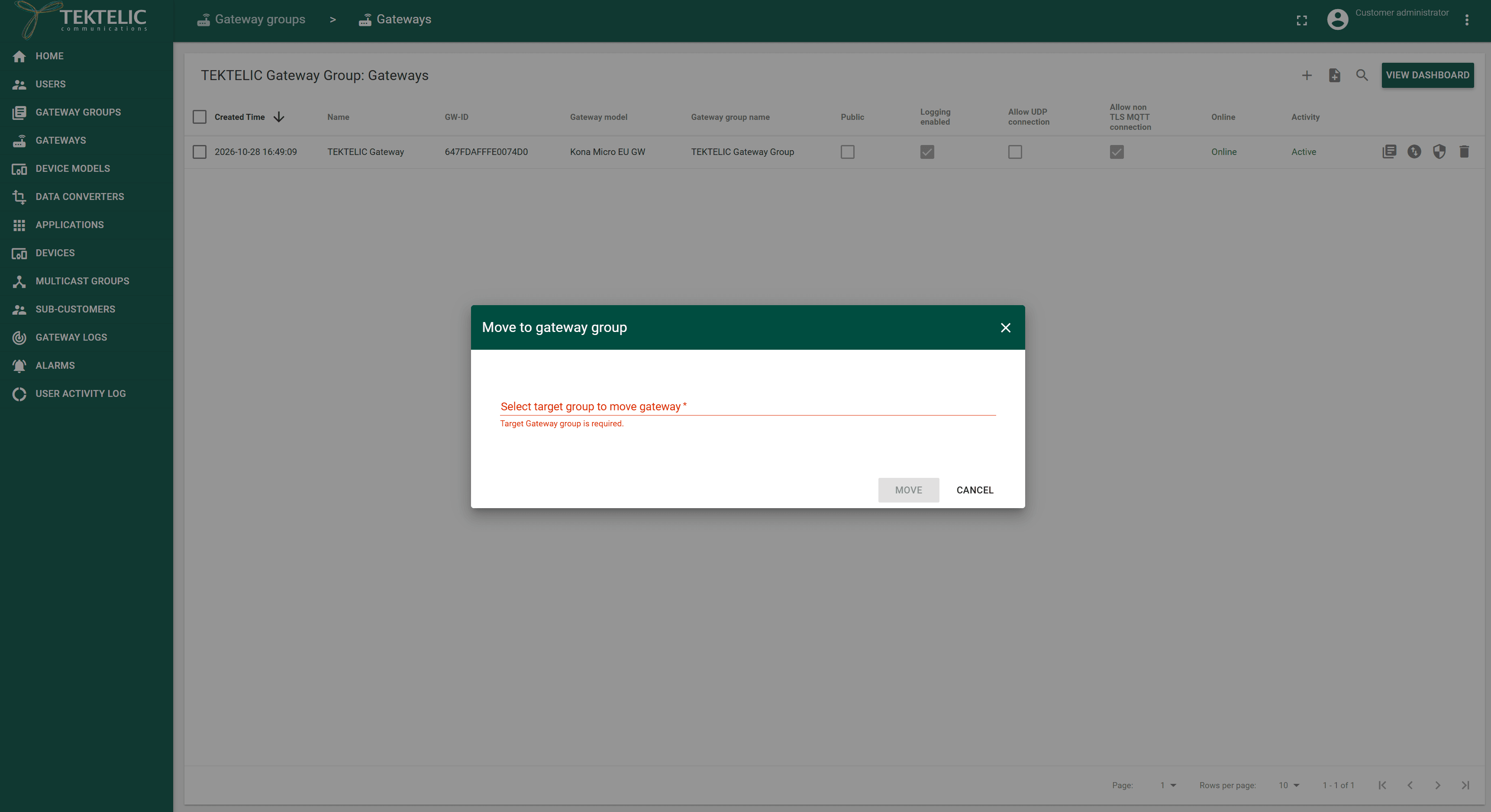
On the group's gateways page, select the Move to gateway group icon in the gateway's row. To move several gateways, select their check boxes, then select Move to gateway group in the toolbar. The Move to gateway group dialog opens: .
-
Select the target gateway group.
-
Select Move. The gateway disappears from this group's list and appears in the target group.
The gateway stops using the previous group's alarm rules and starts using the target group's rules, if any. If the gateway uses group configurations, it now inherits the target group's configurations. A gateway's own configurations remain its own. For configuration scope, see Configure Gateways.
Remove a gateway
Delete a gateway only when you take it out of service. To keep it, move it to another group instead.
- On the group's gateways page, select the Delete icon in the gateway's row.
- Read the confirmation:
- Select Yes. The gateway disappears from the list.
To use the gateway again, you add it again.
Delete a gateway group
- On the Gateway groups page, select the Delete icon in the group's row. You can also select Delete in the group's details panel. To delete several groups, select their check boxes, then the Delete icon in the toolbar.
- Read the confirmation:
- Select Yes. The group disappears from the list.
Deleting the group also deletes its gateways. Move the gateways you want to keep to another group first.
A Customer administrator can fully manage a group assigned by its Provider, including deleting the group and its gateways.
Assign a group to a Customer (Provider only)
-
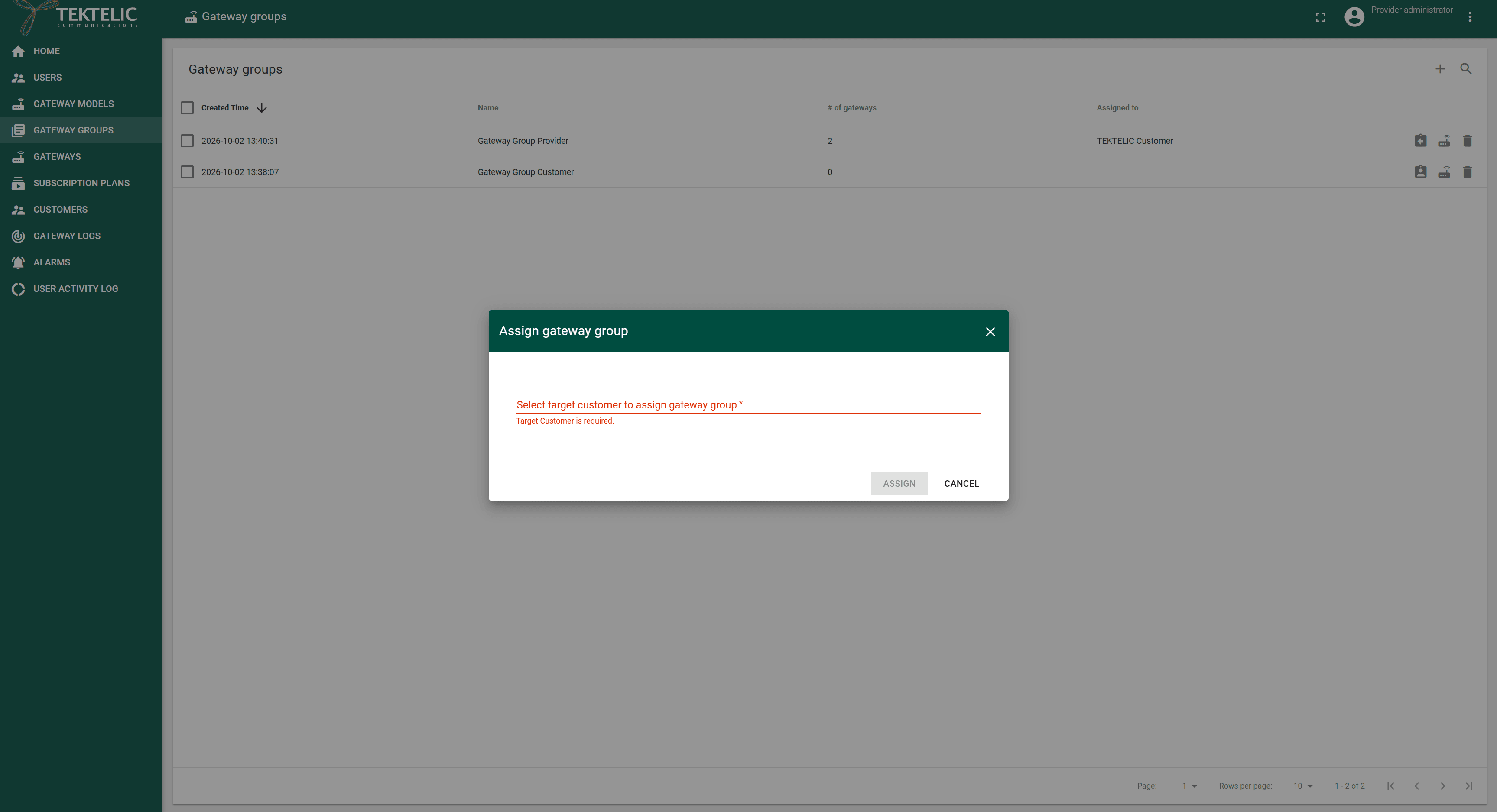
On the Gateway groups page, select the Assign to customer icon in the group's row. The Assign gateway group dialog opens: .
-
Select the Customer.
-
Select Assign. The Customer's name appears in Assigned to.
To take the group back, select Unassign from customer in the group's row and confirm: For more on Customers, see Manage Customers & Sub-Customers.
To manage groups from your own system, use Save gateway group, Assign gateway group to customer and Delete gateway group in the API Reference.
Check the result
- On the Gateway groups page, each group shows the # of gateways you expect.
- On a group's gateways page, every gateway shows the group in the Gateway group name column.
- On the Gateways page in the side menu, you see the gateways of all your groups, with their Gateway group name.
- For a group assigned to a Customer, the Provider sees the Customer in Assigned to. The Customer administrator sees the group on its Gateway groups page.
Troubleshooting
| Symptom | Likely cause | What to do |
|---|---|---|
| Add Gateway group or the Delete icon isn't shown. | You have a user role, which is read-only. | Ask the administrator of your level for the administrator role. |
| Gateway groups isn't in the side menu. | You are a Sub-Customer. Sub-Customers have no gateway pages. | Ask your Customer to manage the gateways. |
| A Customer doesn't see a group the Provider created. | The group isn't assigned to that Customer. | As the Provider, select Assign to customer in the group's row. |
Still stuck? A Customer contacts their Provider, and a Provider contacts TEKTELIC Support. Send the group name, the GW-ID of an affected gateway, the time in UTC, the exact error message and a screenshot.