Manage Gateway Models
Overview
Create, edit and delete gateway models in TEKTELIC KONA Core Network Server. A gateway model is a gateway type with its manufacturer, name and frequency band. Every gateway you add refers to one gateway model, and takes its frequency plan from it.
You need a new gateway model only when no existing model matches your gateway type and its LoRaWAN® frequency band. This is usually the case for a third-party gateway. For how models fit with the other entities, see Entity Model.
Before you start
- Role: Provider administrator. A Provider user opens the Gateway models page read-only. Customers and Sub-Customers have no Gateway models page. See Users, Roles & Permissions.
- Gateway data: the manufacturer, the model name, the frequency band and the number of radio channels of the gateway. Take them from the gateway's datasheet.
Steps
Check for a TEKTELIC model first
On the TEKTELIC hosted service, TEKTELIC provides gateway models for KONA gateways, for each gateway type and frequency plan. Their names show the type and plan, such as Kona Enterprise AU GW or Kona Micro EU GW. Check the configured Frequency band as well as the name, because a Provider can edit the model. Customers select models in the Gateway model list when they add a gateway.
New Providers start with a set of predefined TEKTELIC models. A Provider administrator can create, edit and delete models, including these predefined models. A model in use by a gateway can't be deleted.
Use a TEKTELIC model for a KONA gateway: it matches the gateway's radio. Create a custom model only when no model describes your gateway.
Customers have no separate Gateway models page. They select their Provider's models from the Gateway model dropdown when adding or editing a gateway. A newly created model is available to all Customers of that Provider immediately.
Create a gateway model
-
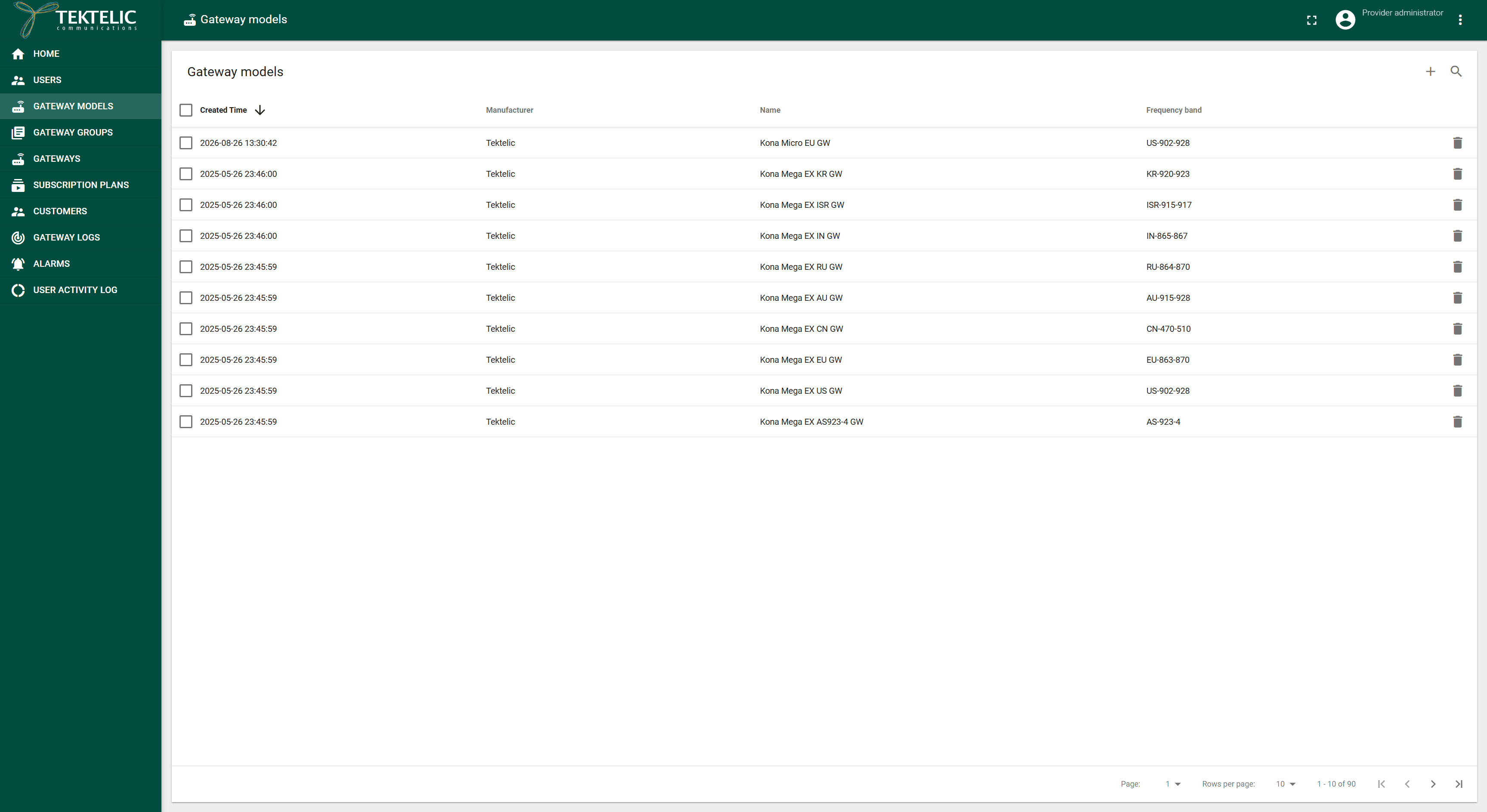
In the side menu, select Gateway models. The Gateway models page opens. It lists the models with Created Time, Manufacturer, Name and Frequency band.
-
Select Add Gateway Model (the + icon). The Add Gateway Model dialog opens.
-
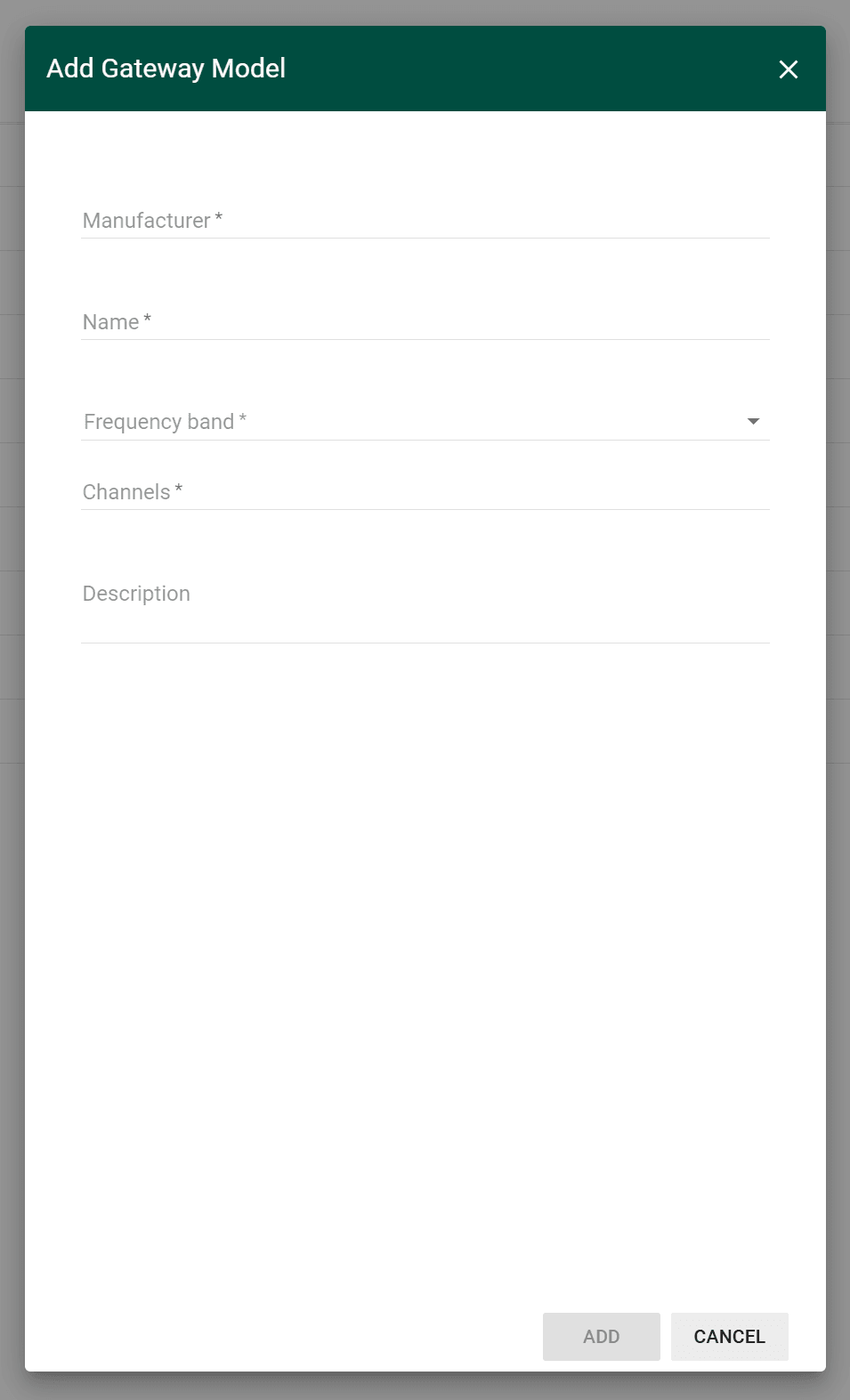
Enter the Manufacturer. The field is required.
-
Enter a Name. The field is required. We recommend a name that shows the gateway type and the plan, as the TEKTELIC models do. Customers pick the model by this name.
-
Select the Frequency band. The field is required. The options are AS-923-1, AS-923-2, AS-923-3, AS-923-4, AS-920-923, AS-923-925, US-902-928, EU-863-870, CN-470-510, AU-915-928, RU-864-870, IN-865-867, ISR-915-917 and KR-920-923. For how these bands relate to the LoRaWAN regional plans, see Regions & Frequency Plans.
-
Enter the Channels of the gateway. The field is required, but the UI doesn't validate its format. confirm whether KONA Core uses Channels beyond display.
-
Optional: enter a Description.
-
Select Add. The new model appears in the list.
You are responsible for compliance with local radio regulations, including duty cycle and dwell time.
Edit a gateway model
- On the Gateway models page, select the model. The Gateway model details panel opens.
- Select Edit mode (the pencil icon).
- Change the Manufacturer, Name, Frequency band, Channels or Description.
- Select Apply.
Every gateway that refers to the model takes its frequency band from it. Change the Frequency band of a model in use only if all its gateways use the new band. confirm whether KONA Core allows changing the Frequency band of a model that gateways use, and what happens to those gateways.
Delete a gateway model
- On the Gateway models page, select the Delete icon in the model's row. You can also open the model and select Delete in its details panel. To delete several models, select their check boxes and then the Delete icon in the toolbar.
- Read the confirmation:
- Select Yes. The model disappears from the list.
KONA Core blocks deletion while any gateway uses the model. Before deleting it, change the Gateway model of each gateway that uses it.
To manage models from your own system, use Save gateway model and Delete gateway model in the API Reference.
Check the result
- The Gateway models page lists the model with the Manufacturer, Name and Frequency band you entered.
- A Customer administrator of your Provider finds the model in the Gateway model list of the Add Gateway dialog.
- After you add a gateway with the model, the gateway details panel shows the Gateway model, the Frequency band and the Channels. The Frequency band shows the band's frequency range, for example
867-869MHzfor EU-863-870.
Troubleshooting
| Symptom | Likely cause | What to do |
|---|---|---|
| Gateway models isn't in the side menu. | Your role isn't a Provider role. | Ask your Provider to create the model, or to add it for you. |
| Add Gateway Model isn't shown. | You have the Provider user role, which is read-only. | Ask a Provider administrator for the administrator role. |
| Add stays unavailable. | A required field is empty: , , or | Fill in every field marked with an asterisk. |
Still stuck? A Provider contacts TEKTELIC Support. Send the model name, the time in UTC, the exact error message and a screenshot.
Related
- Onboard a KONA Gateway via MQTT: add a gateway with a gateway model.
- Onboard a Third-Party Gateway via UDP
- Manage Gateway Groups
- Regions & Frequency Plans
- Entity Model
- Users, Roles & Permissions
- Glossary