Upgrade Gateway Firmware
Overview
Upgrade the firmware of your KONA gateways from TEKTELIC KONA Core Network Server, without a visit to the site. You upgrade the BSP (the gateway's firmware package) of one gateway, or of every gateway in a gateway group at once. At the end, the gateways run the new BSP version, and KONA Core shows the result for each gateway.
KONA Core offers three ways to upgrade:
| Way | Where | Use it for |
|---|---|---|
| Upgrade BSP for a group | Gateway group details > SW Management | Recommended. All gateways of a group that have a new BSP version. |
| SW Management of one gateway | Gateway details > SW Management | One gateway: test a new BSP first, or upgrade single software packages. |
| Apply upgrade | Gateways or Gateway groups list > Upgrade | An upgrade at a scheduled date and time. |
We recommend that you upgrade one gateway first, check it, and then upgrade the rest of its group.
Before you start
- Role: Provider administrator or Customer administrator. User roles can't start upgrades, including from SW Management, or request software information from the gateway. They don't see the Upgrade menu. A Sub-Customer has no gateway pages. See Users, Roles & Permissions.
- Gateways: TEKTELIC KONA gateways connected over MQTT and shown as Online. Remote commands, configurations and firmware upgrades are available only for these gateways. UDP gateways don't support these features. See Monitor Gateways.
- Firmware source: you don't upload a firmware file. The gateway reports which upgradable packages and BSP versions are available to it, and KONA Core offers those. confirm where the gateway downloads the firmware from and the minimum BSP versions needed for an upgrade from KONA Core.
- Maintenance window: the gateway reboots during a BSP upgrade, so it doesn't forward uplinks for a while. A BSP upgrade typically takes up to 1 hour, depending on the gateway and operating conditions. Plan the upgrade for a time with low traffic.
Steps
Upgrade all gateways of a group (recommended)
-
In the side menu, select Gateway groups.
-
Select your gateway group in the list. The Gateway group details panel opens.
-
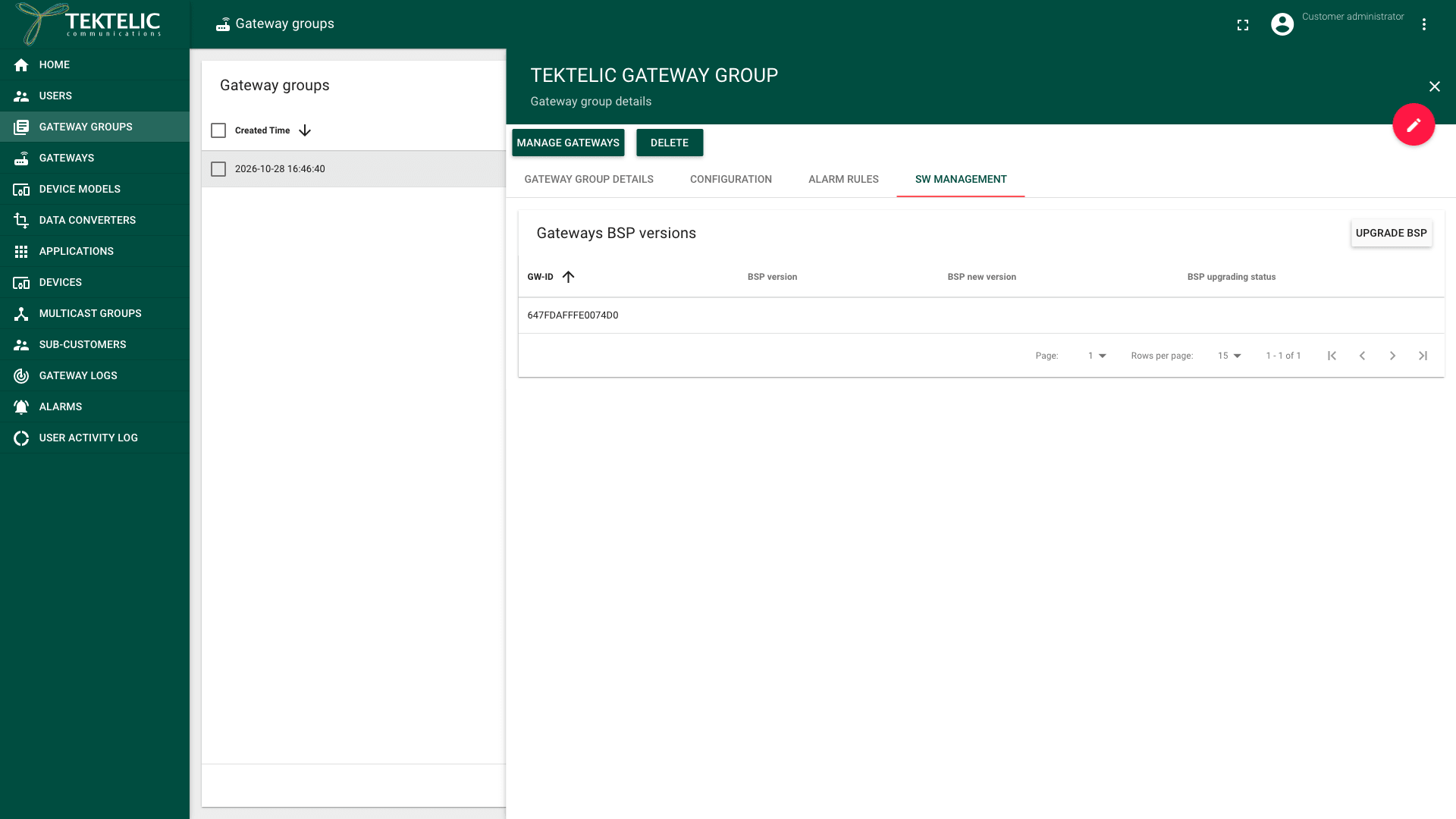
Select the SW Management tab. The Gateways BSP versions table lists each gateway of the group with its GW-ID, BSP version, BSP new version and BSP upgrading status. KONA Core reads these values from the gateways, so the table can take a few seconds to fill.
-
Check BSP upgrading status for each gateway. BSP upgrade is available means that BSP new version can be installed. BSP is up to date means that the gateway already runs the newest version.
-
Select Upgrade BSP. KONA Core starts the upgrade right away, on every gateway that shows BSP upgrade is available. There is no confirmation dialog.
warningUpgrade BSP reboots every gateway it upgrades, possibly several times. Don't turn off a gateway while its upgrade is in progress.
-
Wait while BSP upgrading status shows Upgrade in progress. The message above the table shows the current state, for example .
-
Wait for the message . If no gateway has an update, the message is
Upgrade one gateway
-
In the side menu, select Gateways.
-
Select the gateway in the list. The Gateway details panel opens.
-
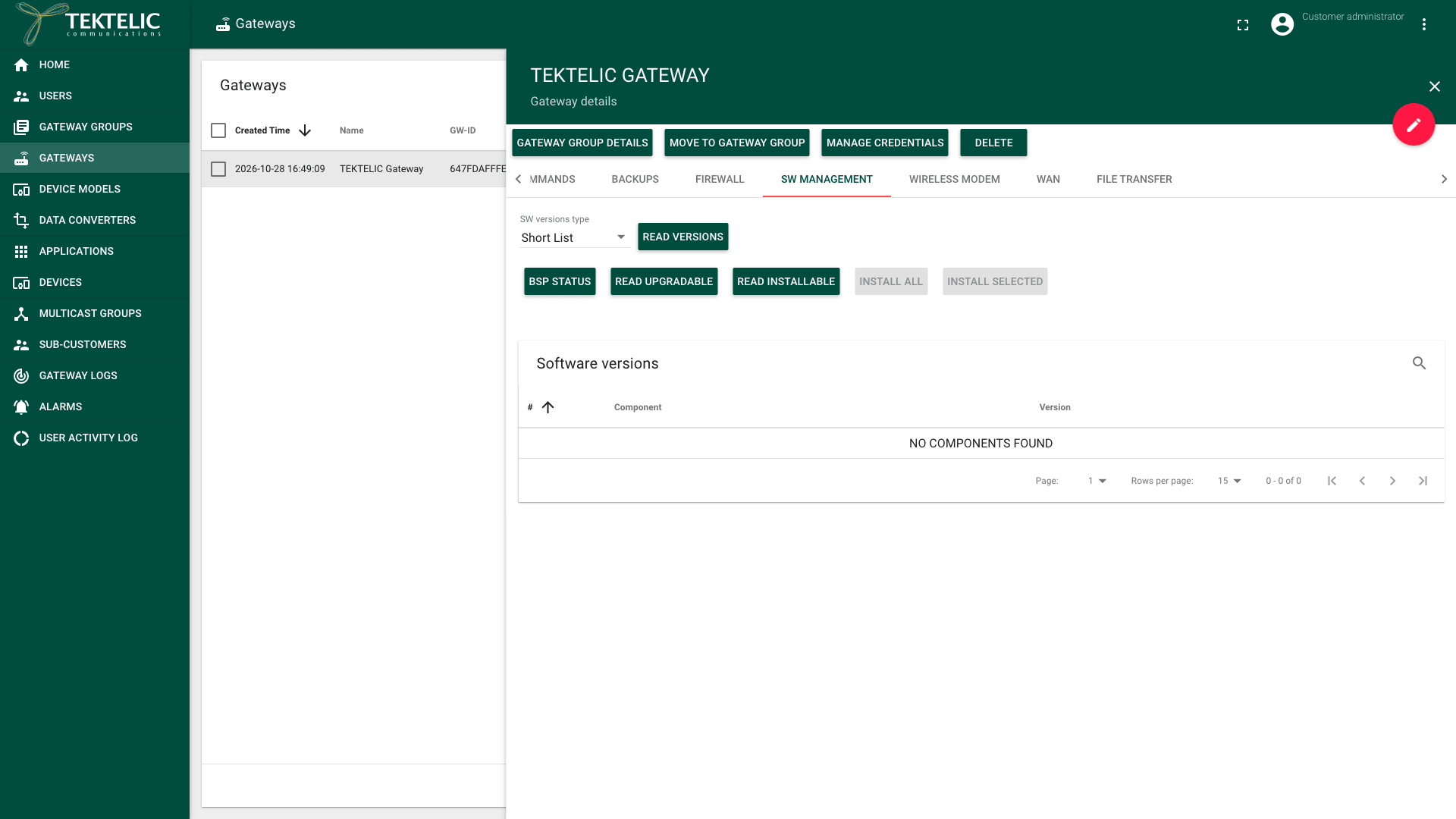
Select the SW Management tab. To find it, scroll the tab bar to the right.
-
Select Read Versions. The Software versions table lists the installed Component packages and their Version. In SW versions type, Short List is the default. Select Full List to see all packages.
-
Select BSP Status. A message shows the BSP state, for example BSP Latest or BSP Upgrade Busy.
-
Select Read Upgradable. The Upgradable software table lists the packages that have a newer version, with Current Version and New Version. If the list is empty, it shows .
-
Select Upgrade BSP. This button appears only when a BSP upgrade is available. To upgrade other packages instead, select them and select Upgrade Selected, or select Upgrade All.
If the list holds special packages, such as the BSP, KONA Core shows . Then Upgrade All isn't available, and you upgrade the BSP with Upgrade BSP.
-
Wait until the message above the table shows . While the upgrade runs, it shows .
Read Installable lists packages that aren't installed yet. You install them with Install Selected or Install All. Install only packages that TEKTELIC Support recommends for your gateway.
Schedule an upgrade
Apply upgrade sets a date and time at which the gateways download and install the update. You can apply it to selected gateways or to selected gateway groups.
-
In the side menu, select Gateways. To upgrade whole groups, select Gateway groups instead.
-
Select the checkbox of each gateway or group to upgrade. The toolbar shows how many are selected.
-
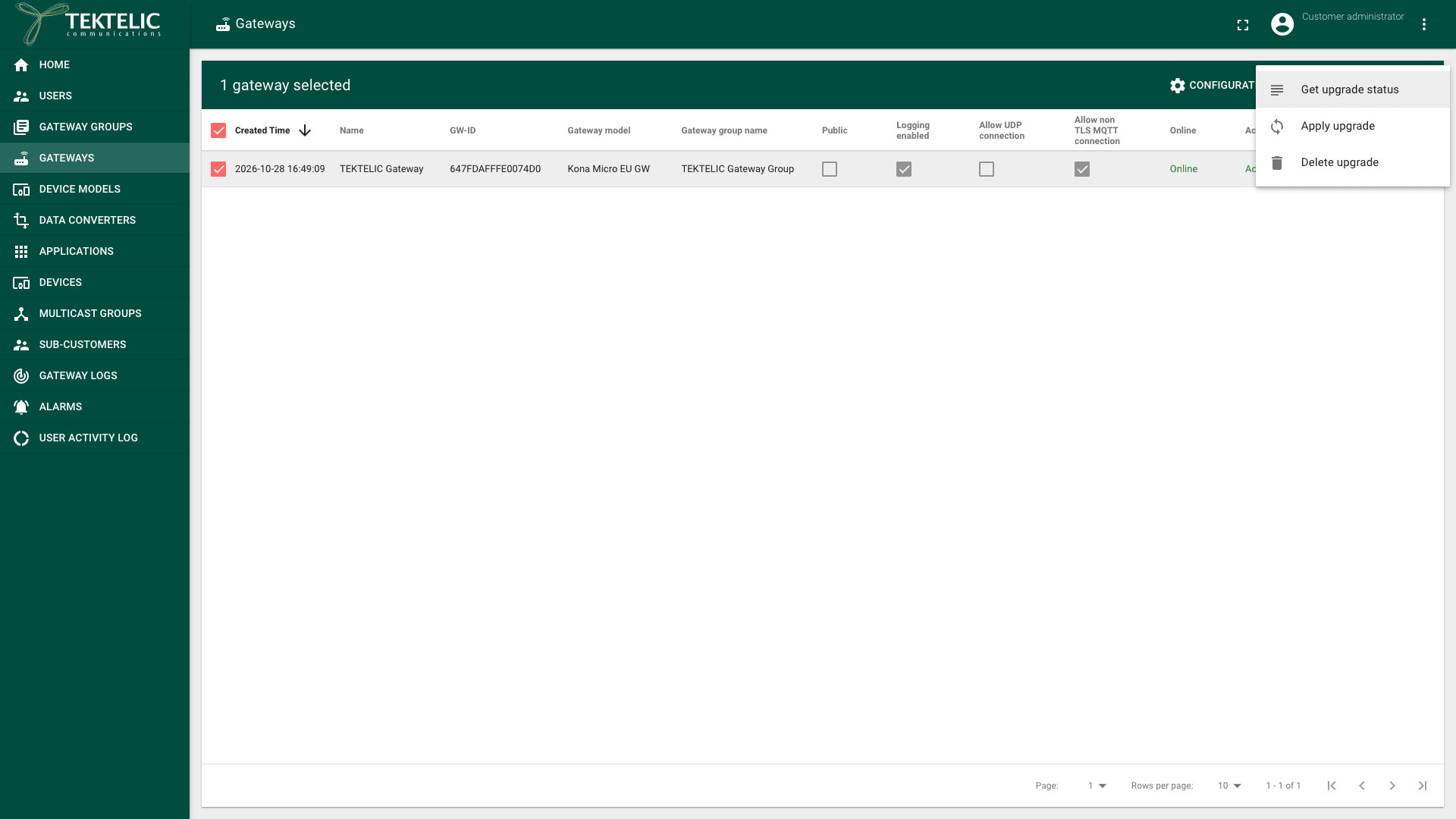
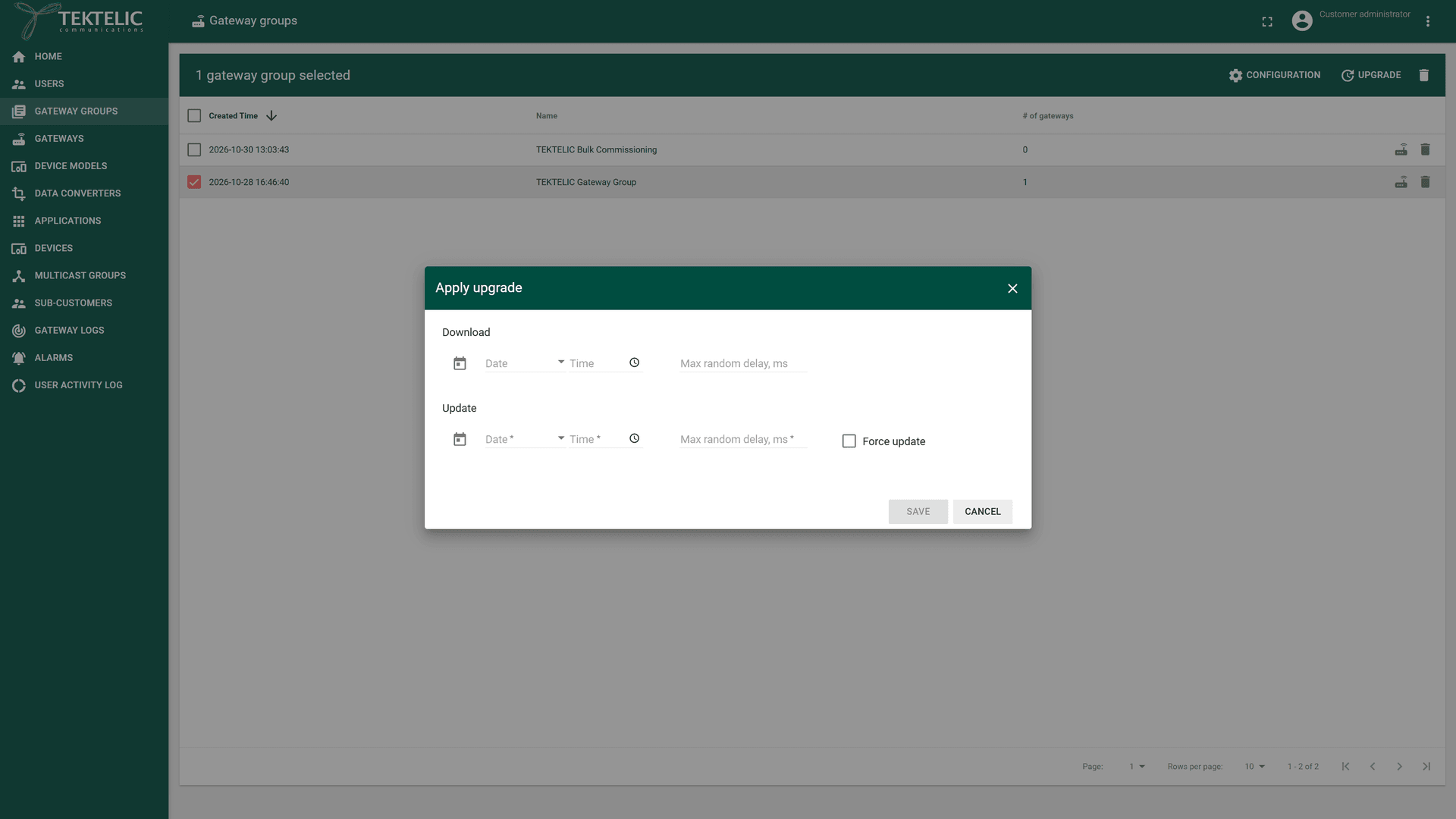
Select Upgrade > Apply upgrade. The Apply upgrade dialog opens.
-
Optional: under Download, set the Date and Time at which the gateways download the update. In Max random delay, ms, enter a random delay in milliseconds, so that the gateways don't all download at the same moment.
-
Under Update, set the Date and Time at which the gateways install the update. Both are required.
-
In Max random delay, ms, enter the random delay for the installation in milliseconds. It's required. confirm a recommended delay for a large gateway group.
-
Leave Force update cleared unless an upgrade fails because there isn't enough backup space. Force update allows the gateway to proceed with an upgrade when there isn't enough space for a backup.
-
Select Save.
The firmware API represents download and update times as milliseconds since the Unix epoch. confirm which firmware version a scheduled upgrade installs, and whether the date and time fields in the UI use UTC or the browser's time zone.
To cancel a scheduled upgrade, select the same gateways or groups, then Upgrade > Delete upgrade. Confirm in the dialog. This removes the scheduled upgrade, not the firmware that is installed.
Check the result
- In the side menu, select Gateways.
- Select the checkbox of the upgraded gateways.
- Select Upgrade > Get upgrade status. The Firmware status table opens. For gateway groups, it also shows the GW group name.
- Check each gateway:
- Current version shows the new firmware version.
- Update Status shows the state the gateway reports, for example INSTALLED.
- Available updates shows None when no newer version is left.
- Last Successful Update Time shows when the last update finished.
- Select Close.
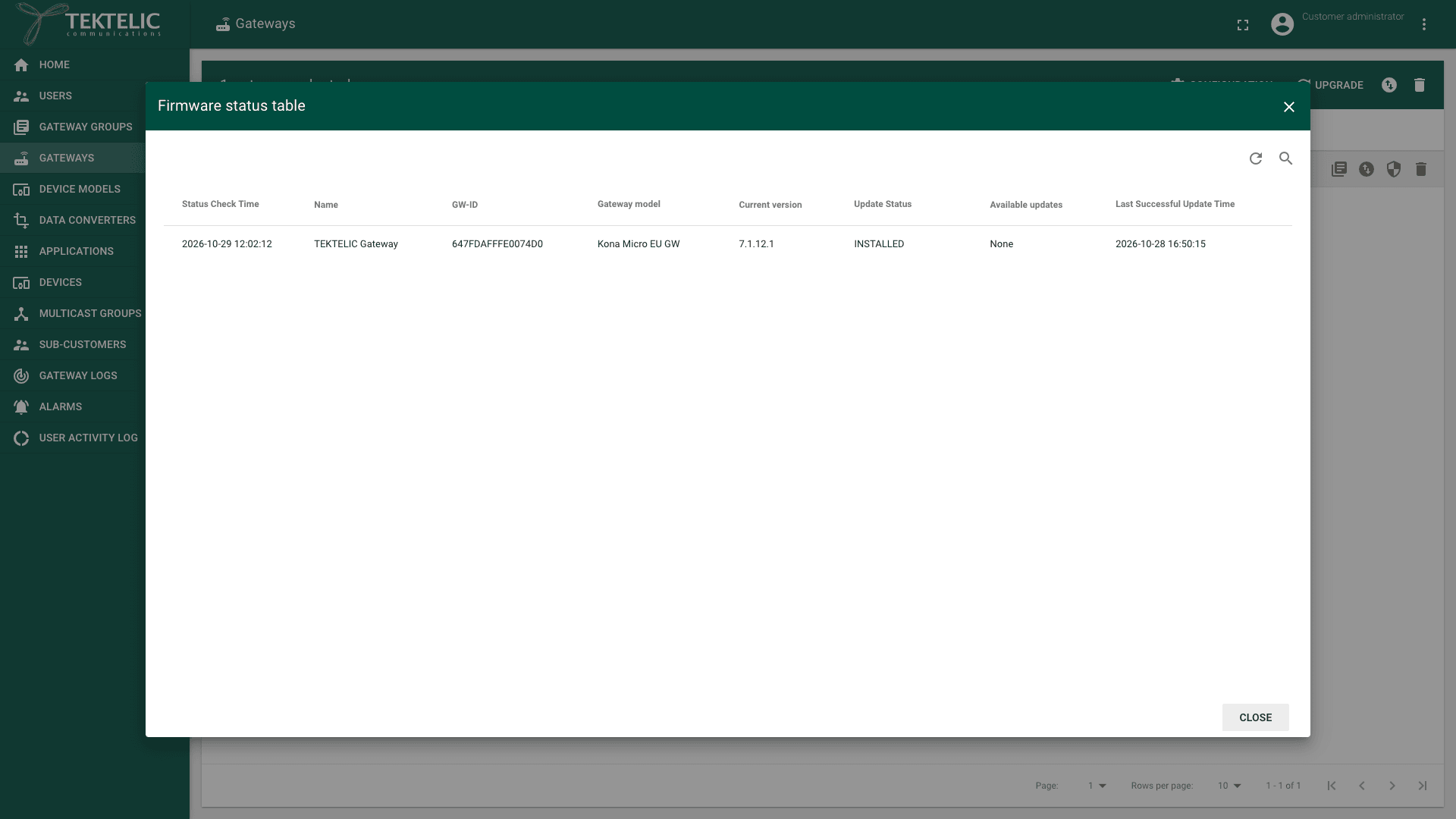
Also check that each gateway shows Online and Active again after the upgrade. See Monitor Gateways. On the group's SW Management tab, the gateways show BSP is up to date.
Troubleshooting
When an upgrade fails, the message above the table shows Upgrade status: followed by the gateway's error, for example , , , or . confirm whether a gateway keeps running its previous firmware after a failed BSP upgrade.
| Symptom | Likely cause | What to do |
|---|---|---|
| The message shows . | The gateway can't reach the firmware source. | Check the gateway's internet connection, then start the upgrade again. |
| The message shows . | The gateway has too little free storage for the new package. | Contact support before you retry. Don't remove packages by hand. |
| The message shows , or the tables stay empty. | The gateway is offline, connects over UDP, or its firmware doesn't support this command. | Check that the gateway is Online and connects over MQTT. See Monitor Gateways. |
Still stuck? A Customer contacts their Provider, and a Provider contacts TEKTELIC Support. Send the GW-ID, the gateway model, the current BSP version, the time of the upgrade in UTC, the exact message and a screenshot.
Related
- Monitor Gateways
- Gateway Commands & Management
- Gateway Logs: the gateway's Gateway firmware reported messages.
- Manage Gateway Groups
- Configure Gateways
- API Reference: to schedule and track upgrades from your own system, use Save firmware desired, Get firmware reported and Delete firmware desired.