Alarm Notifications
Overview
Send an email or an SMS to the right people when an alarm is raised or cleared in TEKTELIC KONA Core Network Server. You add the notification to an alarm rule, choose its recipients and write the message with references that KONA Core fills in. At the end, every trigger of the rule reaches your team.
This guide uses an alarm rule of an application. Notifications work the same way in a gateway group rule: see Configure Gateway Group Alarm Rules. To send events to your own MQTT broker instead, see Events over MQTT.
Before you start
- Role: Customer administrator or Sub-Customer administrator for application rules. User roles open alarm rules read-only. For gateway group rules, see Configure Gateway Group Alarm Rules. See Users, Roles & Permissions.
- Application: an application with the devices or integrations you want to watch. See Manage Applications.
- Recipients: the email addresses and phone numbers of the people on call.
Steps
Step 1. Open the rule
-
In the side menu, select Applications.
-
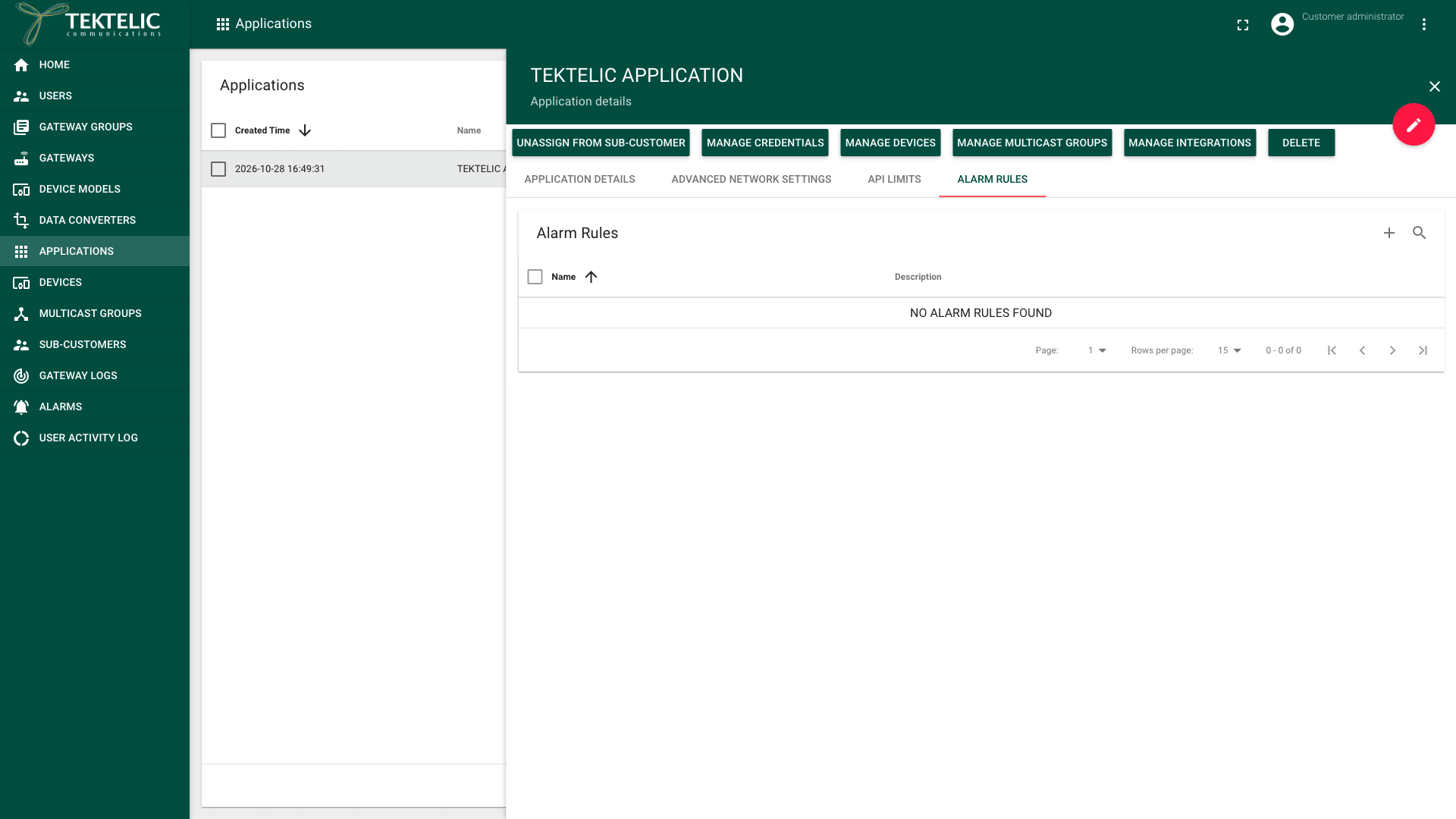
Select your application in the list. The Application details panel opens.
-
Select the Alarm Rules tab. The tab isn't shown in edit mode: exit edit mode first if you're in it.
-
Select Add Alarm Rule (the + icon). The Add Alarm Rule dialog opens. To add notifications to an existing rule, select its edit icon (the pencil) instead.
-
Enter a Name. The name is required. Description is optional.
-
Select ADD ALARM TRIGGER. A trigger panel appears with Type set to Device is offline.
-
In Type, select the condition you want to be notified about. Add the matching trigger for the end of the condition too, for example Device is online. You then know when the problem starts and when it ends.
For the full list of triggers, see Configure Application Alarm Rules.
Step 2. Add an email notification
We recommend an email notification in every rule: it has a subject, room for the full event description, and Cc and Bcc recipients.
-
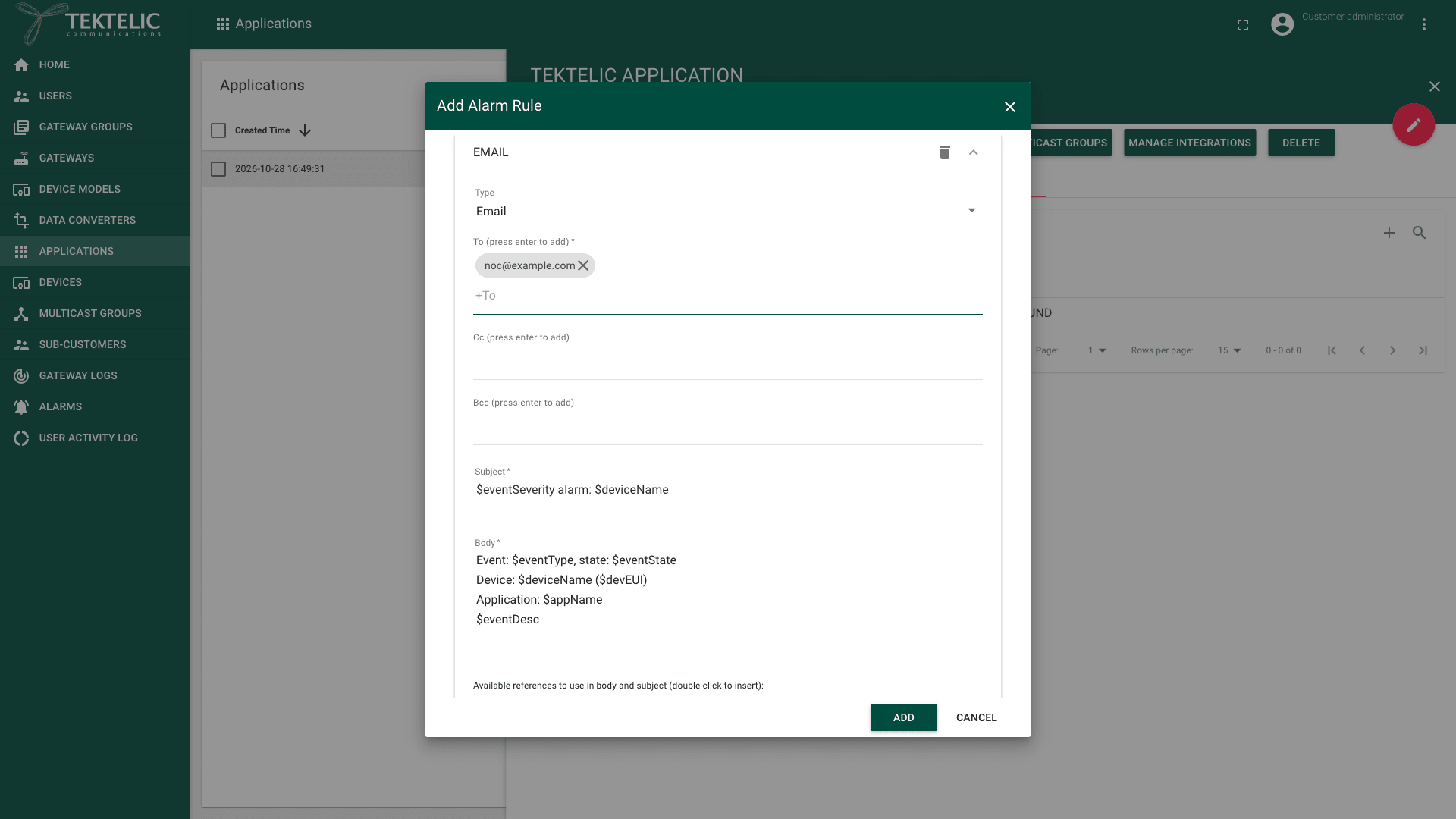
Select ADD NOTIFICATION. A notification panel appears with Type set to Email.
-
In To (press enter to add), enter a recipient's email address and press Enter. Repeat for each recipient. At least one recipient is required.
-
Optional: add recipients in Cc (press enter to add) and Bcc (press enter to add) in the same way.
-
Enter a Subject. The subject is required.
-
Enter a Body. The body is required.
-
To add a reference, place the cursor in the subject or the body. Then double-click the reference under Available references to use in body and subject (double click to insert):. KONA Core replaces each reference with the event's value when it sends the email.
Step 3. Optional: add an SMS notification
Use SMS for the triggers that need action now, for example Integration is disconnected. Keep the body short.
-
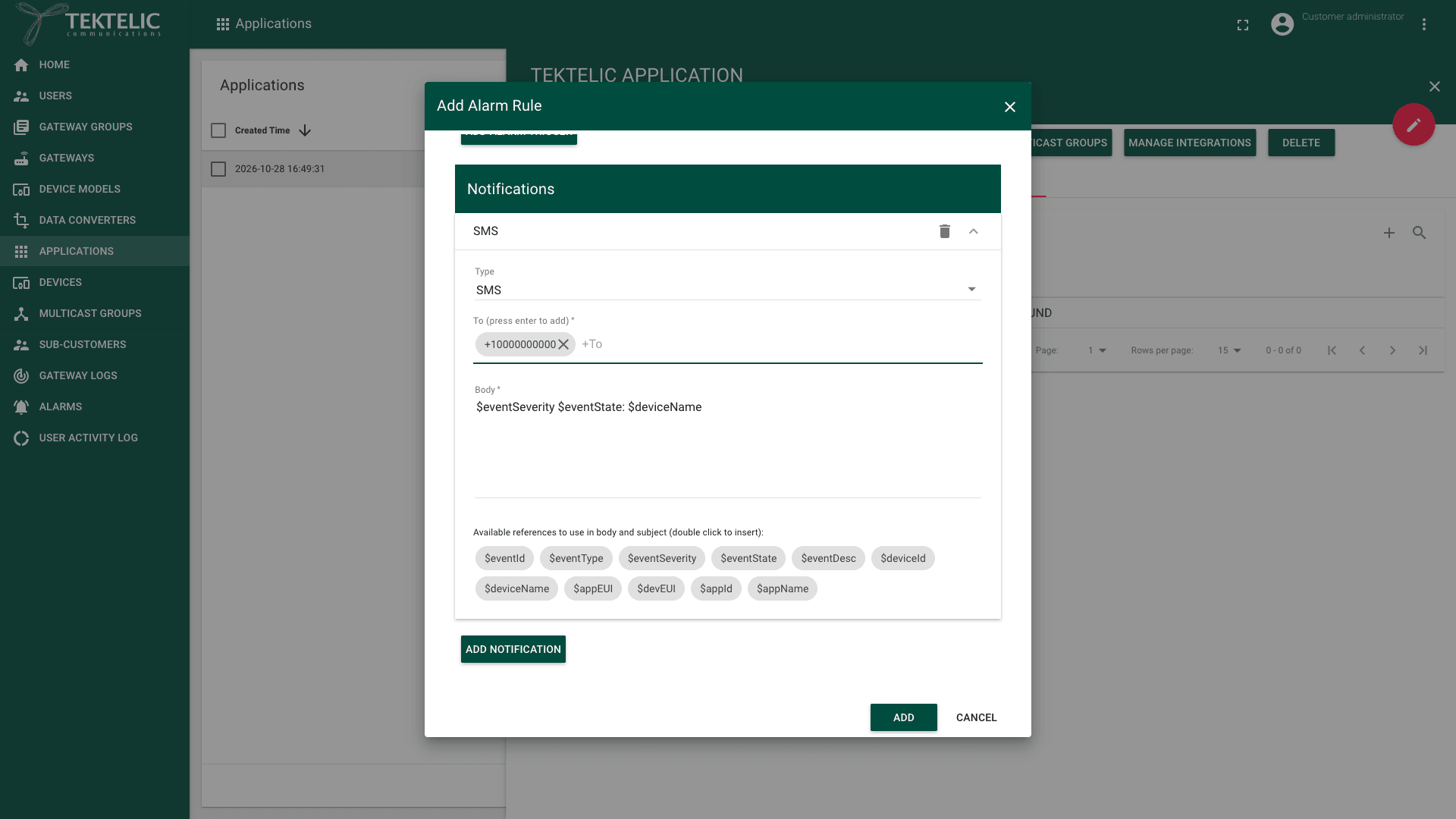
Select ADD NOTIFICATION.
-
In Type, select SMS.
-
In To (press enter to add), enter a phone number and press Enter. Repeat for each recipient. At least one number is required. confirm the phone number format, for example whether it needs the country code with a leading +.
-
Enter a Body. The body is required. You can use the same references as in an email.
Step 4. Save the rule
- Check that the rule has at least one trigger and one notification, and that every required field is filled in. ADD stays unavailable while a required field is empty. confirm whether ADD also needs a notification. On the live NS, it stayed unavailable for a rule with a name and two triggers but no notification.
- Select ADD. The rule appears on the Alarm Rules tab. For an existing rule, select SAVE.
A rule can have several notifications, also of different types. Add one notification per channel, and list all recipients of that channel in it.
References
The references you can use depend on the triggers in the rule. These references are always available:
| Reference | Value |
|---|---|
$eventId | The ID of the event. |
$eventType | The event type. |
$eventSeverity | The severity: Critical, Major or Minor. |
$eventState | The state: Raised or Clear. |
$eventDesc | The event description. |
Each trigger adds the references of its entity:
| Triggers on | References |
|---|---|
| Devices, for example Device is offline | $deviceId, $deviceName, $appEUI, $devEUI, $appId, $appName |
| Integrations, for example Integration is disconnected | $integrationId, $integrationName, $integrationType, $appId, $appName |
| Data converters, for example Decoder is banned | $converterId, $converterName |
| Gateways, in a gateway group rule | $gatewayId, $gatewayName, $gatewayMAC, $gatewayDesc, $gatewayModel, $gatewayBand, $gatewayCustomer, $groupId, $groupName, $groupDesc |
If a rule mixes triggers on different entities, only the references they share are offered. For example, a rule with a device trigger and an integration trigger offers $appId and $appName, but not $deviceName. To use $devEUI in a message, put only device triggers in that rule. confirm the exact text KONA Core puts in place of $eventType, $eventSeverity and $eventState, for example MAJOR or Major.
Check the result
- On the Alarm Rules tab, check that the rule appears in the list.
- Select the rule. Check that it shows your triggers, your notifications and all recipients.
Test a notification
Use a test device or test integration to cause a trigger on purpose. For example, put Device is offline and Device is online in the rule. Switch off a test device until KONA Core raises the alarm, then switch it on again. You get one notification for the raise and one for the clear. confirm the typical delay between the alarm and the notification.
When the alarm is raised, it also appears on the Alarms page. See Work with Alarms. Ask the recipients to confirm that the message arrived, and that the references show values, not the reference names.
Troubleshooting
| Symptom | Likely cause | What to do |
|---|---|---|
| ADD stays unavailable. | A required field is empty, such as To (press enter to add), Subject or Body, or the rule has no notification yet. | Fill in the field under the red message. In the recipient fields, press Enter after each address, so it shows as a chip. Add at least one trigger and one notification. |
| The alarm appears on the Alarms page, but no email arrives. | The rule has no trigger for this condition. Or the email is in a spam folder. | Check the rule's triggers. Ask the recipient to check their spam folder. If the message still doesn't arrive, contact your Provider. |
The message shows a reference name, such as $deviceName, instead of a value. | The reference isn't in the list of available references for this rule, for example because the rule mixes device and integration triggers. confirm what KONA Core sends for a reference that isn't available. | Insert only references from the list in the dialog. If you need device references, put only device triggers in the rule. |
Still stuck? A Sub-Customer contacts their Customer, a Customer contacts their Provider, and a Provider contacts TEKTELIC Support. Send the application name, the rule name, the event from the Alarms page, the time in UTC and a screenshot of the rule.
Related
- Work with Alarms
- Configure Application Alarm Rules
- Configure Gateway Group Alarm Rules
- Events over MQTT
- Alarms & Events Reference
- Events & Alarms
- API Reference: to set rules from your own system, use Save application alarm rules. Get alarm rule notification references lists the references.