Configure Gateway Group Alarm Rules
Overview
Get notified when a gateway in a gateway group goes offline, loses its MQTT connection or reports an alarm, and when the problem ends. You add an alarm rule to the gateway group in TEKTELIC KONA Core Network Server. The rule names the conditions to watch and where the notification goes: email, SMS or MQTT.
KONA Core records alarms without any rule. A rule only sends notifications about them. For how alarms work, see Events & Alarms. For device and integration alarms, see Configure Application Alarm Rules.
Before you start
- Role: Provider administrator or Customer administrator. A Provider user and a Customer user open alarm rules read-only and don't see Add Alarm Rule. Sub-Customer roles have no gateway pages. See Users, Roles & Permissions.
- Gateway group: the group with the KONA gateways you want to watch. See Manage Gateway Groups.
- Recipients: the email addresses or phone numbers that get the notification. For notification options, see Alarm Notifications.
- For an MQTT notification: an MQTT broker that accepts connections from KONA Core. See Events over MQTT.
Steps
Open the gateway group's alarm rules
-
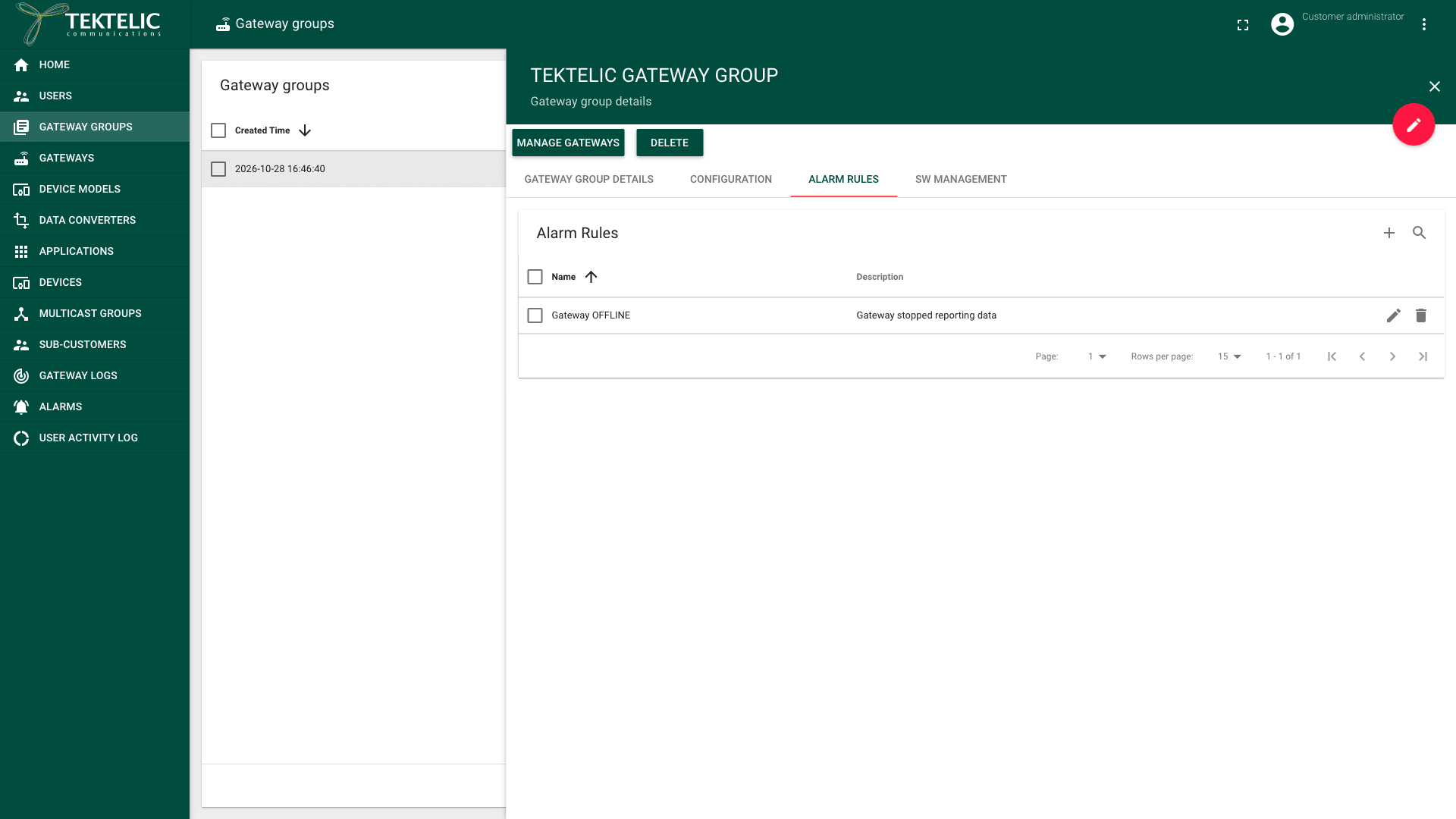
In the side menu, select Gateway groups.
-
Select your gateway group in the list. The Gateway group details panel opens.
-
Select the Alarm Rules tab. It lists the group's rules, or shows No Alarm Rules found. The tab isn't shown in edit mode: if you selected Edit mode (the pencil icon), leave it first.
Add the rule and its triggers
- Select Add Alarm Rule (the + icon). The Add Alarm Rule dialog opens.
- Enter a Name, for example
Gateway offline. The name is required. - Optional: enter a Description.
- Select ADD ALARM TRIGGER. A trigger appears with the Type Gateway stopped reporting data.
- In Type, select the condition to watch. For the list, see Triggers for gateway groups.
- Select ADD ALARM TRIGGER again and select the paired trigger, for example Gateway started reporting data. We recommend adding both triggers of a pair: you then know when a problem starts and when it ends.
Each trigger of the rule sends the rule's notifications. confirm that a rule notifies on any one of its triggers. To remove a trigger, select its delete icon (the trash can).
Triggers for gateway groups
A rule of a gateway group watches all gateways of that group. Most triggers come in pairs:
| Raise trigger | Clear trigger | What it watches |
|---|---|---|
| Gateway stopped reporting data | Gateway started reporting data | The gateway stops sending data to KONA Core. |
| Gateway lost MQTT connection | Gateway established MQTT connection | The gateway's MQTT connection to KONA Core. |
| Gateway alarm | None: filter by State | Alarms that the gateway reports, for example a high temperature. |
| Gateway fault | None: filter by State | Faults that the gateway reports. |
- Inactivity conditions are raised when the gateway's Inactivity timeout (sec) expires without data. Both this field and Offline timeout (sec) default to 300 seconds (5 minutes). confirm the exact mapping of gateway timeout fields to notification triggers.
For a KONA gateway connected over MQTT, we recommend one rule with Gateway lost MQTT connection and Gateway established MQTT connection, and an email notification. While the connection is lost, the gateway's uplinks don't reach KONA Core. confirm the severity of GATEWAY_MQTT_CONNECTION_LOST.
For the event names and what to do, see Alarms & Events Reference.
Filter gateway alarms and faults by severity
A Gateway alarm or Gateway fault trigger has three more fields. They choose which of the gateway's alarms send a notification. They don't change the severity of the alarm itself: each alarm comes with its own severity.
-
In Type, select Gateway alarm or Gateway fault.
-
In Severity, select one or more of Critical, Major and Minor. The field is required. We recommend Critical and Major for people on call.
-
In State, select Raised, Clear or both. The field is required. Select both to know when the alarm starts and when it ends.
-
Leave Description set to
*to match every description, or enter text that must occur in the event description.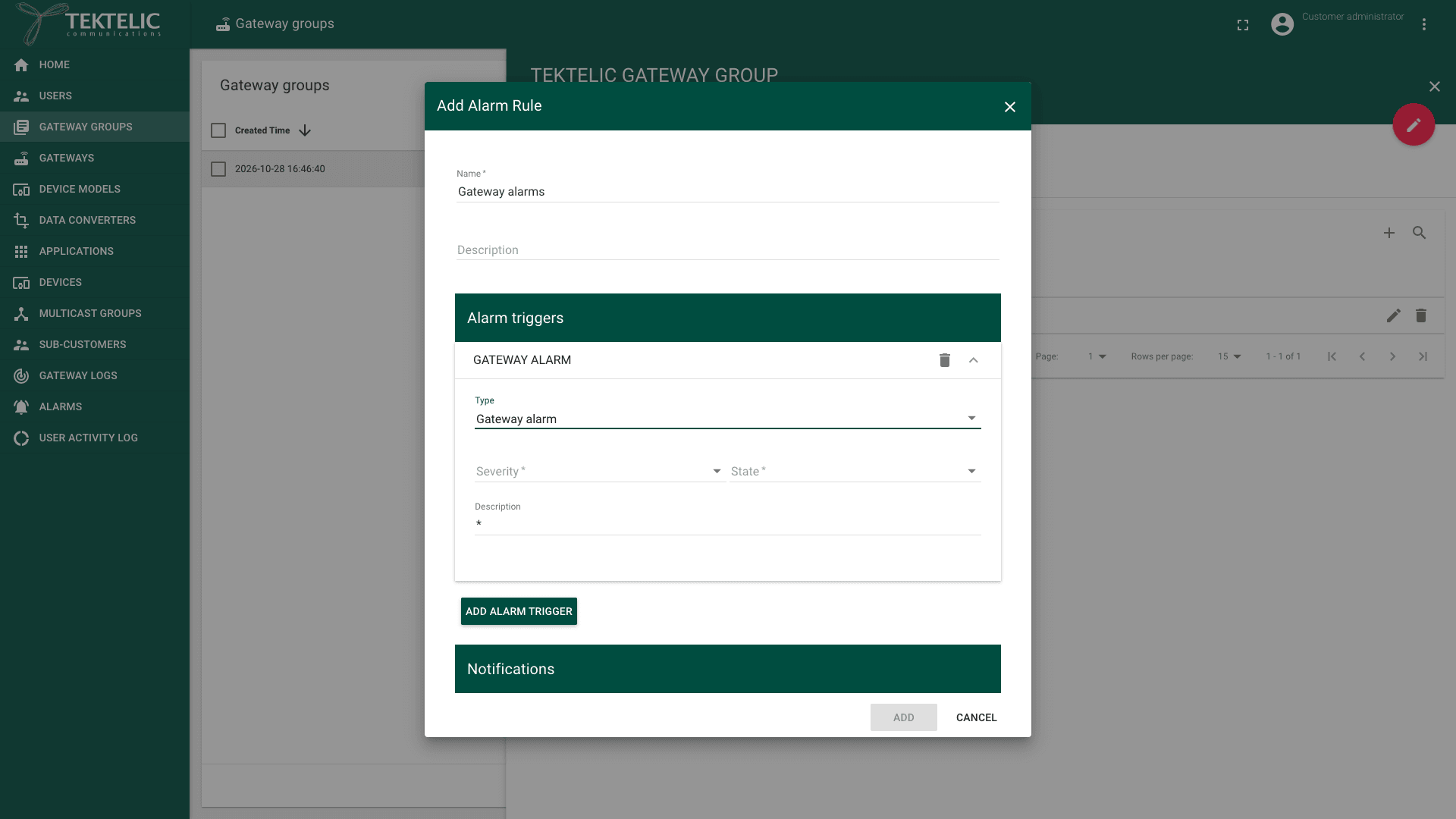
The other gateway triggers have no severity field.
Add a notification
- Select ADD NOTIFICATION. A notification appears with the Type Email.
- In Type, keep Email, or select SMS or MQTT. We recommend Email for people on call, and MQTT to send alarms to your own system.
- Fill in the recipients and the message. For the email and SMS fields, see Alarm Notifications. For the MQTT fields, see Events over MQTT.
A gateway group rule adds gateway and group references to the message, such as $gatewayName and $groupName. For the full list, see References. A good subject names the problem, its state and the gateway, for example $eventSeverity: $eventDesc ($eventState) on $gatewayName.
Save the rule
- Select ADD. The button is available once every required field is filled in. The dialog closes, and the rule appears on the Alarm Rules tab. KONA Core saves the rule at once: there is no separate save step.
To change a rule, select its edit icon (the pencil). The Edit Alarm Rule dialog opens with the same fields. Select SAVE to keep your changes.
To remove a rule, select its delete icon (the trash can). KONA Core asks and warns that the rule will be removed.
You can't restore a deleted alarm rule. Its triggers and notifications are removed with it.
Delete Alarm Rule confirmation. Not taken: the live NS is production, and the delete action isn't opened.
Check the result
Test the rule with a KONA gateway that isn't serving devices in production:
- Make sure the rule has Gateway lost MQTT connection and Gateway established MQTT connection, and an email notification to yourself.
- Disconnect the test gateway from the internet, for example by unplugging its Ethernet cable.
- Wait until KONA Core detects the lost connection. confirm the typical time until KONA Core raises Gateway lost MQTT connection.
- In the side menu, select Alarms. A row with Entity Gateway, your gateway in Label and the state Raised appears. You also see it on the gateway's Events tab. See Work with Alarms and Monitor Gateways.
- Check your inbox for the email. The references show the event's and the gateway's values.
- Reconnect the gateway. The gateway shows Online again, the alarm changes to Clear and a second email arrives.
KONA Core has no button to send a test notification.
Troubleshooting
| Symptom | Likely cause | What to do |
|---|---|---|
| ADD stays unavailable. | A required field is empty: Name, Severity or State of a gateway alarm or fault trigger, To (press enter to add), Subject, Body or a broker field of an MQTT notification. | Fill in the field under the red message. For To, press Enter after each address. |
| The alarm appears on the Alarms page, but no notification arrives. | The trigger isn't in the rule, or the Severity or State filter excludes the alarm. | Check the triggers and filters of the rule and the address. Then see Alarm Notifications. |
| The Alarm Rules tab or Add Alarm Rule isn't shown. | The panel is in edit mode, or your role is a user role. | Leave edit mode. If Add Alarm Rule is still missing, ask your administrator for an administrator role. |
Still stuck? A Customer contacts their Provider, and a Provider contacts TEKTELIC Support. Send the gateway group name, the rule name, the GW-ID, the time in UTC and a screenshot of the rule.
Related
- Manage Gateway Groups
- Alarm Notifications
- Events & Alarms
- Work with Alarms
- Alarms & Events Reference
- Events over MQTT
- Monitor Gateways
- Configure Application Alarm Rules
- To set a group's rules from your own system, use Save gateway group alarm rules. The API also has Save gateway alarm rules for a single gateway.